

How to Show a Discount Coupon Popup in WordPress
Hand out a discount code after signup or straight away, with one-click copy. For WordPress and WooCommerce.
 Wahiduz Zaman
Oct 19, 2026
3 min read
Free Pro
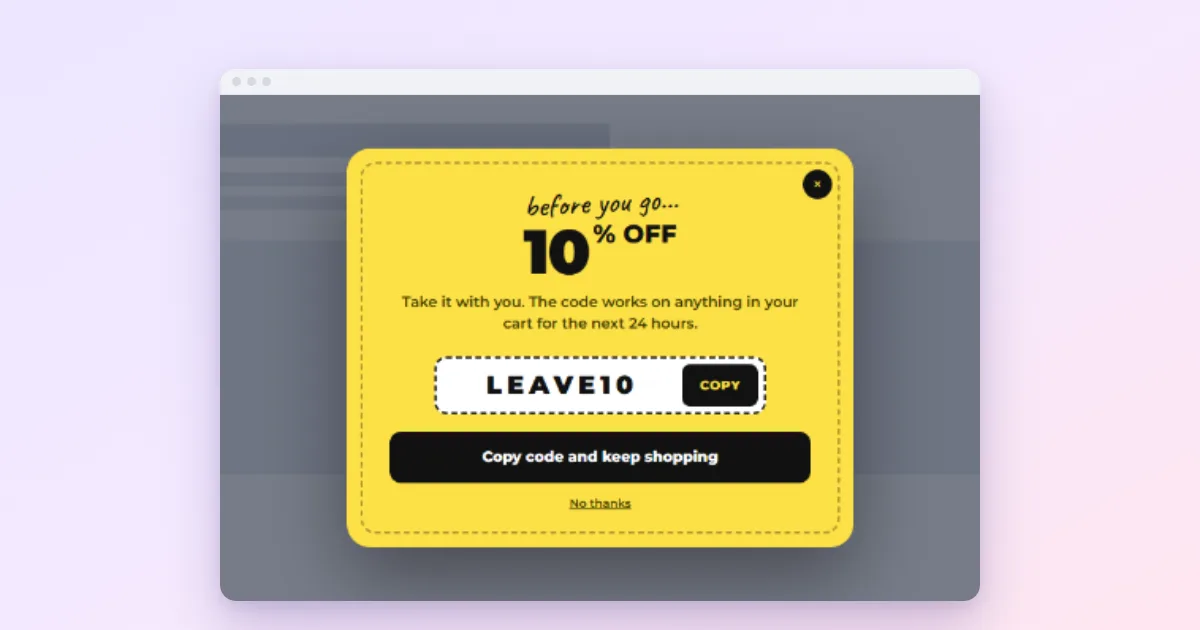
Create the discount in your shop first, then show the code in a popup with a copy button. There are two ways to do it in WordPress with Wing Popup:
- In return for an email (free): a signup popup whose follow-up message reveals the code.
- Handed out freely (Pro): the Coupon popup type, a code in a box with one-click copy.
A discount code in a popup is one of the most effective offers a shop can make, and one of the easiest to get wrong. Show it to everyone, all the time, and it becomes the new full price. Shown to the right people at the right moment, it brings first orders and grows your email list at the same time. Both setups are below, followed by the rules that keep discounts profitable.
Step 0: Create the coupon in your shop
A popup only displays a code; your shop is what applies the discount. Before anything else, create the coupon:
- WooCommerce: Marketing → Coupons → Add coupon.
- Easy Digital Downloads: Downloads → Discounts.
Set the limits there: an expiry date, one use per customer, a minimum spend, and which products it covers. Then use exactly the same code in the popup.
Way 1: Reveal the code after signup (free)
The classic welcome offer: “Join our list and get 10% off your first order.” The visitor gets the code, you get a subscriber. It is the most common popup a shop runs, which is why we made the code reveal and its copy button part of the free plugin rather than keeping them for Pro.
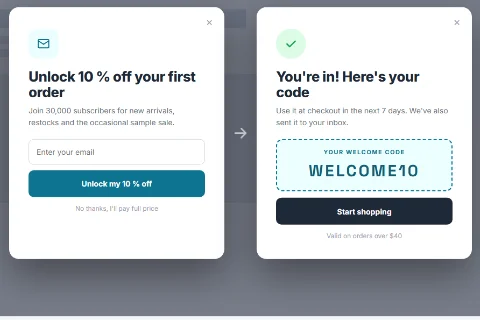
- Build a subscribe form under Wing Popup → Forms and connect your email list (Mailchimp is free). See Mailchimp popup forms.
- Create a popup of the Form type and select the form.
- On the Popup Content tab set After Submitting to Show a follow-up message.
- Write the Follow-up Message (“You’re in! Here’s your code.”).
- Enter the code in Reveal a Coupon Code, and a Note Under the Code such as “Valid for 7 days at checkout”.
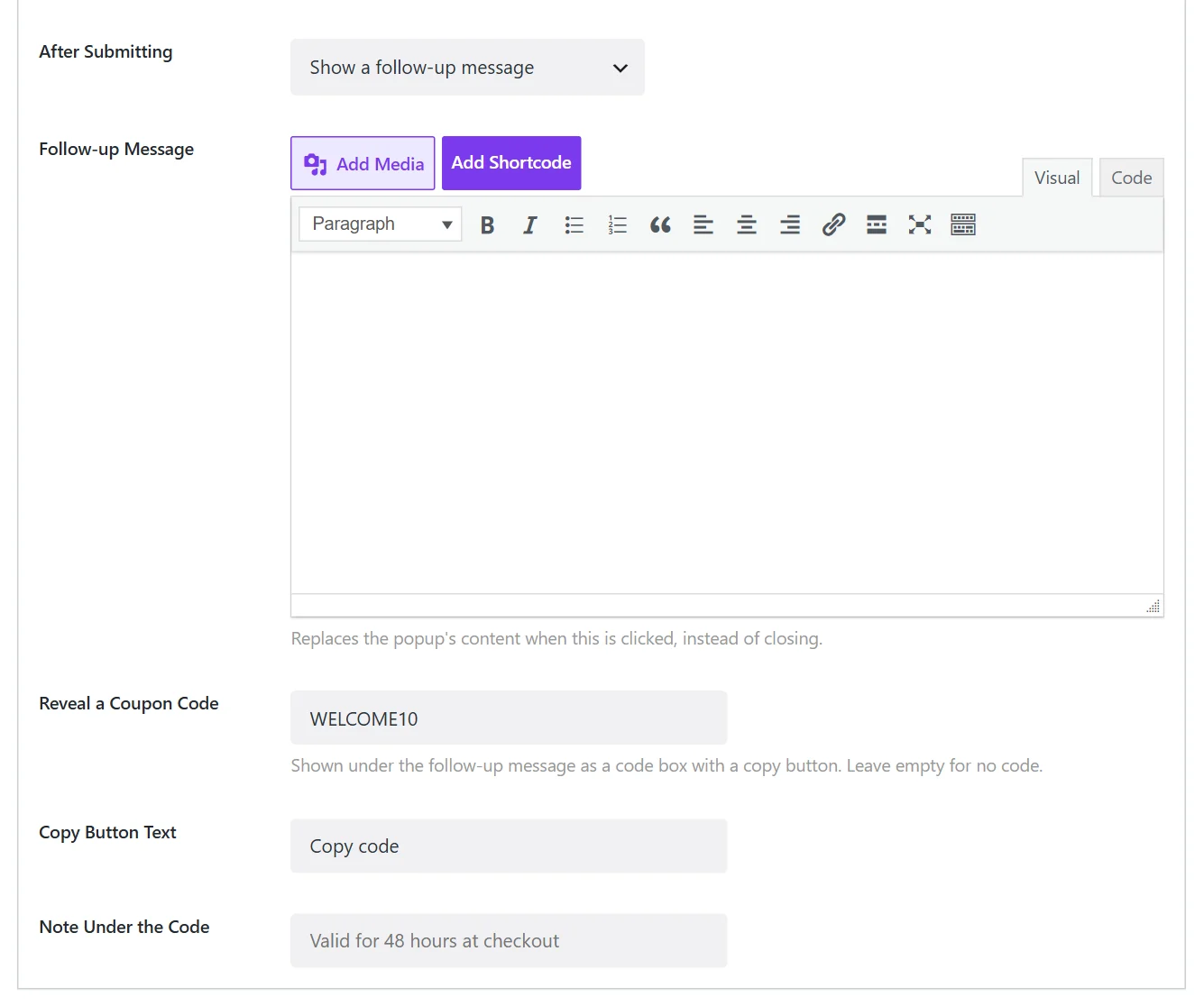
One honest caveat: the follow-up is part of the page from the start and only hidden until the signup, so someone reading the page source could find the code. For a welcome discount that rarely matters; do not use it for codes that must stay secret.
Way 2: The Coupon popup type (Pro)
When the code is the whole message, for a sale, a holiday or an exit offer, Wing Popup Pro’s Coupon / Discount Code type puts it front and centre.
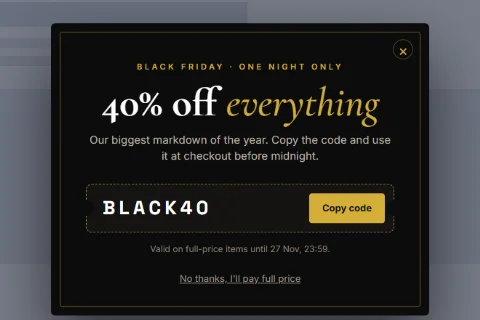
- Set Popup Type to Coupon / Discount Code.
- Write the Heading and Content that explain the offer.
- Enter the Coupon Code, the Copy Button Label (“Copy code”) and the Copied Confirmation (“Copied!”).
- Optionally add a Call To Action Button to the shop.
For a lighter touch, set Display Mode to Floating Bar: a thin strip with the code that stays out of the way while people browse.
Who should see the code
- New visitors only: combine with Require Minimum Page Visits (free) or Pro’s visitor-history targeting. Regular customers do not need a first-order discount.
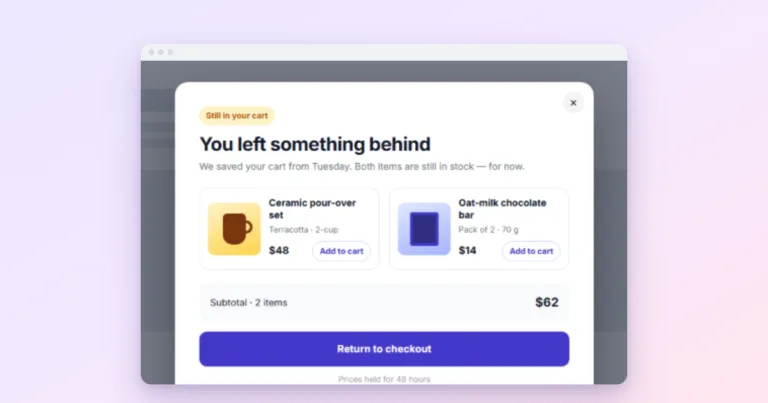
- Shoppers about to leave: Pro’s exit intent or Cart Abandonment trigger. See reducing cart abandonment.
- Not on checkout: exclude the cart and checkout pages, where a new code can make people abandon to go and find a better one.
Four rules that keep discounts profitable
- Always set an expiry. A code with no end date ends up on coupon sites.
- One use per customer. Your shop enforces it; the popup cannot.
- Show it once. Use Once Ever for welcome offers and long cooldowns for exit offers.
- Measure. If discount use grows faster than orders, the code is going to people who would have paid full price.
Make it a game, sometimes
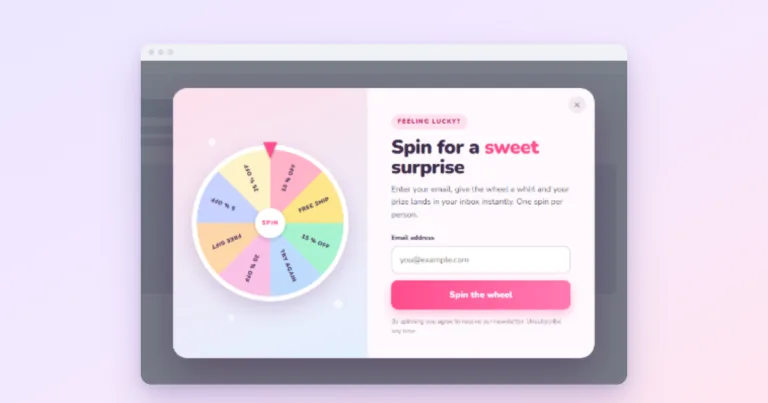
For a holiday campaign, Pro’s Spin to Win and Pick a Gift hand out codes as prizes. See spin-to-win popups.
Frequently asked questions
Can each visitor get a unique code?
Not out of the box: the popup shows one code. Use your shop’s limits (one use per customer, expiry) to keep a shared code under control.
Where should the code go after copying?
Into the coupon field at checkout. A note under the code (“Paste it at checkout, valid 7 days”) avoids confusion.