

Countdown Timer Popups: Urgency Without Fake Scarcity
Countdowns for real deadlines: sales, launches, webinars and delivery cut-offs, and the traps to avoid.
 Wahiduz Zaman
Oct 21, 2026
3 min read
Pro
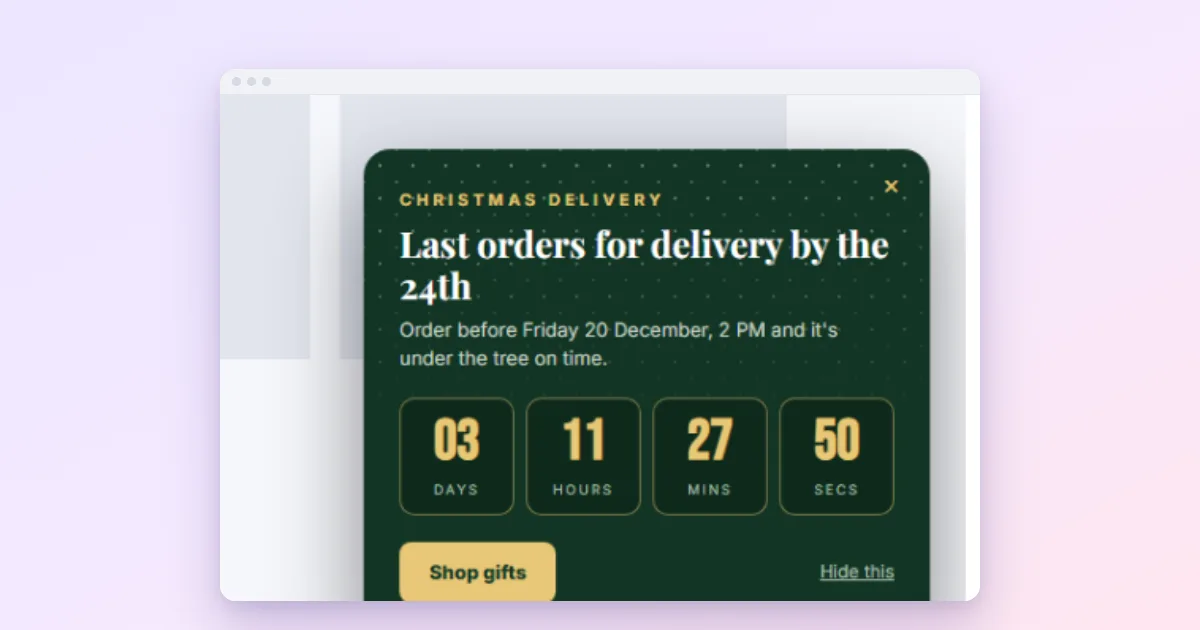
Use a countdown popup only for a deadline that is real: a sale’s last day, a delivery cut-off, a launch, a webinar. Two kinds work: one fixed end date for everybody, or a short personal timer that starts on the visitor’s first view and does not reset. In WordPress, Wing Popup Pro’s Countdown Timer type does both.
A ticking clock is one of the strongest nudges in marketing, which is exactly why it is so often abused. Timers that reset on every visit, “only 2 left” banners that never change, and deadlines that move once they pass all teach visitors to ignore countdowns, and in some countries fake urgency can get a shop into legal trouble. Used honestly, a countdown is a service: it tells people when an offer really ends so they do not miss it.
When a countdown is the right tool
- A sale with a real end: Black Friday, a seasonal sale, a launch week.
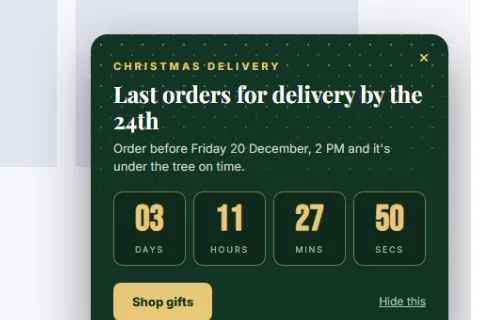
- A delivery cut-off: “Order by 14 December for Christmas delivery”.
- An event: a webinar starting, enrolment closing, doors opening.
- A personal welcome offer: “Your 10% code is valid for 30 minutes”, if the code really expires.
Setting up a fixed deadline
- Go to Wing Popup → Popups and insert a countdown design from the Popup Library, or set a popup’s Popup Type to Countdown Timer.
- Write the Heading, Content and a Call To Action Button to the offer.
- Choose the fixed-date deadline and set Ends At, in your site’s timezone. Visitors everywhere see the same moment.
- Optionally set Starts to On a date and time: the popup stays hidden until Starts At, then counts down. Schedule the whole campaign ahead of time.
Setting up a personal timer
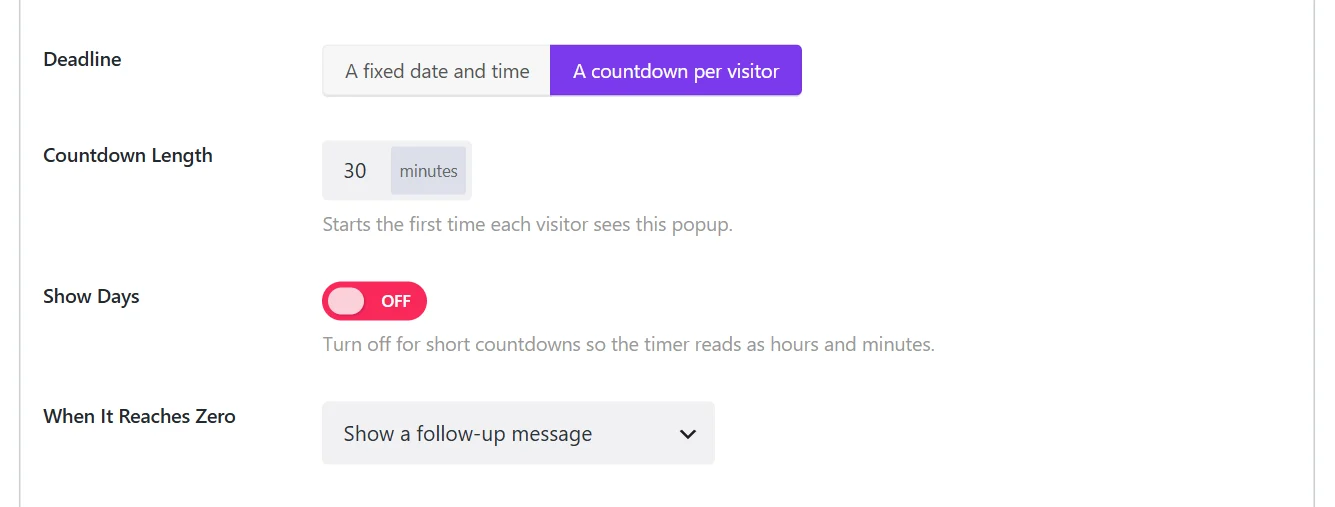
Choose the per-visitor deadline and set Countdown Length in minutes. The timer starts the first time a visitor sees the popup and keeps running across pages and visits; reloading the page does not restart it. We would not build it any other way: a timer that restarts on reload is the textbook fake countdown. Pair it with a code that really expires in your shop.
Decide what happens at zero
When It Reaches Zero offers:
- Show a follow-up message: “This offer has ended. Join the list to hear about the next one.” It can even reveal a consolation code.
- Just close the popup: and it will not open again, so nobody sees an offer that is already over.
- Send them to a URL, or fire a custom event for your own scripts.
For sales, “Just close the popup” is the cleanest: the moment the sale ends, the popup is gone.
Design tips
- Turn off Show Days for short countdowns, so the timer reads in hours, minutes and seconds.
- Use a bar. A countdown in a floating bar stays visible while people browse, without covering products.
- Say what ends. “20% off ends in 03:12:45” beats a bare clock.
- Match the shop. If the timer promotes a discount, the coupon in WooCommerce should expire at the same moment.
The fake-urgency traps
- Timers that restart on reload. Visitors notice, and stop trusting every other number on your site.
- Deadlines that move. Extending a sale “by popular demand” once is fine; doing it every time is a pattern.
- Countdowns to nothing. A timer with no offer behind it is decoration with a bad reputation.
- Stacking. A countdown bar, a countdown popup and a countdown on the product page at once is pressure, not information.
A note on the law: in the UK, the Competition and Markets Authority has said plainly that countdowns are misleading when “the sale price rolls on beyond the advertised end point” (CMA, 2023), and it has investigated retailers over exactly that. EU consumer law treats false time limits the same way. If the deadline is real, you are fine; if it is not, do not show it.
Frequently asked questions
Which timezone does the deadline use?
Your site’s timezone, set in WordPress under Settings → General. Every visitor counts down to the same moment, wherever they are.
Can I schedule the whole sale in advance?
Yes. Set a start and an end: the popup stays hidden until the start, counts down to the end, and with “Just close the popup” disappears afterwards.
Does the personal timer reset if the visitor comes back tomorrow?
No. It is remembered in the visitor’s browser and keeps running. A new device or a private window starts a new timer, which is why the code should expire in your shop as well.