How to Create a Popup in WordPress (Free, No Code)
Pick a ready-made design, change the words, choose where and when it shows. The whole process, step by step, with the free plugin.
 WingDevs
Oct 16, 2026
7 min read
Free
WingDevs
Oct 16, 2026
7 min read
Free 
Install a popup plugin, start from a ready-made design, change the words, choose when and where it opens, and switch it on. With the free Wing Popup plugin that is five steps and no code:
- Install Wing Popup from WordPress.org.
- Insert a design from the Popup Library.
- Edit the headline, text, image and form.
- Pick when it opens: after a delay, or on a click.
- Pick where and how often it shows, then switch it on.
Popups have a bad name because so many of them are badly made: they cover the page the second it loads, ask for an email before you have read a word, and come back on every page. A good popup is the opposite. It shows up at a sensible moment, offers something the visitor actually wants, and leaves them alone once they have answered.
We make Wing Popup, so the screenshots below are of the plugin as it ships today, and the advice comes from building and testing it. Everything here works in the free version; where Pro would help, we say so.
Before you start: decide what the popup is for
Every popup should do one job. Write it down in one sentence before you open WordPress, because it decides everything else: the offer, the trigger and the pages.
- Grow an email list: “Get our weekly recipes” or “10% off your first order for subscribing”.
- Announce something: a sale, a new product, holiday opening hours, a webinar.
- Answer a question: a contact form, a booking request, a quote form that opens from a button.
- Collect a decision: an age confirmation, a cookie choice, a short survey.
If you cannot say what the visitor gets in one line, the popup is not ready yet. “Subscribe to our newsletter” is a request; “One recipe every Friday, ready in 20 minutes” is an offer.
Step 1: Install a popup plugin
WordPress has no popup feature of its own, so you need a plugin (or some code, which we cover in WordPress popup without a plugin). In your dashboard:
- Go to Plugins → Add New Plugin.
- Search for Wing Popup.
- Click Install Now, then Activate.
A new Wing Popup menu appears in the dashboard. The free plugin has no limit on the number of popups or sites, and it does not ask you to create an account anywhere: everything stays inside your WordPress.
Step 2: Start from a ready-made design
Designing a popup from a blank box is where most people lose an afternoon. Starting from a finished design is faster and usually looks better.
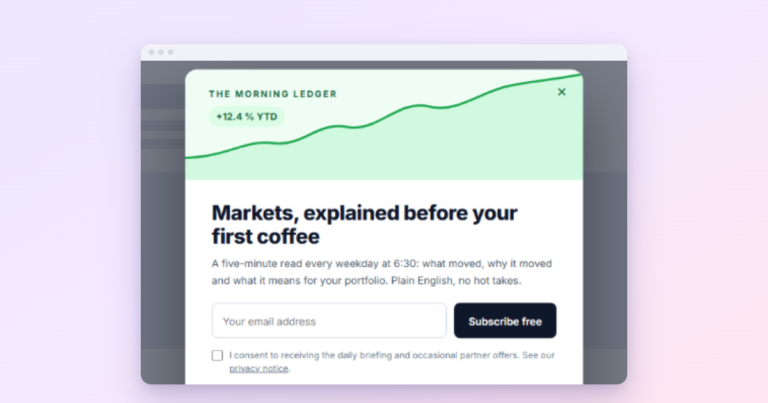
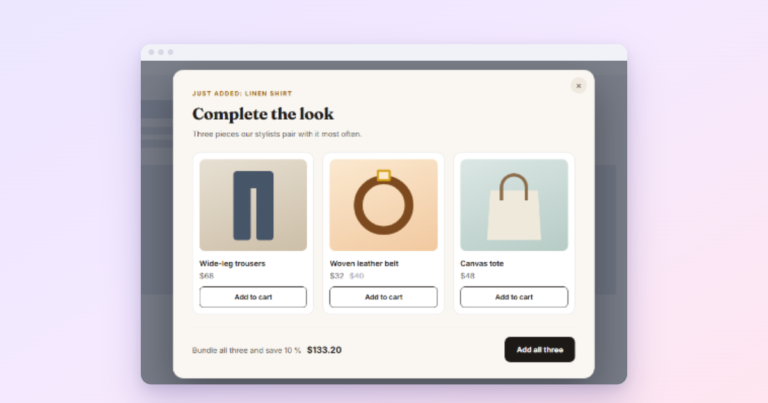
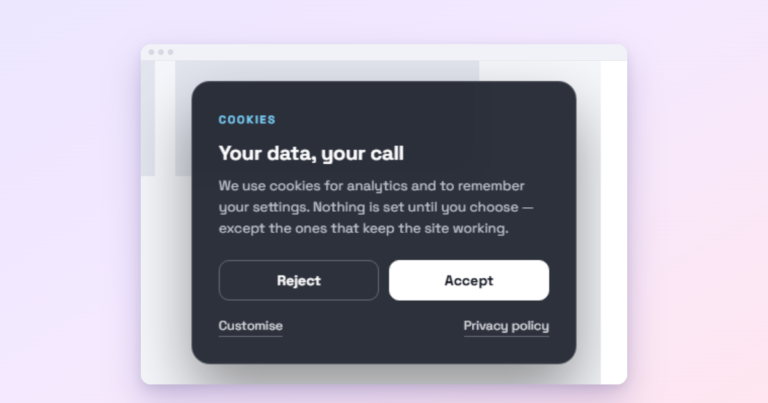
Go to Wing Popup → Popups and click Popup Library. You get a gallery of ready-made popups that you can filter by type (newsletter, coupon, announcement, contact form and so on), by category and by season. Each card shows the real design.
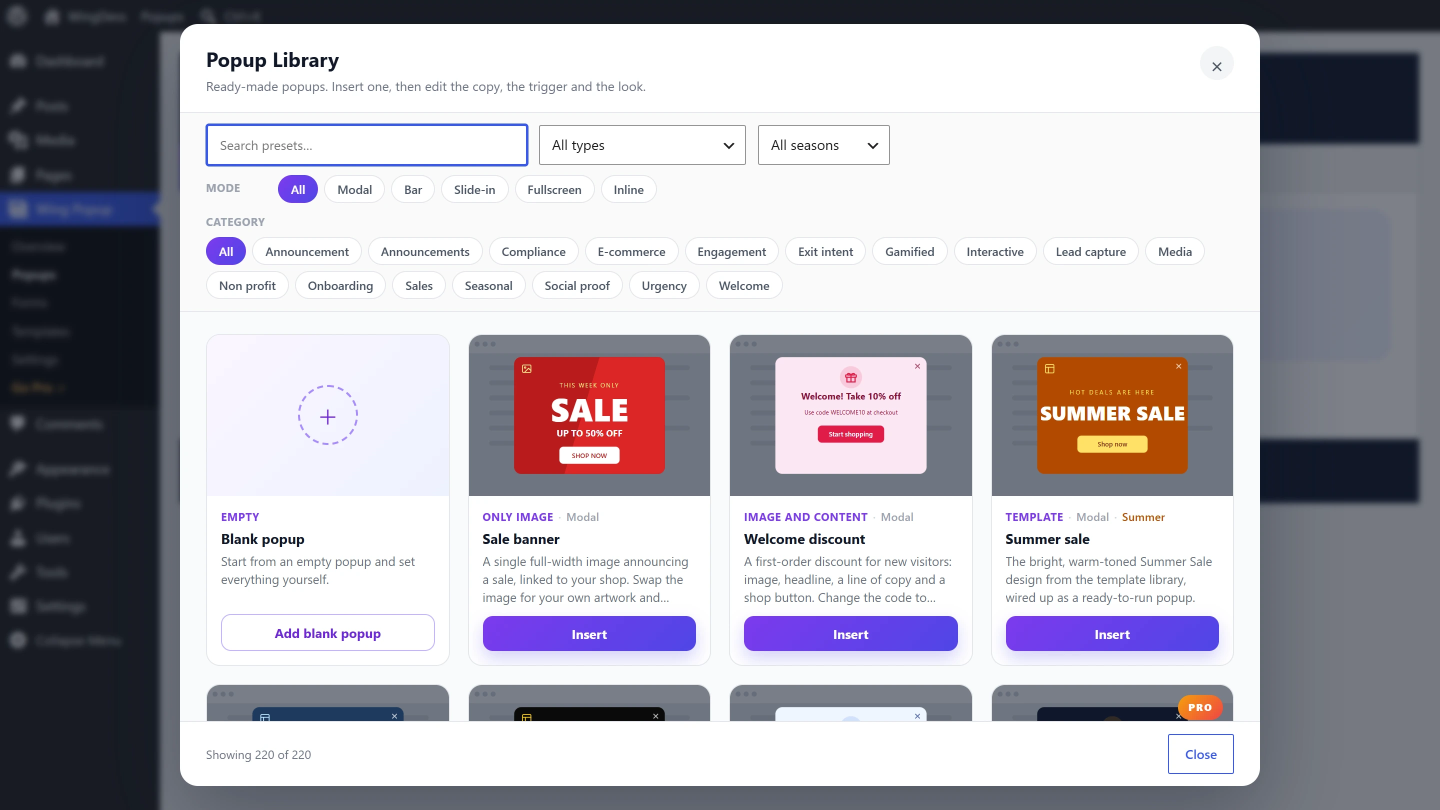
Click Insert on the one closest to your goal. Wing Popup copies it into your popups list and opens it for editing. It arrives switched off, and that is deliberate: a design still carrying our sample words should never reach your visitors by accident.
Tip: choose a design by its layout, not its colours or words. You will change the text anyway; what matters is whether it has the shape you need (an image beside the form, a single button, a full-screen offer).
Prefer to build from scratch? Click Add New Popup instead. You get the same editor with an empty popup.
Step 3: Write the words and choose the image
The editor has five tabs. The first, Popup Content, holds everything the visitor sees.
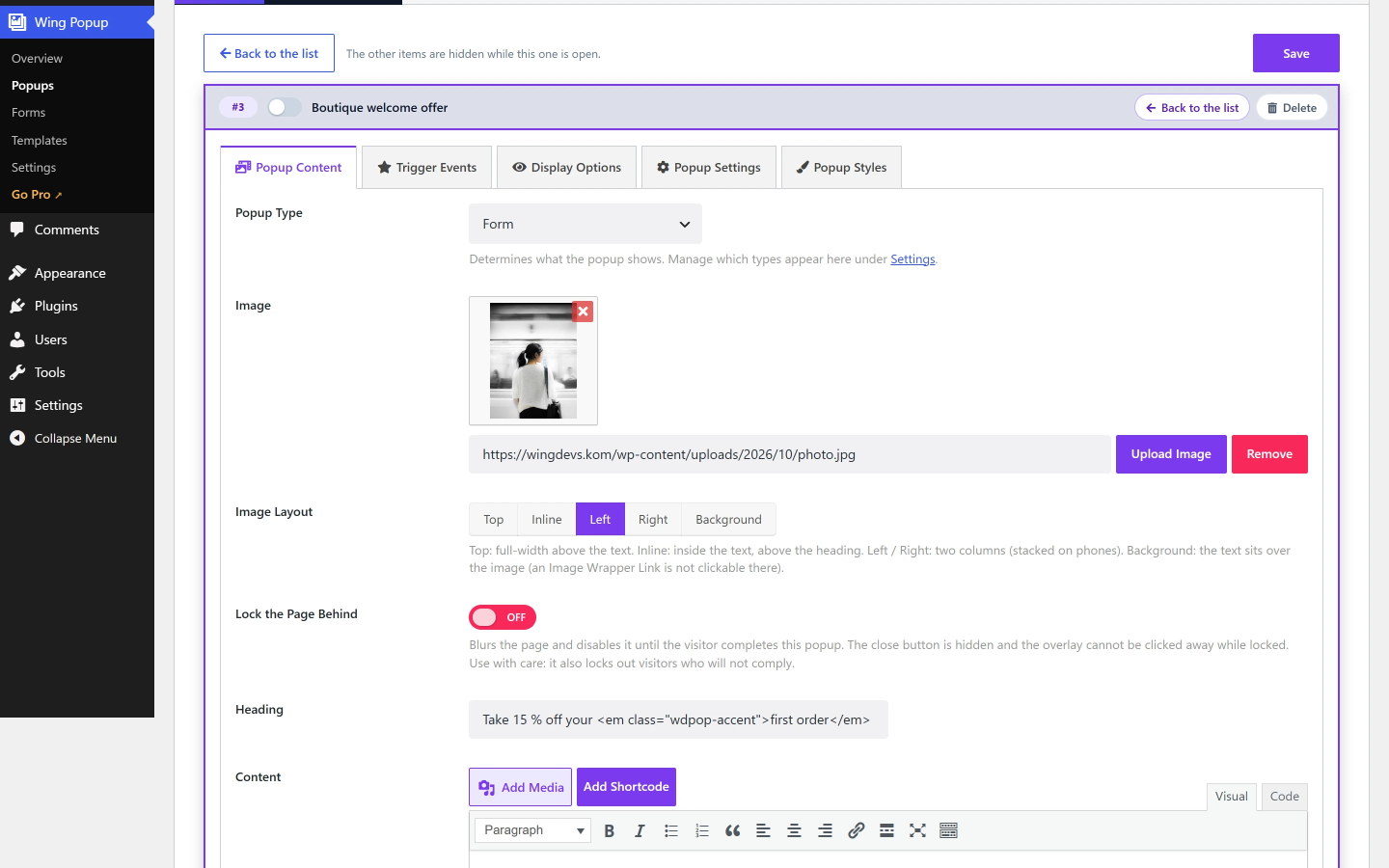
- Popup Type decides what the popup is: an image, an image with text, a form, a design made in the block editor, and more.
- Image and layout: put the image above the text, beside it (left or right), inside it, or behind it as a background. Side-by-side layouts stack automatically on small screens.
- Heading and content: keep the heading under ten words and lead with the benefit. One short paragraph is enough.
- Form: for a signup or contact popup, pick the form to show. Forms live under Wing Popup → Forms, where you can connect Mailchimp in the free version.
Write the button as the result, not the action: “Send me the recipes” beats “Submit”. Add a short line under the form if you need to reassure people (“One email a week. Unsubscribe anytime.”).
Step 4: Choose when the popup opens
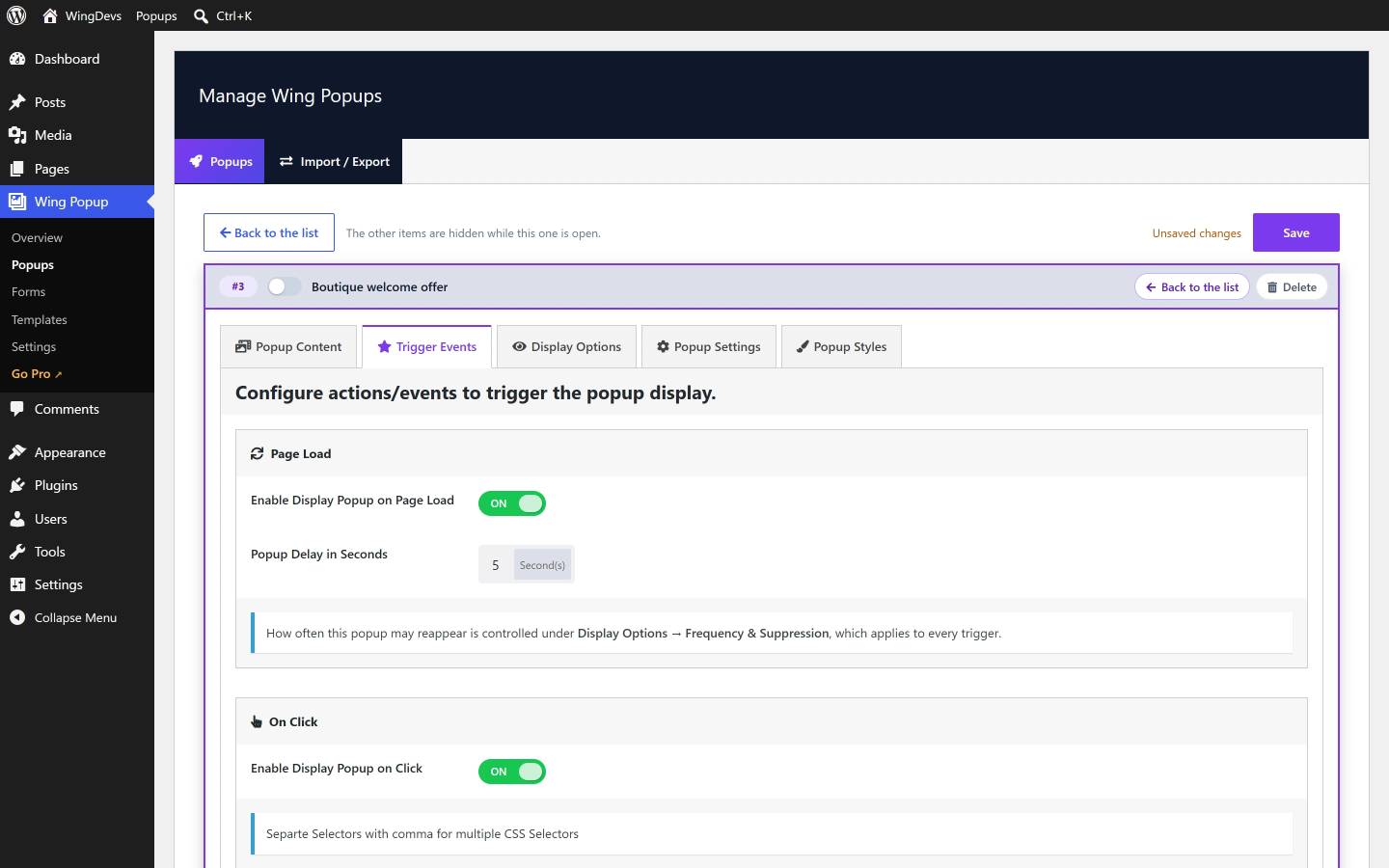
The Trigger Events tab decides the moment. The free version has the two triggers most popups need:
- Page load with a delay. Switch on Display Popup on Page Load and set Popup Delay in Seconds. The default is 3; for an email offer, 6 to 15 seconds usually works better, because the visitor has started reading.
- Click. Switch on Display Popup on Click and enter a CSS selector, for example
.open-offer. Then give any button, link or image on your site that class, and it opens the popup. This is the friendliest trigger there is: the visitor asked for it.
Wing Popup Pro adds exit intent (when the visitor is about to leave), scroll depth, hover, inactivity and shopping-cart triggers. Our guide to popup triggers explains when each one works best.
Step 5: Choose where and how often it shows
Open Display Options. Two settings here make the difference between a popup people tolerate and one they hate.
Where
Display the popup on the page is set to Everywhere by default. Switch it to Custom Selection to include or exclude specific pages, posts and archives. A recipe signup belongs on recipe posts, not on your contact page, and no popup belongs on the checkout.
How often
Under Frequency & Suppression, pick a Frequency Mode:
- Always: every time the trigger fires. Fine for a click popup, tiring for anything automatic.
- Cooldown: wait a set time before showing it again, for example 3 hours.
- Once per Session: once per visit.
- Once Ever: once per visitor, for good.
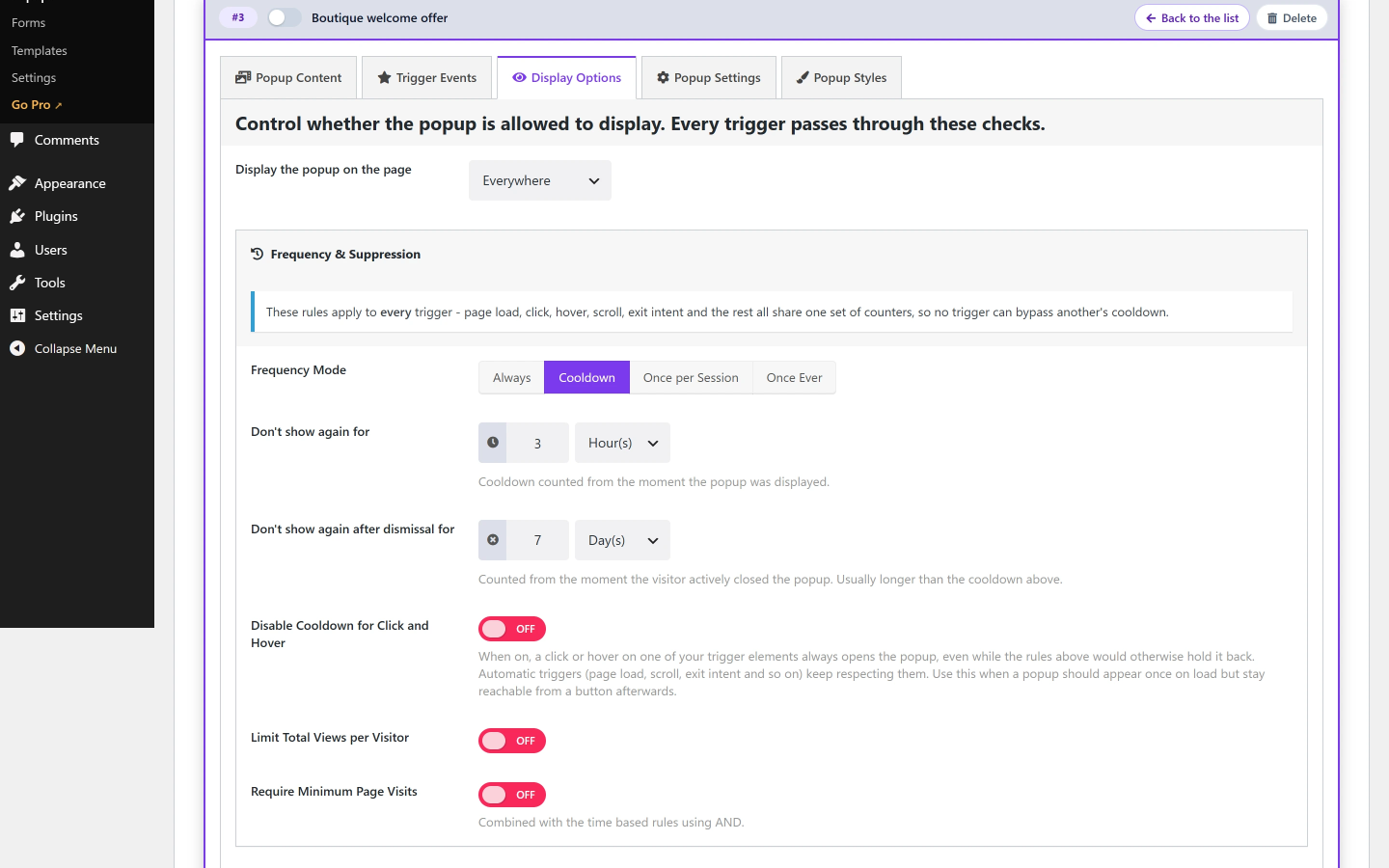
Also set Don’t show again after dismissal to a week or more. Someone who closed your popup has answered; asking again tomorrow only annoys them. We go deeper in how often a popup should show.
Step 6: Switch it on and test it
- Click Save at the top of the popup.
- Go Back to the list and flip the popup’s switch to on.
- Open your site in a private browser window and wait for the trigger.
Why a private window? Frequency rules remember visitors in their own browser, not on your server. We built it that way so popups keep working on cached pages, where the server sends every visitor the same HTML. The side effect: once you have seen or closed the popup while testing, it stays away from you too. A private window starts fresh.
Check it on your phone too. Make sure the close button is easy to tap and the popup does not cover the whole screen on page load; that matters for Google as well (see are popups bad for SEO).
If the popup does not show
When a popup seems not to work, it is almost always one of these:
- The popup is switched off. Inserted designs start switched off on purpose. Check the switch in the popups list.
- You already saw it. The frequency rule is doing its job. Test in a private window.
- The page is not included. Check Custom Selection under Display Options.
- The click selector does not match. If the trigger is
.open-offer, the button needsclass="open-offer"(no dot in the class itself). - A Pro type without Pro. If the design needs Wing Popup Pro, the free plugin skips it and tells you so on the Popups screen.
Page caching is not on that list. Which pages a popup belongs to is decided when the page is built, and everything that differs per visitor (how often they saw it, whether they closed it) is decided in the browser, so caching plugins and hosts that cache pages do not get in the way.
Five habits of popups that convert
- Lead with the benefit. The headline says what the visitor gets, not what you want.
- Wait for interest. A delay of 6 to 15 seconds, or a click, beats an instant popup.
- Ask for one thing. An email address, or a click. Not both, not five form fields.
- Respect “no”. Long dismissal cooldowns keep returning visitors happy.
- Measure, then change one thing. Pro’s analytics and A/B tests show which version wins; without them, compare signups week by week and change one element at a time.
More of these in our email popup best practices.
Frequently asked questions
Can I create a popup in WordPress for free?
Yes. The free Wing Popup plugin on WordPress.org lets you create unlimited popups with page-load and click triggers, page targeting, frequency rules, forms and Mailchimp, and 67 ready-made designs.
Can I make a WordPress popup without a plugin?
You can, with some HTML, CSS and JavaScript in your theme, but you lose the editor, targeting, frequency rules and forms. Our guide to WordPress popups without a plugin shows the code and its limits.
Will a popup slow down my site?
Wing Popup only loads its files on pages where a popup is set to show, and the popup itself is part of the page, so there is no extra request to an outside service.
How many popups should I run at once?
One automatic popup per page is plenty. Click popups can be added wherever a button needs them, because they only open when asked.
We make Wing Popup and Wing Suite and test every step in these guides on a real WordPress site before publishing.