

How to Open a Popup on Button Click in WordPress
Show a popup only when someone clicks a button, link or image. The click trigger, set up in minutes.
 Wahiduz Zaman
Oct 18, 2026
4 min read
Free
Give your button a CSS class, then tell the popup to open on clicks of that class. In Wing Popup this is part of the free version:
- Add a class such as
open-offerto the button (block settings → Advanced → Additional CSS class). - In the popup’s Trigger Events tab, switch on Display Popup on Click and enter
.open-offer. - Switch off the page-load trigger if the popup should open only on click.
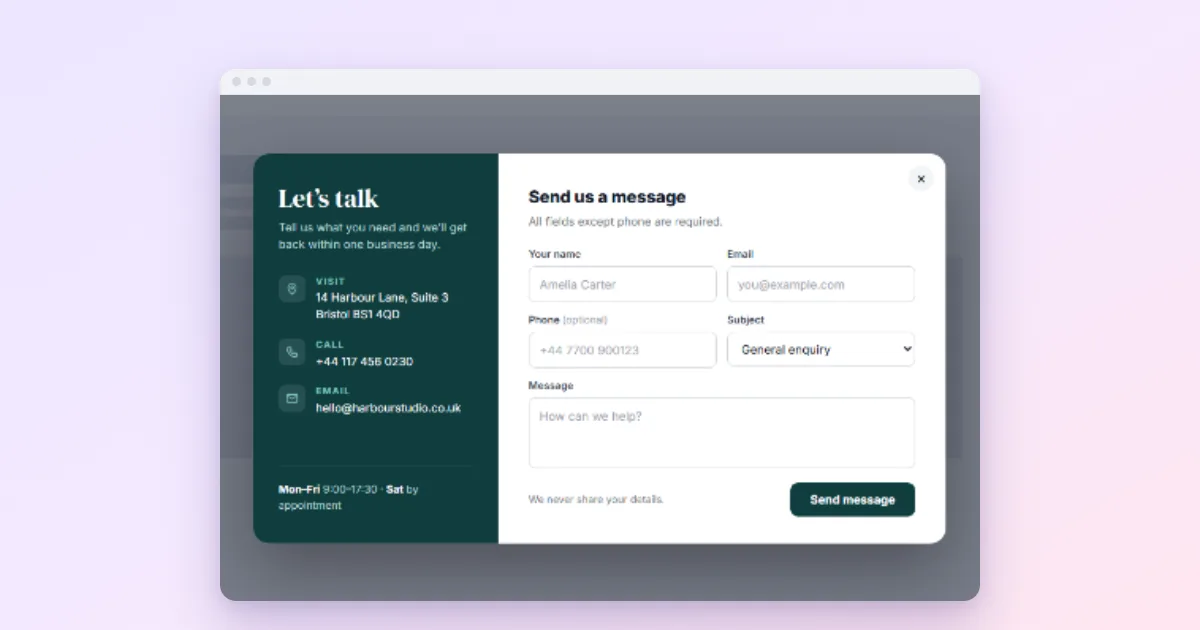
A popup that opens on a click is the friendliest popup there is: the visitor asked for it. That makes click popups ideal for contact forms, quote requests, size guides, booking forms, video demos and “join the newsletter” buttons. Nobody is interrupted, and they convert well, because the person clicking already wants what is behind the button.
How click popups work
A click trigger watches elements on your page. When someone clicks one of them, the popup opens instead of the element doing its normal job. You choose which elements with a CSS selector, a short name for elements on the page:
.open-offermatches every element with the classopen-offer.#newsletter-buttonmatches the one element with the IDnewsletter-button.
A class is the simplest choice, because you can put it on as many buttons as you like: one in the header, one in a post, one in the footer.
The popup itself is already part of the page, printed at the bottom of the HTML, so the click opens it instantly. There is no request to wait for, which is also why click popups keep working on cached pages.
Step 1: Add a class to your button
In the block editor (Gutenberg)
- Edit the page and click the Button block.
- In the settings sidebar, open Advanced.
- In Additional CSS class(es) type
open-offer(no dot). - Update the page.
In Elementor
Select the button widget, open Advanced → CSS Classes and type open-offer.
On a menu item
Go to Appearance → Menus, open Screen Options at the top and tick CSS Classes. Each menu item now has a CSS Classes field; type open-offer there. Give the item any URL, for example #; the popup takes over the click.
Step 2: Set the popup’s click trigger
- Go to Wing Popup → Popups and open your popup, or insert one from the Popup Library.
- Open the Trigger Events tab.
- Switch on Enable Display Popup on Click.
- In CSS Selectors enter
.open-offer(with the dot). - Leave Enable the prevent default click functionality on, so a link opens the popup instead of navigating away.
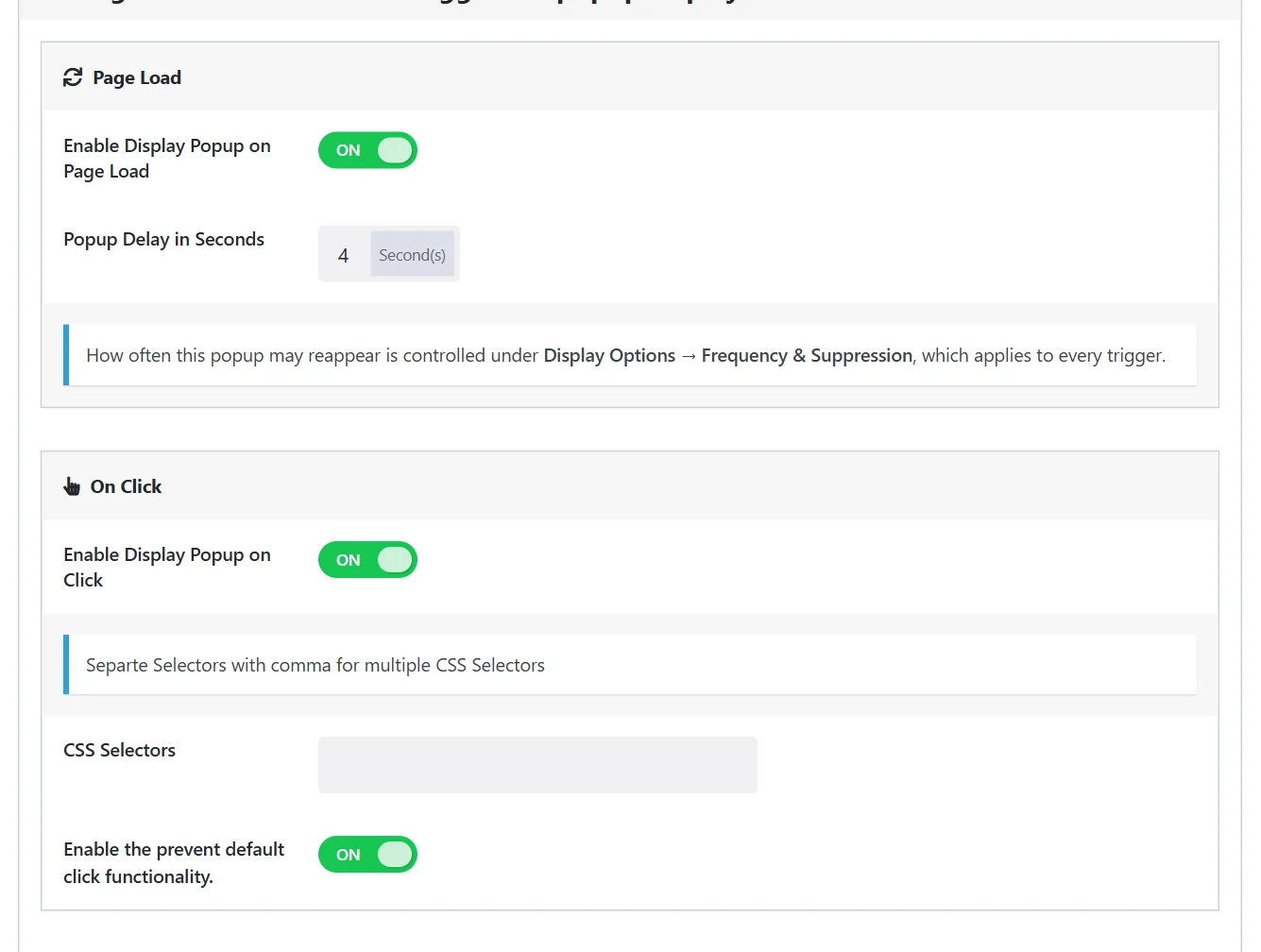
Several selectors can share one popup, separated by commas:
.open-offer, #newsletter-button, .menu-item-subscribe a
Step 3: Make it click-only (or not)
A new popup also has the Page Load trigger switched on. Decide which behaviour you want:
- Only on click: switch Enable Display Popup on Page Load off. The popup never opens by itself.
- Once by itself, then on click: keep both triggers on. The page-load trigger shows it once, and the button opens it whenever the visitor wants.
Step 4: Do not let frequency rules block the button
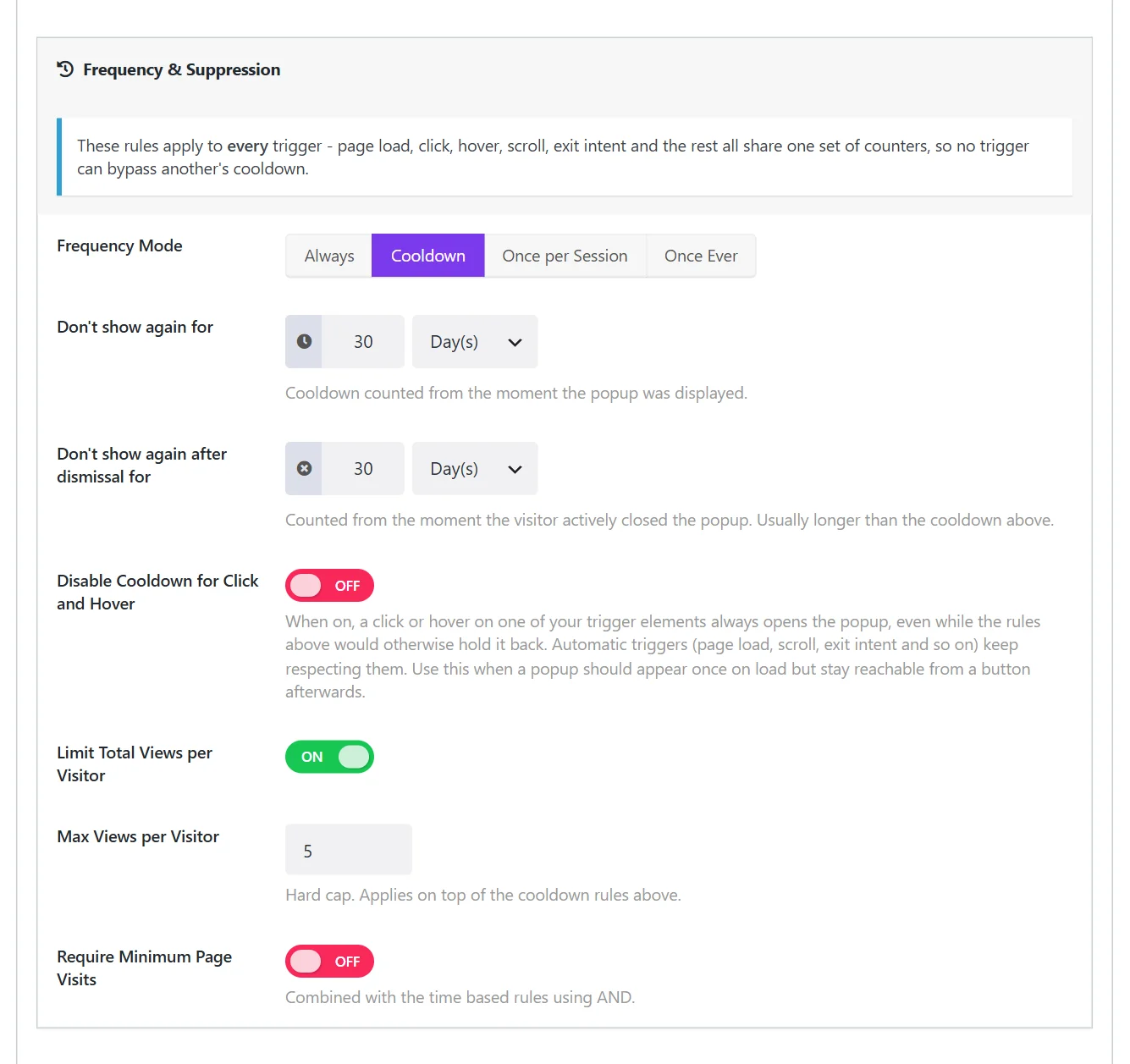
Frequency rules stop a popup from coming back too often. That is right for automatic popups, but a button that does nothing because of a cooldown feels broken.
On the Display Options tab, switch on Disable Cooldown for Click and Hover. Clicks then open the popup every time, while the page-load trigger keeps respecting the cooldown. For a popup that only opens on click, you can also set Frequency Mode to Always.
Seven click popups worth adding
- Contact or quote form from a “Get a quote” button. See contact form in a popup.
- Newsletter signup from a “Subscribe” link in the menu.
- Size guide on product pages.
- Product demo video from a “Watch the demo” button.
- Booking or callback request on a service page.
- Coupon reveal from a banner: “Click for today’s code”.
- Event or webinar registration from a “Save my seat” button.
Keep it usable with a keyboard
Put the class on a real button or link, not on a plain image or a <div>. Buttons and links can be reached with the Tab key and opened with Enter; a <div> cannot, so keyboard and screen reader users would never find the popup. Inside the popup, Wing Popup’s close control is a real button for the same reason, and Escape closes the popup unless you switched on Force Interaction.
If the popup does not open on click
- The dot. The class on the button is
open-offer; the selector in the popup is.open-offer. Mixing them up is the most common mistake. - The class sits on the wrong element. In some themes the class lands on a wrapper around the button. A wrapper still works, because the click happens inside it, but check the page source if in doubt.
- The popup is off or not on this page. Check its switch and its page targeting.
- A cooldown is holding it. Switch on Disable Cooldown for Click and Hover, or test in a private window.
Wing Popup Pro adds a Hover trigger with a delay, useful for “more information” panels on desktop. Touch screens have no hover, so pair it with the click trigger on the same selector.
Frequently asked questions
Can one button open different popups on different pages?
Yes. Give two popups the same selector and limit each one to its own pages with page targeting.
Does it work with page builders?
Yes. Anything that lets you set a CSS class or ID works: the block editor, Elementor, Divi, Beaver Builder, and menus.
Is a click popup bad for SEO?
No. Google’s concern is popups that cover content as soon as someone arrives from search. A popup the visitor opens on purpose is fine. More in are popups bad for SEO.