

Popup Triggers Explained: Delay, Click, Scroll and Exit
Page load, click, scroll, hover, inactivity and exit intent: what each trigger does and which to start with.
 Wahiduz Zaman
Oct 20, 2026
5 min read
Free Pro
A popup trigger is the event that opens the popup: a delay after the page loads, a click, a scroll to a certain depth, a mouse heading for the tabs. The trigger matters more than the design, because the same popup that annoys someone in their first second on the page can be welcome a minute later. Here is every common trigger, what it tells you about the visitor, and where it goes wrong.
| Trigger | Fires when | Best for | Free in Wing Popup? |
|---|---|---|---|
| Page load (delay) | N seconds after the page loads | Announcements, notices, signups after a longer delay | Yes |
| Click | The visitor clicks a chosen element | Forms, videos, size guides, anything on request | Yes |
| Scroll | The visitor reaches a depth or an element | Signups on articles | Pro |
| Exit intent | The pointer leaves through the top of the page | Last offers, surveys (desktop only) | Pro |
| Inactivity | No mouse, key, scroll or touch for N seconds | Re-engaging an idle visitor | Pro |
| Hover | The pointer rests on an element | Extra information on desktop | Pro |
| Page visits | The visitor has viewed N pages | Offers for engaged visitors | Pro |
| Video finishes | A self-hosted video reaches N% played | A next step after a demo | Pro |
| Custom event | Your own code dispatches an event | Connecting popups to quizzes, calculators, widgets | Pro |
| Cart events | Add to cart, leaving with a cart, leaving checkout | Cross-sells, saving carts (WooCommerce) | Pro |
Page load with a delay
The trigger every popup plugin has, and the one most often set badly. On its own, a delay says nothing about the visitor: someone who has spent eight seconds on a page may be reading closely or may have left the tab open while making coffee.
The length of the delay is what matters. For a notice that must be seen (a cookie banner, an age gate) it is 0. For an announcement, a few seconds, so the page is seen first. For an email signup, longer: in Omnisend’s 2025 data, signup popups shown after 6 to 10 seconds converted best and those shown instantly converted worst. Wing Popup’s default is 3 seconds, which suits announcements; raise it for signups.
Click
The only trigger where the visitor has actually asked for the popup, which makes it both the friendliest and the best-converting. Any button, link, image or menu item can open a popup if you give it a CSS class and enter that class in the popup’s click trigger. Full setup in how to open a popup on button click.
Where it goes wrong: frequency rules. A button that does nothing because the popup is in its cooldown feels broken, which is why Wing Popup has a separate switch, Disable Cooldown for Click and Hover, that lets clicks through every time.
Scroll
A good signal of interest, because scrolling takes effort. Someone 50% down an article is reading it. Wing Popup Pro’s scroll trigger fires at a percentage (50 by default) or when a chosen element scrolls into view, such as #comments or a pricing table. The element option is often the better one: “when they reach the recipe card” means more than “at 60%”, because page length varies.
Where it goes wrong: short pages, where 50% is reached on arrival, and very long pages, where few people ever reach 70%.
Exit intent
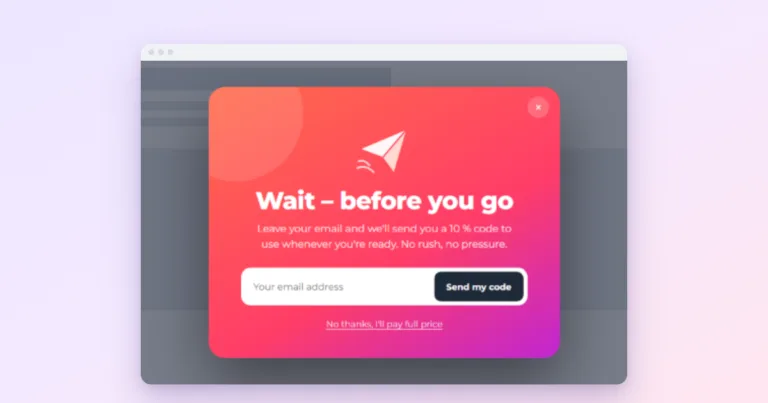
Fires when the pointer leaves through the top of the page, towards the tabs or the back button. It reaches people who were leaving anyway, so it rarely costs you anything. It only works where there is a pointer, so phones and tablets never trigger it. We cover it in depth in exit-intent popups in WordPress.
Inactivity
Fires when nothing has happened for a while: no mouse movement, key press, scroll or touch, 30 seconds by default. It is the closest thing to exit intent on a phone, where a visitor who stops interacting has often switched to another app. It is also easily misread: someone reading a long paragraph is inactive too. Use it for gentle messages, not for interruptions.
Hover
Opens a popup when the pointer rests on an element, with an optional delay. Useful for “more about this” panels on desktop. Touch screens have no hover at all, so always pair it with a click trigger on the same element, or phone visitors will never see it.
Page visits
Waits until the visitor has viewed a number of pages (3 by default). Someone on their third page is exploring, which makes it a better moment for a signup than the first second of the first visit. The free plugin has a related setting under frequency rules, Require Minimum Page Visits, which holds back any trigger until the visitor has seen enough pages.
Video finishes, and custom events
Video finishes watches a self-hosted <video> and fires at 95% played by default, so the next step appears while the viewer is still there. Embedded players such as YouTube do not report their progress to the page, so they cannot be watched.
Custom event is for developers: the popup opens when your own code dispatches a named event on the document. That connects a popup to anything, from the result of a quiz to a step in a booking widget:
document.dispatchEvent(new CustomEvent('my_quiz_finished'));Cart triggers
For WooCommerce shops, Pro adds three: Add to Cart, Cart Abandonment (exit intent, only for visitors with something in the cart) and Checkout Exit. There is one detail of how we built these that matters if your shop is cached. The cart cannot be printed into a cached page, so the plugin reads it in the browser after the page has loaded, which takes a moment. A cart trigger that fires before the cart is known is not dropped; it waits and is replayed once the cart has loaded.
Combining triggers
A popup can use several triggers at once. Whichever fires first opens it, and every trigger shares one set of frequency counters, so a popup shown by the scroll trigger will not appear again a minute later through exit intent. Some combinations that work well:
- Exit intent + scroll at 70%: desktop visitors are caught leaving, mobile readers near the end.
- Page load once + click always: the popup introduces itself once, then a button reopens it on demand.
- Hover + click on the same element: hover for desktop, tap for touch screens.
Which trigger to start with
If you are setting up your first popup, start with the one that matches its job:
- Something the visitor asks for, such as a form, video or guide: click.
- A notice that must be seen: page load at 0 seconds.
- An email signup: page load at 8 to 15 seconds on the free plugin, or scroll with Pro.
- A last offer: exit intent plus a mobile trigger.
Then set how often it may come back, which is a separate question with its own guide: how often a popup should show.