

Two-Step Opt-in Popups: Why Asking Twice Gets More Signups
Ask a small yes first and the email second: why it works, when it does not, and how to build one.
 Wahiduz Zaman
Oct 24, 2026
4 min read
Pro
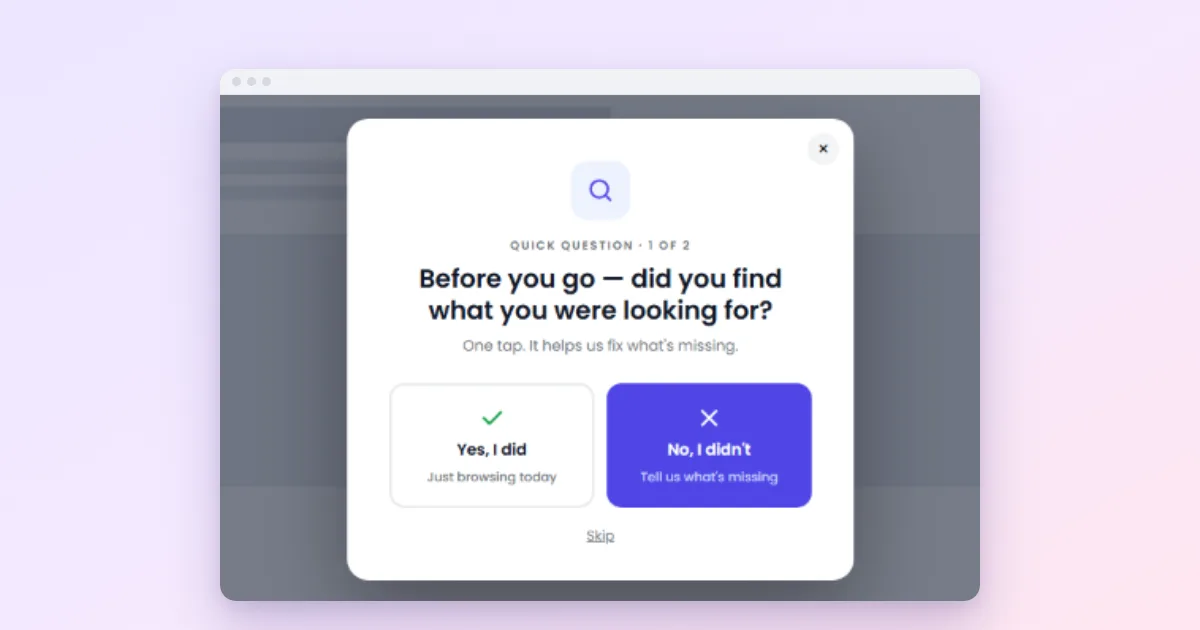
A two-step opt-in asks for something small before it asks for the email. Step one is a button or a yes/no question (“Want the free checklist?”); only people who say yes see step two, the form. The form never appears in front of someone who has not already shown interest, and the people who do see it have just said yes to the idea.
Below: why the approach makes sense, where it goes wrong, and three ways to build it in WordPress, one of them free. We tested the Pro setup on a live WordPress site before writing it up.
Why asking twice can work
Two effects are at play. The first is old psychology: people who agree to a small request are more likely to agree to a related larger one afterwards. The best-known study, by Freedman and Fraser in 1966, called it the foot-in-the-door technique. Clicking “Yes, I want it” is a small request; typing an email address straight after is the larger one, and it now feels consistent with what the visitor just did.
The second is simpler: filtering. A one-step popup puts a form in front of everyone, including the many who were never interested. A two-step popup puts a question in front of everyone and a form in front of the interested only. Fewer people are confronted with a form they did not want, which is also kinder to everyone else.
An honest caveat: we know of no large independent study that measures two-step against one-step popups. The case studies you will find come from the companies that sell such tools. Treat the idea as worth testing on your own site, not as a guaranteed lift.
Where it goes wrong
- A fake question. “Do you want more customers?” with “No, I prefer fewer” is not a question, it is a trick, and visitors read it as one. Ask something that has two honest answers.
- Asking twice when once was enough. Someone who clicked “Subscribe” in your menu has already said yes. Show them the form directly.
- A first step that promises one thing and a form that asks for another. If step one says “Get the checklist”, step two must deliver the checklist, not “Join our newsletter”.
Build 1: A button and a form popup (free)
The original two-step opt-in is a button on the page that opens the form. A “Get the free checklist” button at the end of an article is step one; the popup with the form is step two. It works with the free Wing Popup plugin:
- Create a subscribe form under Wing Popup → Forms and a popup of the Form type that shows it.
- On the popup’s Trigger Events tab, switch off Page Load, switch on Display Popup on Click and enter a selector, for example
.get-checklist. - Add a button to your posts and give it the CSS class
get-checklist. - On Display Options, switch on Disable Cooldown for Click and Hover, so the button works every time.
Step-by-step help for each page builder is in how to open a popup on button click. A button inside an article is also the gentlest signup there is: it covers nothing, and nobody sees the form who did not ask for it.
Build 2: A yes/no question that opens the form (Pro)
For a two-step popup that appears by itself, Wing Popup Pro’s Yes / No Question type provides step one, and a custom event connects it to the form popup:
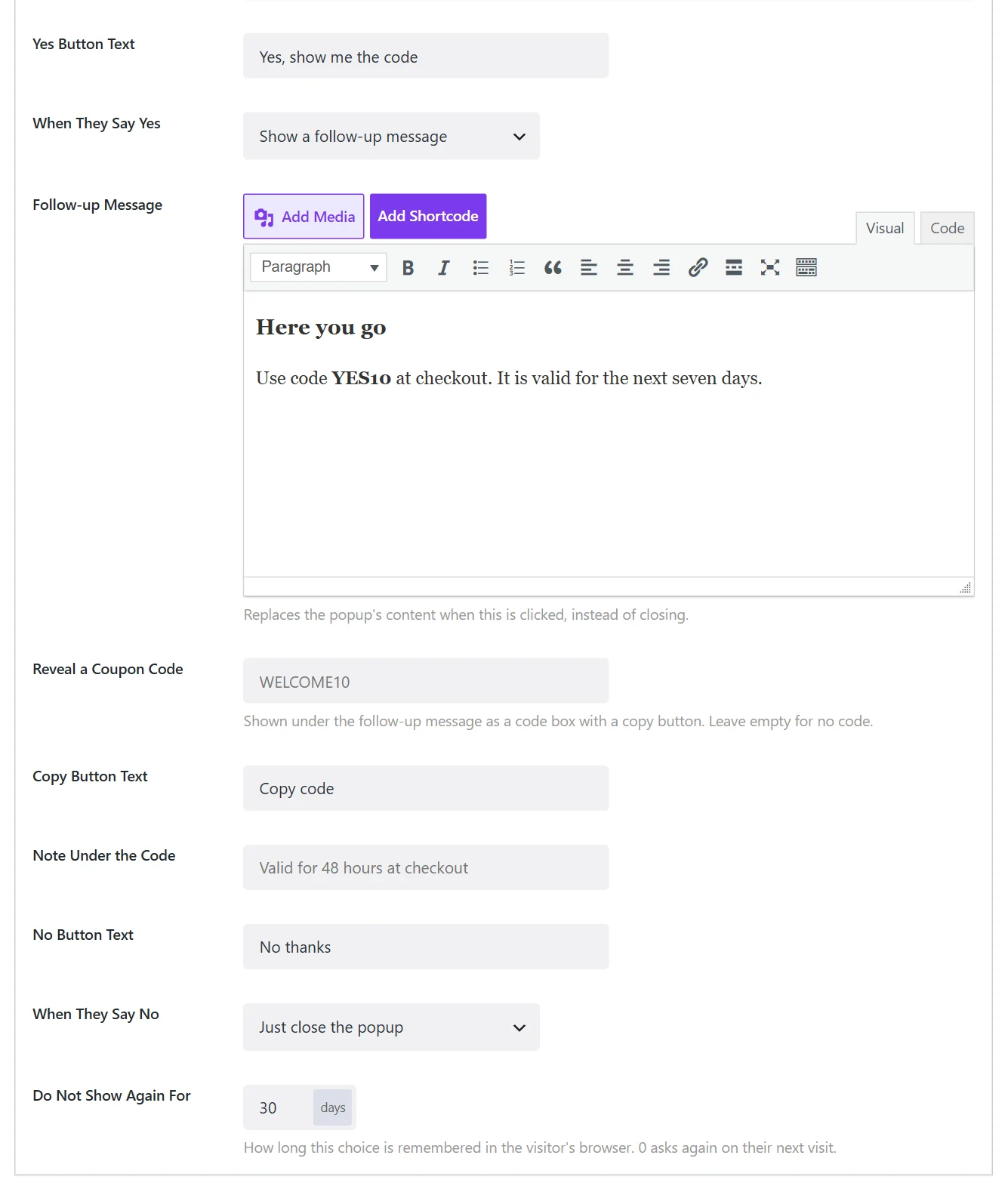
- The question popup. Create a popup of the Yes / No Question type. Heading: “Want the free 12-point launch checklist?” Set Yes Button Text to “Yes, send it” and When They Say Yes to Fire a custom event for other scripts, with the Event Name
checklist_yes. Set When They Say No to Just close the popup and Do Not Show Again For to 30 days. - Its trigger. Page Load after 10 seconds, or Scroll at 50%.
- The form popup. Create a Form popup with your subscribe form. On its Trigger Events tab switch off Page Load and, under Pro Events, switch on Enable Display Popup on a Custom Action with the same Event Name,
checklist_yes. Set its Frequency Mode to Always: it only ever opens when someone has said yes. - Switch both popups on and test in a private window.
When we tested this setup, clicking Yes closed the question and opened the form popup in its place, with a single dark backdrop behind it, the email field ready to type into, and Escape closing everything cleanly. The same custom event is also pushed to the data layer if your site uses Google Tag Manager, so a “said yes” can be counted there with an ordinary custom-event trigger.
Build 3: A yes/no question that leads to a page (Pro)
The simplest version: set When They Say Yes to Send them to a URL and point it at a landing page with the form. You lose the in-place handover, but gain a full page to describe the offer, which suits bigger magnets such as a course or a webinar.
Measuring whether it helps
The only fair answer to “does two-step beat one-step on my site?” is a comparison on your site. Run the one-step popup for two full weeks and the two-step version for two full weeks (or, with Pro, both at once in an A/B test), and compare the number of new subscribers in your email service, not clicks on Yes. A two-step popup with many Yes clicks and few signups has a mismatch between the question and the form.
For the bigger picture on what to measure, see popup conversion rates and A/B testing popups.