

12 Wing Popup Tips to Get More From Every Popup
Settings and habits that get more signups and sales from the same traffic.
 Wahiduz Zaman
Oct 27, 2026
4 min read
Free Pro
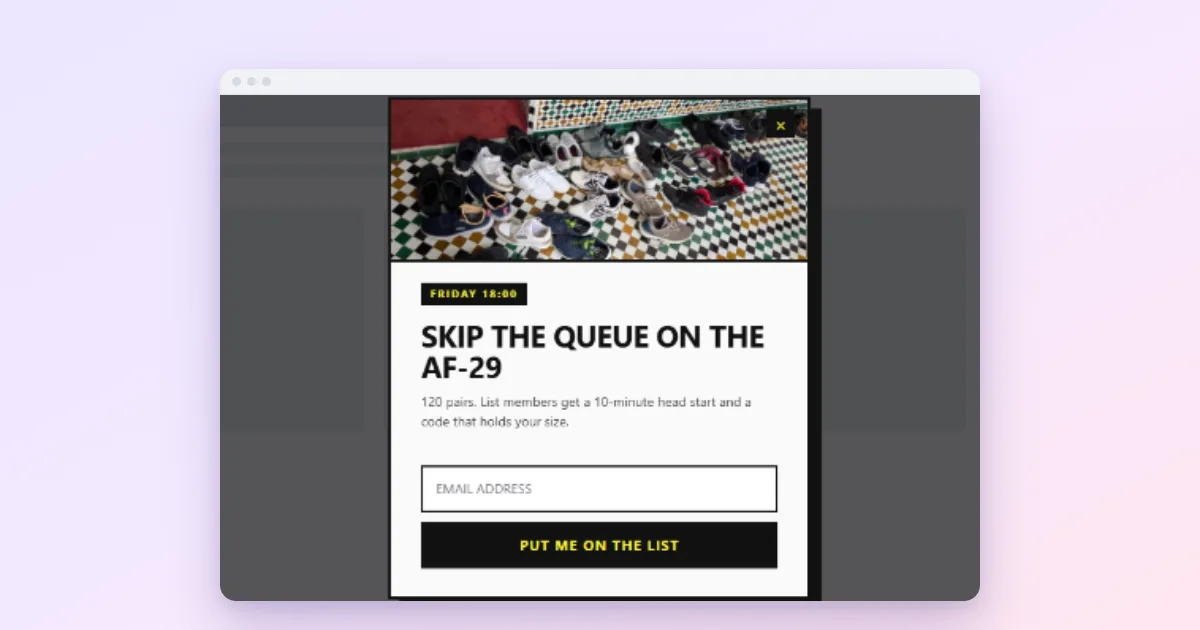
The Wing Popup settings that make the biggest difference are not the design ones. Start from the Popup Library, write a real offer, delay the popup, limit it to the right pages, set long cooldowns after dismissal, reveal a reward right after signup, and measure.
These are the settings that make the most difference, written by the people who build the plugin. Each one names the exact place in the plugin and says whether it needs Pro.
1. Start from the Popup Library, not a blank box
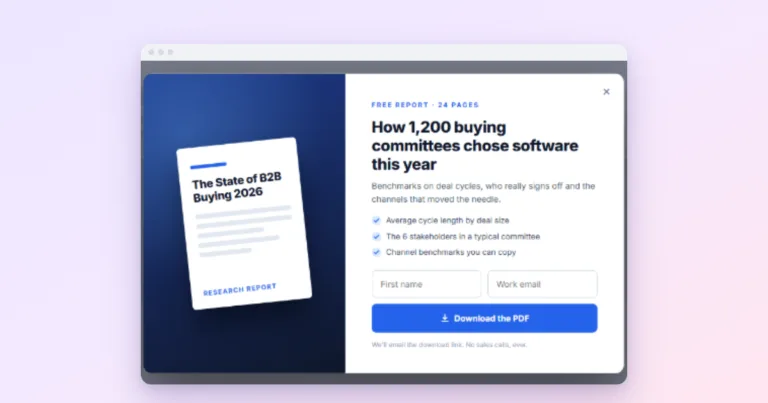
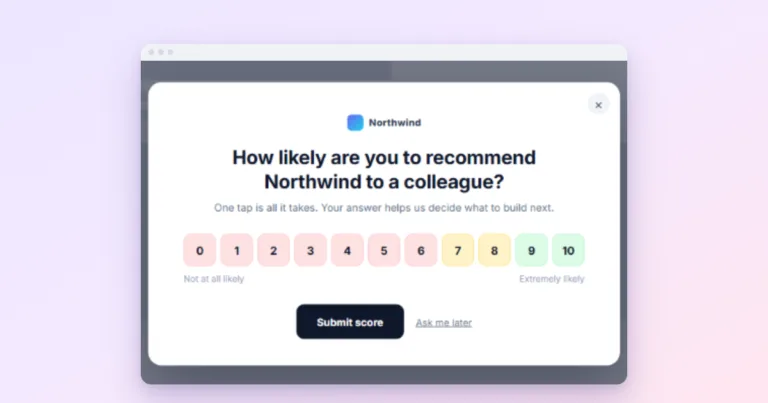
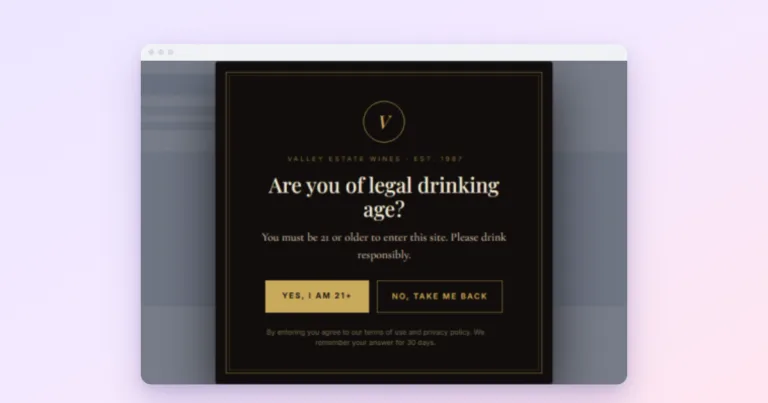
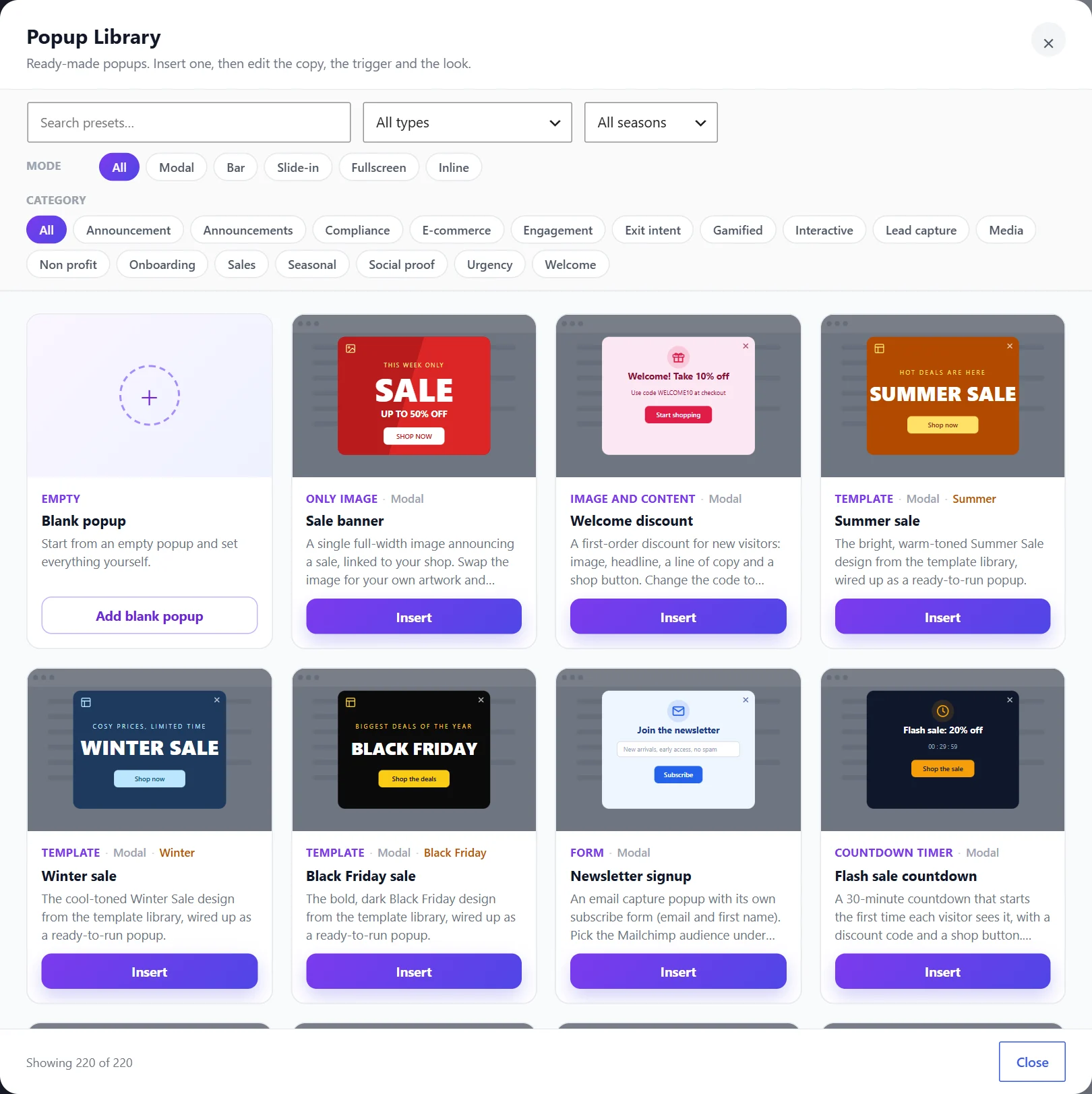
Wing Popup → Popups → Popup Library has 220 ready-made popups (67 in the free plugin), filterable by type, category, season and display mode. Pick by layout, not by words or colours: you will rewrite the text anyway. Inserted popups arrive switched off, so nothing goes live until you are ready.
2. Rename every popup and form at once
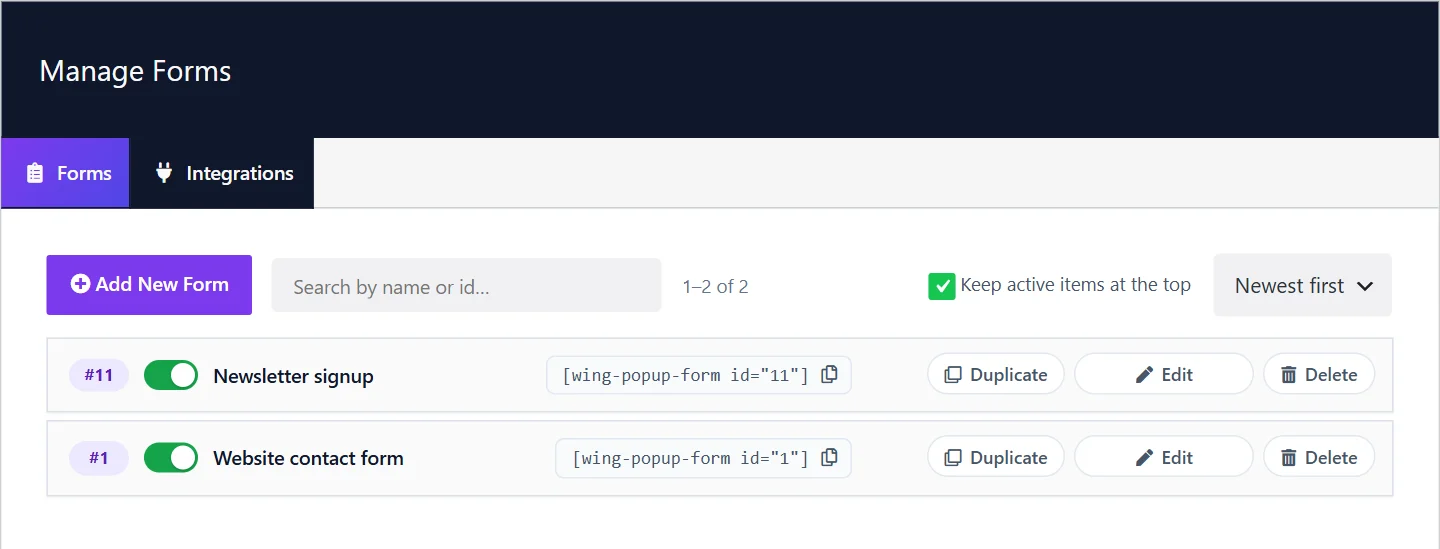
Click a popup’s name in the list to rename it inline: “Newsletter, blog posts, 10s” tells you more in six months than “Popup 3”. The same works for forms. Analytics and A/B test reports use these names.
3. Give signup popups a delay
The default page-load delay is 3 seconds, which suits announcements. For signups, 6 to 15 seconds usually works better: the visitor has started reading. Trigger Events → Popup Delay in Seconds. See popup triggers explained.
4. Add a click trigger to every form popup
A “Subscribe” link in your menu or a “Get a quote” button can open the same popup. Give the element a class and add it under Trigger Events → CSS Selectors, then switch on Disable Cooldown for Click and Hover so the button always works. See popups on button click.
5. Never leave targeting on “Everywhere” by accident
Display Options → Custom Selection with exclude rules for cart, checkout, account and contact pages takes one minute. A signup popup in the middle of a checkout is the kind of thing visitors remember about a site.
6. Set a long pause after dismissal
Under Frequency & Suppression, the second timer, Don’t show again after dismissal for, is 7 days by default. For signup popups, 30 days is kinder. People who closed the popup gave you an answer. See popup frequency.
7. Reveal the reward right after signup
On a Form popup, set After Submitting → Show a follow-up message and fill in Reveal a Coupon Code. The visitor gets their code with a copy button the moment they subscribe. Free. See discount coupon popups.
8. Use one form in many places
Every form has a shortcode and a Wing Popup Form block. Put the newsletter form at the end of every post and in a popup; both send to the same list with the same spam protection.
9. Turn on extra spam protection only if you need it
Built-in protection runs on every form with nothing to configure. If spam still gets through, Settings → General → Spam Protection adds ALTCHA (on your own site, no account) or Cloudflare Turnstile. Invisible ALTCHA at Medium difficulty is a good start. ALTCHA makes the visitor’s browser solve a small puzzle; on a four-core desktop in our tests, Medium took about a second and a half on average. The browser starts it when the visitor first clicks into the form, so it is usually finished before they have typed their email.
10. Fix email delivery once, for everything
If contact form notifications go missing, the cause is almost always your host’s mail, not the form. An SMTP plugin connected to a real mailbox fixes every email your site sends. Wing Popup shows administrators a notice when WordPress refuses to send.
11. Give phones a lighter version (Pro)
Duplicate the popup, make the copy a floating bar or slide-in, and use Display Options → Devices to show the full popup on desktop and the light one on mobile. See mobile popups.
12. Measure, then test one change (Pro)
Switch on Settings → Analytics, and after a couple of weeks check the Top popups and Triggers reports. Then duplicate your best popup, change one thing, and run an A/B test. See A/B testing popups.
Bonus: two settings people miss
- Start a fresh campaign with Duplicate. A duplicated popup has its own frequency counters, so people who dismissed the old one will see the new offer once.
- Custom CSS is free. Each popup has a Custom CSS panel;
{{POPUP}}stands for that popup, so your rules never leak to other popups.
Frequently asked questions
Where can I learn every setting?
The Wing Popup documentation explains every screen and field, with screenshots.
Which of these tips need Pro?
Tips 11 and 12 need Wing Popup Pro (device targeting, bars, analytics and A/B tests). Everything else works in the free plugin.
How do I get help?
Free users can ask in the WordPress.org support forum; Pro customers have direct support from our team on wingdevs.com.