


Add a search bar
Create an AJAX search form and show it in your navigation menu or anywhere with a shortcode.
The AJAX Search module adds a search that shows results while the visitor types, without loading a new page. You create a search form, then show it in a menu or with a shortcode.
1. Check that the module is on#
Go to Wing Suite → WS Modules and make sure Ajax Search is switched on. It is on by default.
2. Create a search form#
- Go to Wing Suite → Ajax Search.
- Click Add New Ajax Search Form.
- Type a title, for example Header search. The title is only for you.
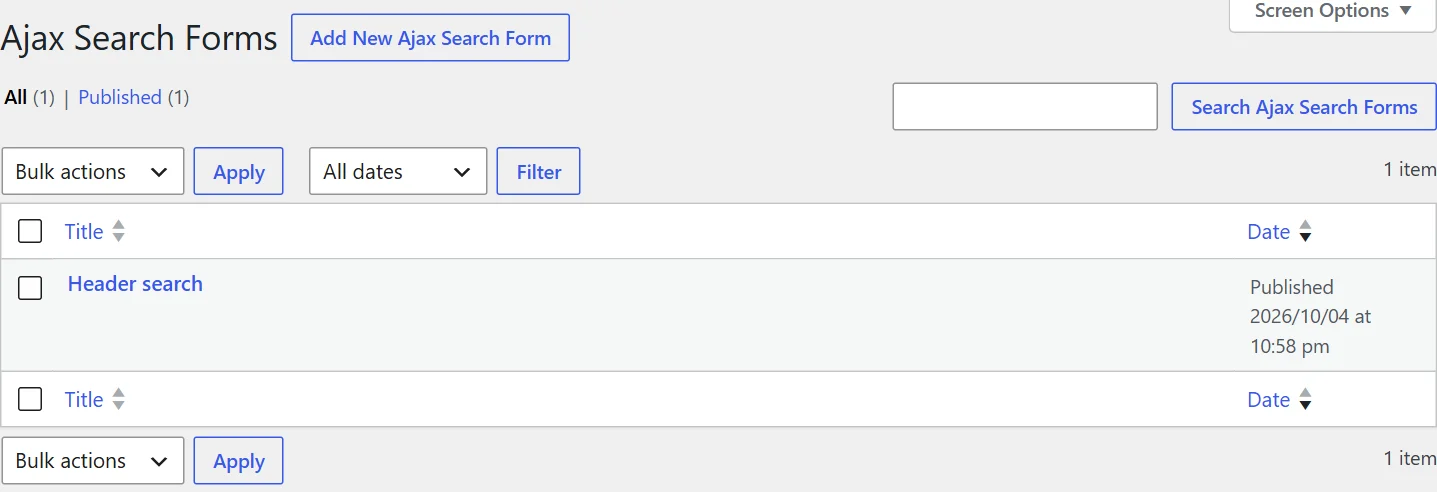
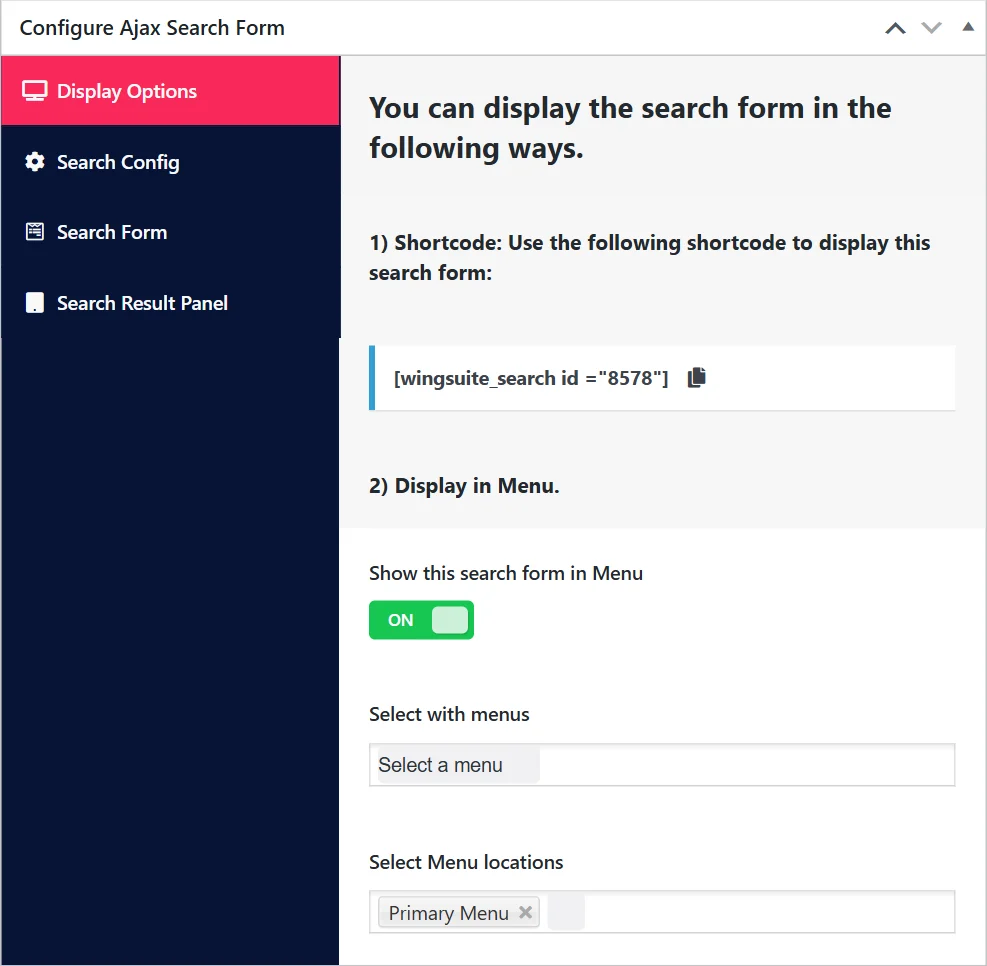
Below the title is the Configure Ajax Search Form box with four sections. The first, Display Options, decides where the form appears.
3. Choose where it appears#
There are two ways to show a search form. Use either or both.
In a navigation menu#
This is the usual choice: a search icon at the end of your header menu.
- Leave Show this search form in Menu switched on.
- Choose the menu:
- Select with menus: pick one or more of your menus by name, or
- Select Menu locations: pick a menu location of your theme, for example Primary Menu.
- Click Publish.
A menu location is the better choice when your theme has one for the header: the search stays in place even if you later assign a different menu to that location.
With a shortcode#
To put the search somewhere else (a sidebar, the footer, a page), use the form's shortcode. It is shown at the top of Display Options; click it to copy.
[wingsuite_search id="123"]The number is the form's ID, so each form has its own shortcode. Paste it into a Shortcode block, a page builder's shortcode widget or a text widget.
If you use only the shortcode, switch Show this search form in Menu off.
4. Publish and test#
Click Publish (or Update after later changes). A search form works only while it is published; a draft is not shown.
Open your site:
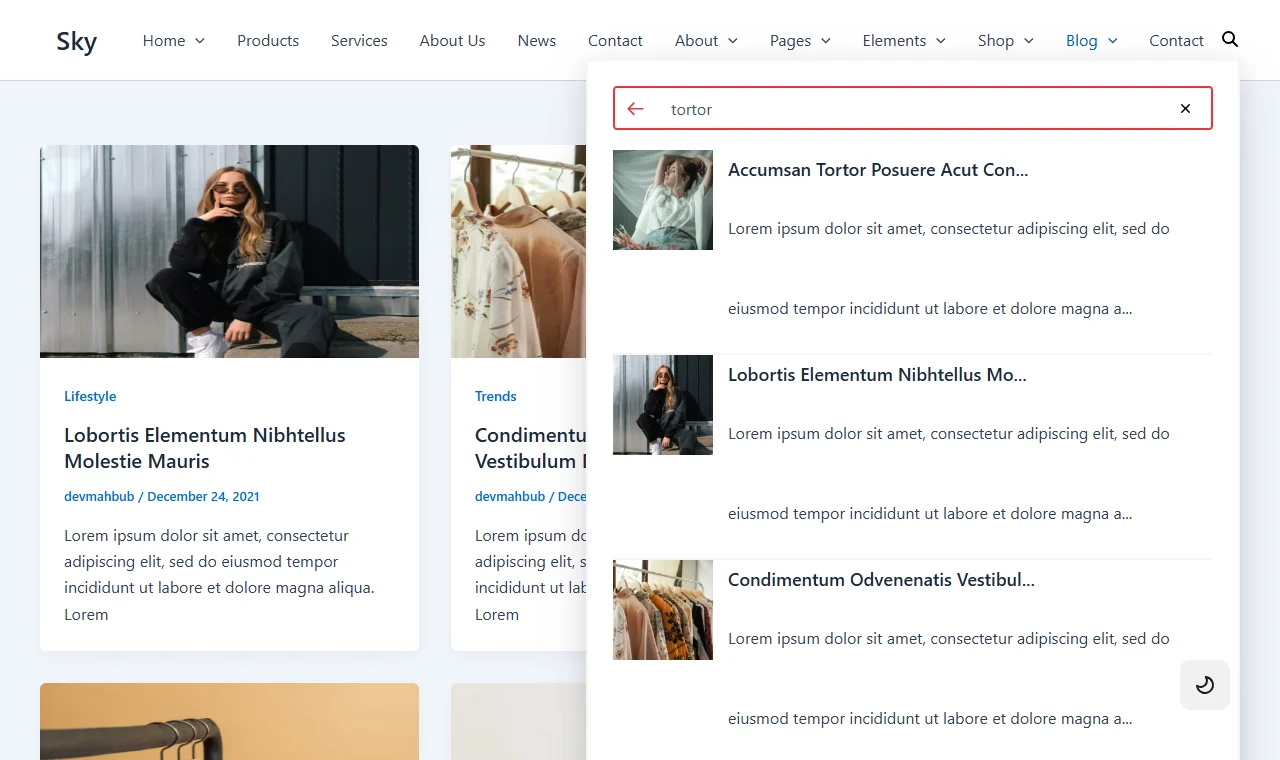
- Click the search icon.
- Type at least two letters.
- Results appear under the field after a moment, each with its title, image and a short description. Click one to open it.
More than one search form#
You can create several forms, each with its own settings: one in the header that searches everything, another on the blog page, through its shortcode, that searches posts only.
Next step#
Decide what the search looks through and how results look: Search settings.
If the search does not appear#
- The form must be published.
- The menu or menu location you chose must be the one your theme actually shows in the header. Check under Appearance → Menus → Manage Locations.
- The Ajax Search module must be on.
- Clear your page cache, if you use a caching plugin.
Did this not answer your question?
Send us what you are trying to do and we will help, and improve this page.