


The dark mode switch
Show the dark mode switch as a floating button, inside a navigation menu, or anywhere on your site with a shortcode.
The switch is the button visitors use to change between light and dark. Wing Suite can show it in three places, and you can use any combination of them. The settings are under Wing Suite → Dark Mode → Switch Display, one tab per place.
Floating switch#
A round button fixed to a bottom corner of the window. It stays in view while the visitor scrolls, and it is the quickest way to offer dark mode.
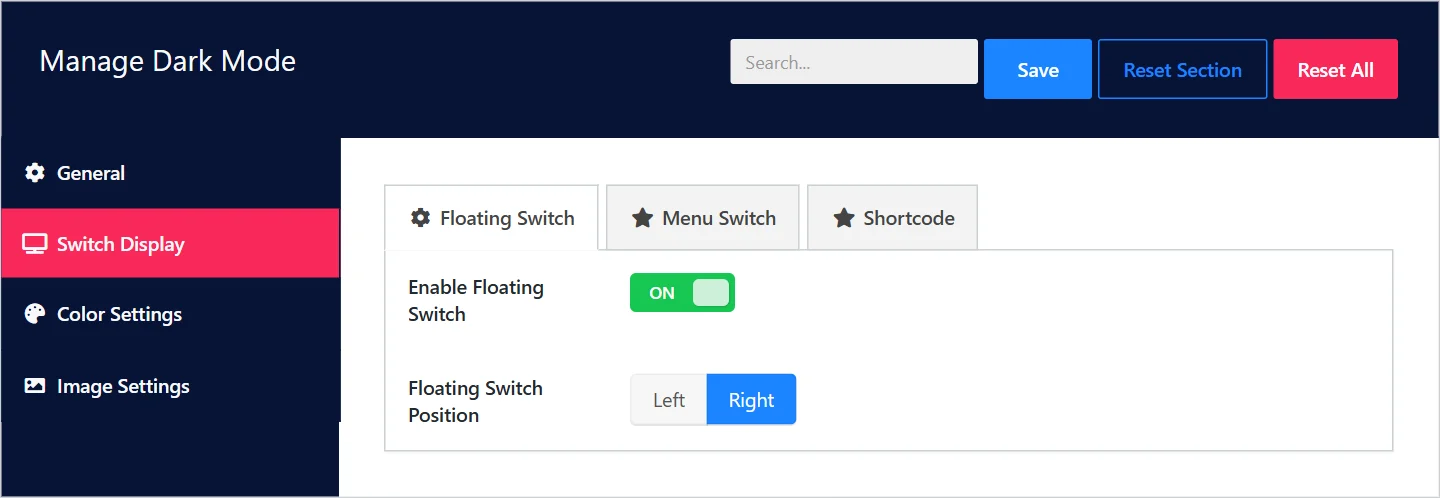
| Field | What it does |
|---|---|
| Enable Floating Switch | Shows the floating button. On by default. |
| Floating Switch Position | Left or Right bottom corner. Right by default. |
Choose the corner that is free on your site. If a chat widget or a back-to-top button already sits on the right, move the switch to the left.
Menu switch#
The switch as an item at the end of a navigation menu, usually your header menu.
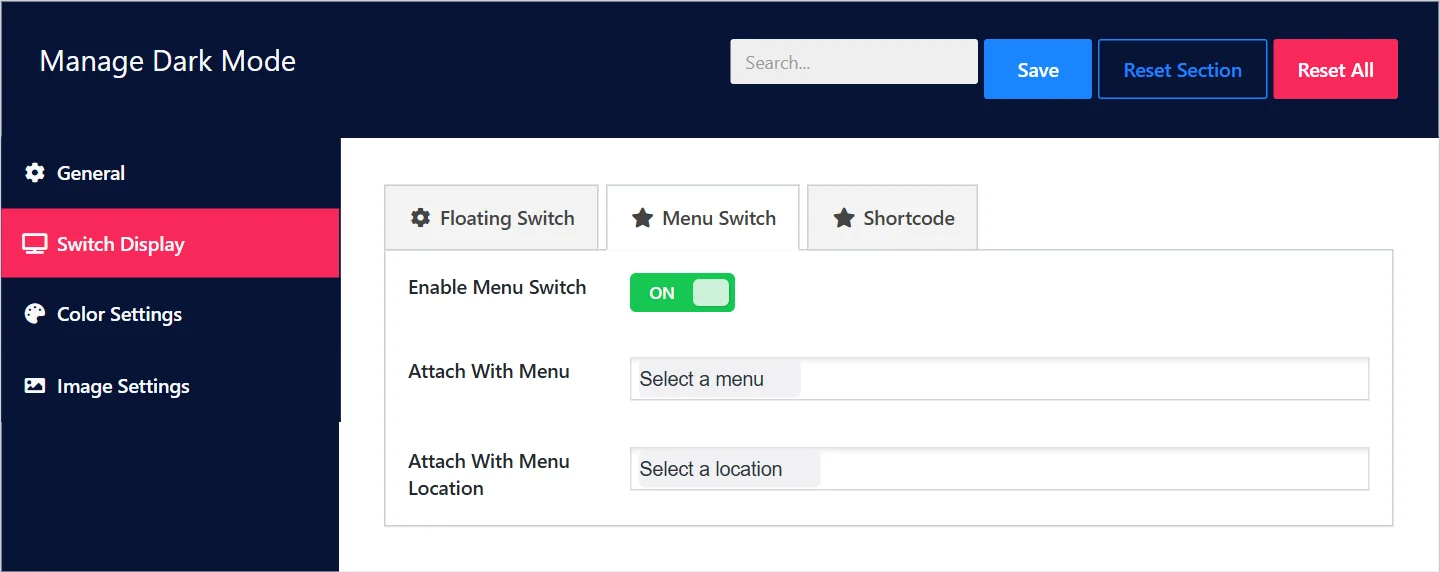
| Field | What it does |
|---|---|
| Enable Menu Switch | Allows the switch in menus. |
| Attach With Menu | Pick one or more of your menus by name. |
| Attach With Menu Location | Or pick menu locations of your theme, for example Primary Menu. |
Use Attach With Menu Location when you can: it keeps working if you later assign a different menu to that location. You only need one of the two fields.
Menus and locations are the ones under Appearance → Menus in WordPress.
Shortcode#
Place the switch anywhere: in a page, a widget, the footer, a page builder layout.
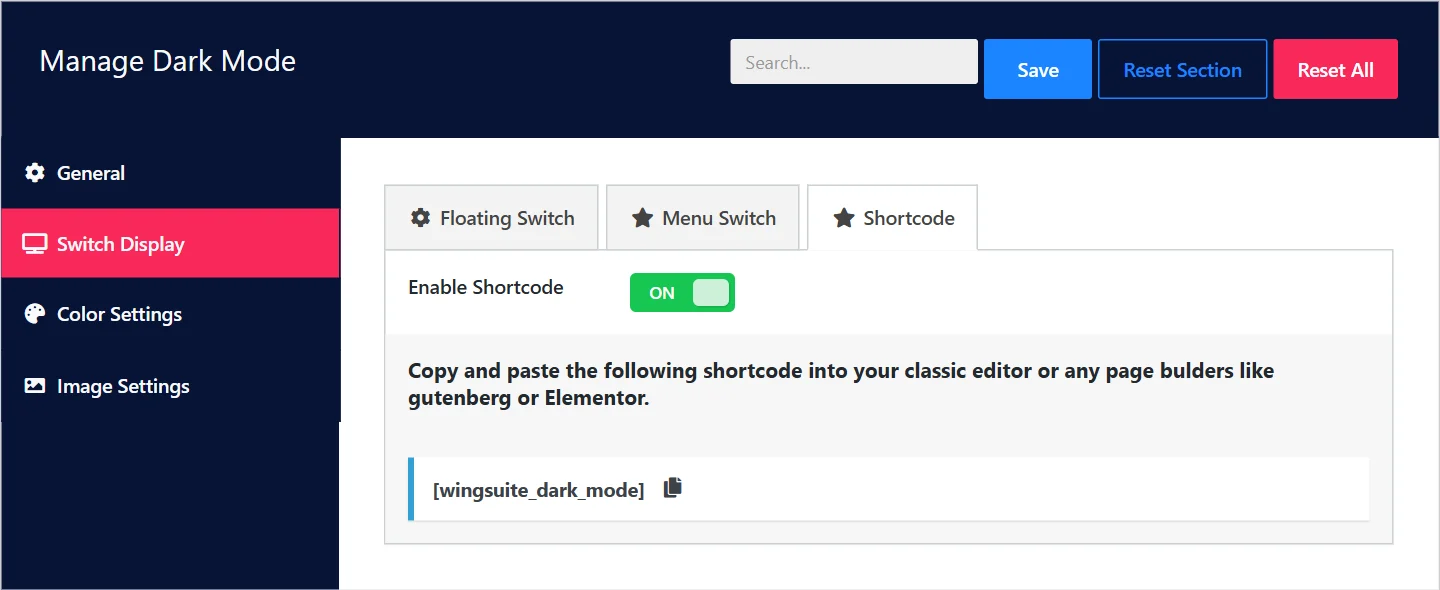
- Make sure Enable Shortcode is on.
- Click the shortcode to copy it:
[wingsuite_dark_mode]- Paste it where the switch should appear:
- in the block editor, in a Shortcode block;
- in Elementor and other page builders, in their Shortcode widget;
- in a text widget in the footer or sidebar.
Which one to use#
| Your site | Use |
|---|---|
| You want dark mode available with no design work | Floating switch |
| You have a tidy header and want the switch to be part of it | Menu switch |
| You want it in a specific spot: the footer, a settings page, a sidebar | Shortcode |
To use only the menu switch or the shortcode, switch Enable Floating Switch off so the round button does not appear as well.
Remember to click Save after changing these settings.
Did this not answer your question?
Send us what you are trying to do and we will help, and improve this page.