


Enable Dark Mode
Switch Dark Mode on, choose the mode visitors start in, and see the switch appear on your site.
The Dark Mode module gives your site a dark version and a switch that lets each visitor choose. This guide gets it working in a few minutes; the two guides after it cover the switch and the colours in detail.

1. Check that the module is on#
Go to Wing Suite → WS Modules and make sure Dark Mode is switched on. It is on by default. See Installation and modules.
2. Open the Dark Mode settings#
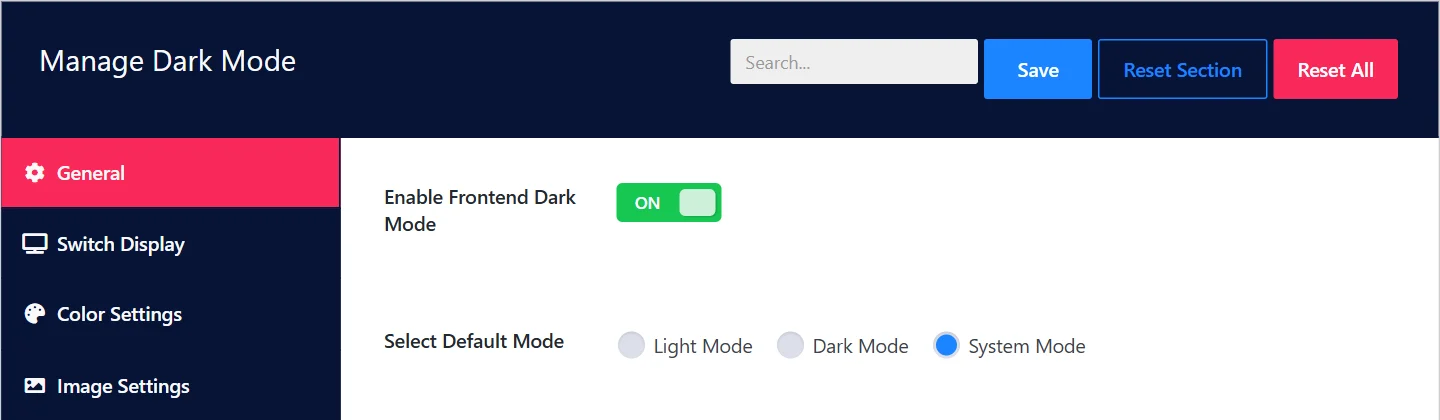
Go to Wing Suite → Dark Mode. The screen has four sections: General, Switch Display, Color Settings and Image Settings.
3. Set the general options#
| Field | What it does |
|---|---|
| Enable Frontend Dark Mode | The main switch. While it is off, your site has no dark mode and no switch. On by default. |
| Select Default Mode | The mode a visitor sees before they have chosen one themselves (below). |
Default mode#
| Choice | A new visitor sees |
|---|---|
| Light Mode | The normal site. Dark mode starts only when they use the switch. |
| Dark Mode | The dark version straight away. |
| System Mode | Whatever their device is set to: dark for visitors whose phone or computer uses a dark theme, light for everyone else. The default, and the choice that surprises nobody. |
4. Click Save#
Click Save at the top right.
Click Save on this screen once, even if you changed nothing. The switch that visitors use is added to your site only after the Dark Mode settings have been saved for the first time.
5. Look at your site#
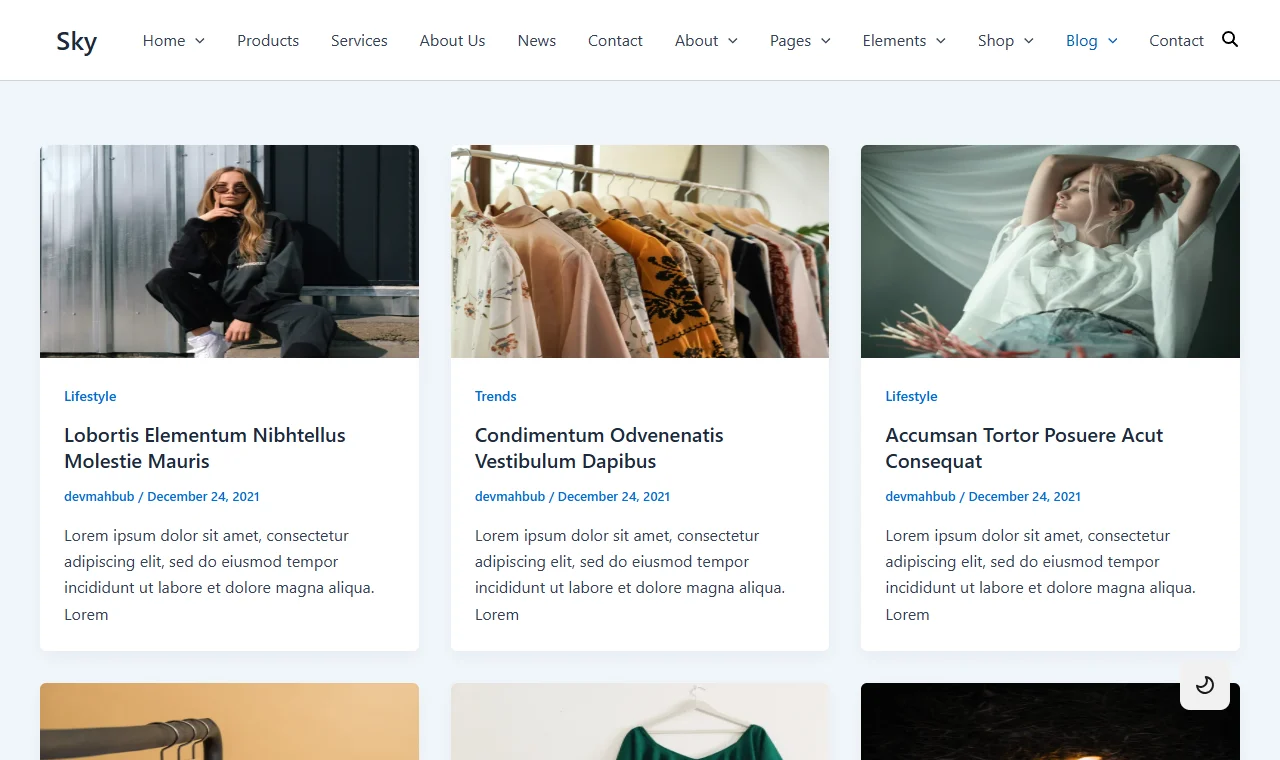
Open your site. A round switch floats in the bottom right corner. Click it: the page turns dark, and the switch changes from a moon to a sun. Click again to return.
How a visitor's choice is remembered#
When a visitor uses the switch, their choice is stored in their own browser. On their next page and their next visit the site opens in the mode they chose, whatever the default is. Nothing is stored on your server, and no cookie banner is needed for it.
Next steps#
- Choose where the switch appears: floating, in a menu or anywhere through a shortcode. See The dark mode switch.
- Choose the dark colours and how images behave. See Dark mode colours and images.
If nothing changes on your site#
- Click Save on the Dark Mode screen (step 4).
- Check that Enable Frontend Dark Mode is on, and the Dark Mode module too.
- Clear your page cache, if you use a caching plugin, and reload.
Did this not answer your question?
Send us what you are trying to do and we will help, and improve this page.