


Search settings
Choose which content a search form looks through, how many results it shows, when the search starts and what each result displays.
Every search form has its own settings, in the Configure Ajax Search Form box of the form's edit screen (Wing Suite → Ajax Search, then click a form). Where the form appears is covered in Add a search bar; this page covers the other three sections.
Click Update after changing anything.
Search Config#
What the form searches.
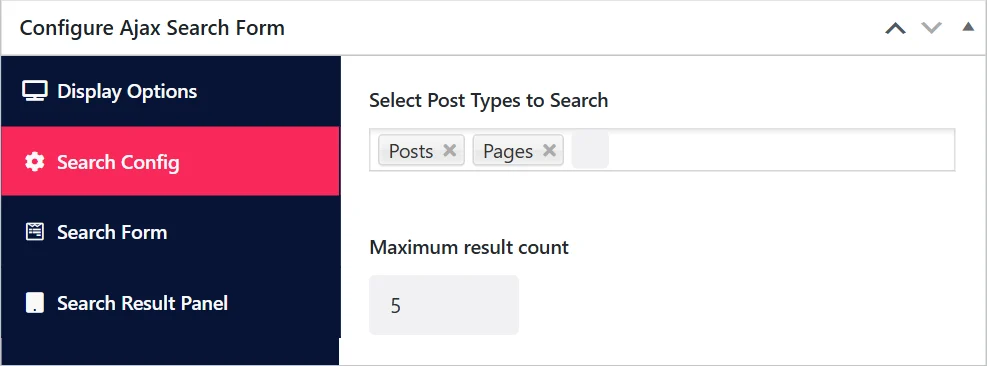
| Field | What it does | Default |
|---|---|---|
| Select Post Types to Search | The kinds of content included: Posts, Pages, and any custom post type of your site, such as WooCommerce Products. Pick one or more. | Posts |
| Maximum result count | How many results are listed, from 2 to 20. | 5 |
Examples:
- A shop: select Products only, so visitors find products rather than blog posts.
- A blog: Posts only.
- A company site: Pages and Posts.
Keep the result count modest. Five to eight results fit on a screen; if the right page is not among them, the visitor types another letter.
Search Form#
How the search field behaves.
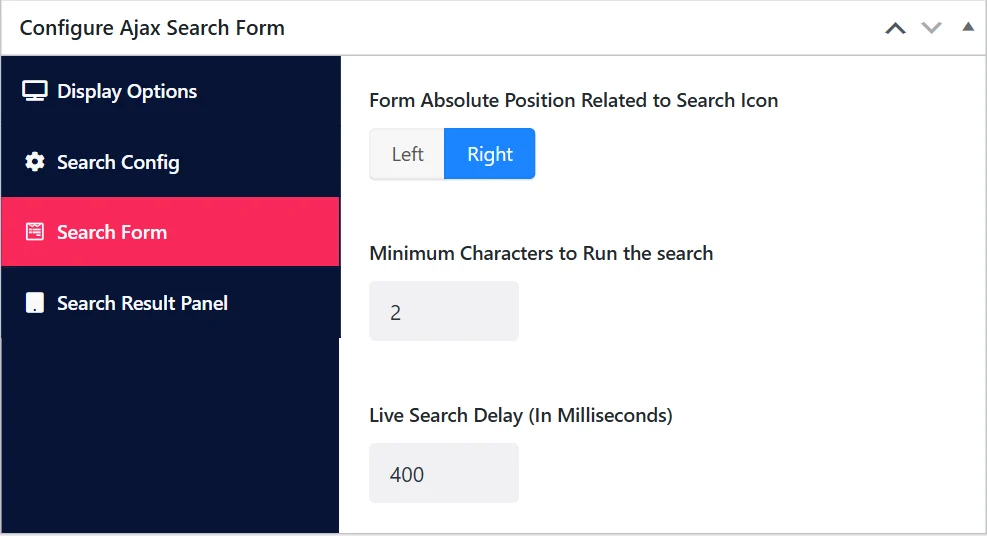
| Field | What it does | Default |
|---|---|---|
| Form Absolute Position Related to Search Icon | Which side of the icon the panel lines up with: Left or Right. With the icon at the right end of your menu, choose Right so the panel opens towards the page, not off the screen. | Right |
| Minimum Characters to Run the search | How many letters must be typed before a search runs, from 2 to 4. | 2 |
| Live Search Delay (In Milliseconds) | How long the form waits after the last keystroke before it searches, from 200 to 4000. | 1000 |
The delay keeps the form from searching on every single keystroke. A shorter delay feels faster; a longer one sends fewer requests to your server. 400 to 600 ms suits most sites; keep 1000 on slow or busy hosting.
Search Result Panel#
What each result shows.
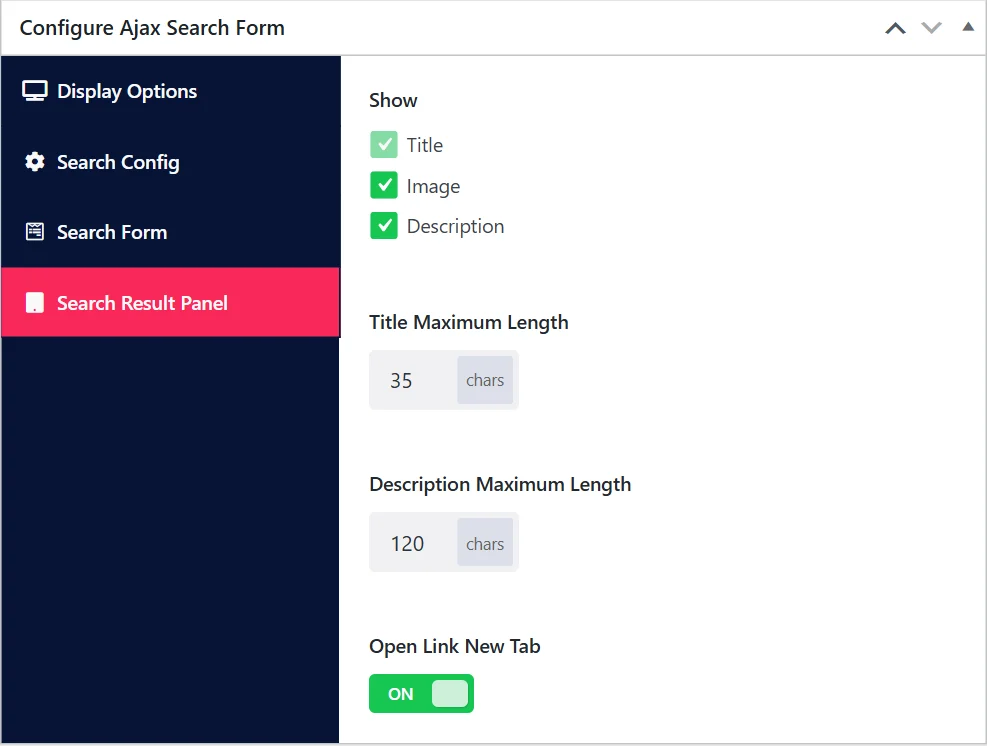
| Field | What it does | Default |
|---|---|---|
| Show | The parts of a result: Title (always shown), Image (the featured image) and Description (an excerpt). | All three |
| Title Maximum Length | Longer titles are cut off, in characters (15 to 150). | 35 |
| Description Maximum Length | The length of the excerpt, in characters (15 to 300). | 120 |
| Open Link New Tab | Opens a clicked result in a new browser tab. | On |
Tips:
- Switch images off for content that has no featured images, such as pages; otherwise every result shows an empty placeholder.
- Raise the title length to 60 or more if your titles are long, as product names often are.
- Open in the same tab (switch the last option off) on most sites. A new tab for every search result is rarely what a visitor expects.
What the search matches#
The form uses WordPress's own search: it looks for the typed words in titles and content of published items of the chosen post types. It finds the same things as your site's normal search, only faster and without leaving the page.
Did this not answer your question?
Send us what you are trying to do and we will help, and improve this page.