


Installation and modules
Install Wing Suite, then switch its modules on or off from the WS Modules screen.
Requirements#
- WordPress 6.5 or newer
- PHP 7.4 or newer
Install Wing Suite#
- In your WordPress dashboard go to Plugins → Add New Plugin.
- Search for Wing Suite.
- Click Install Now, then Activate.
To install from a zip file instead, use Plugins → Add New Plugin → Upload Plugin, choose the file, click Install Now and then Activate Plugin.
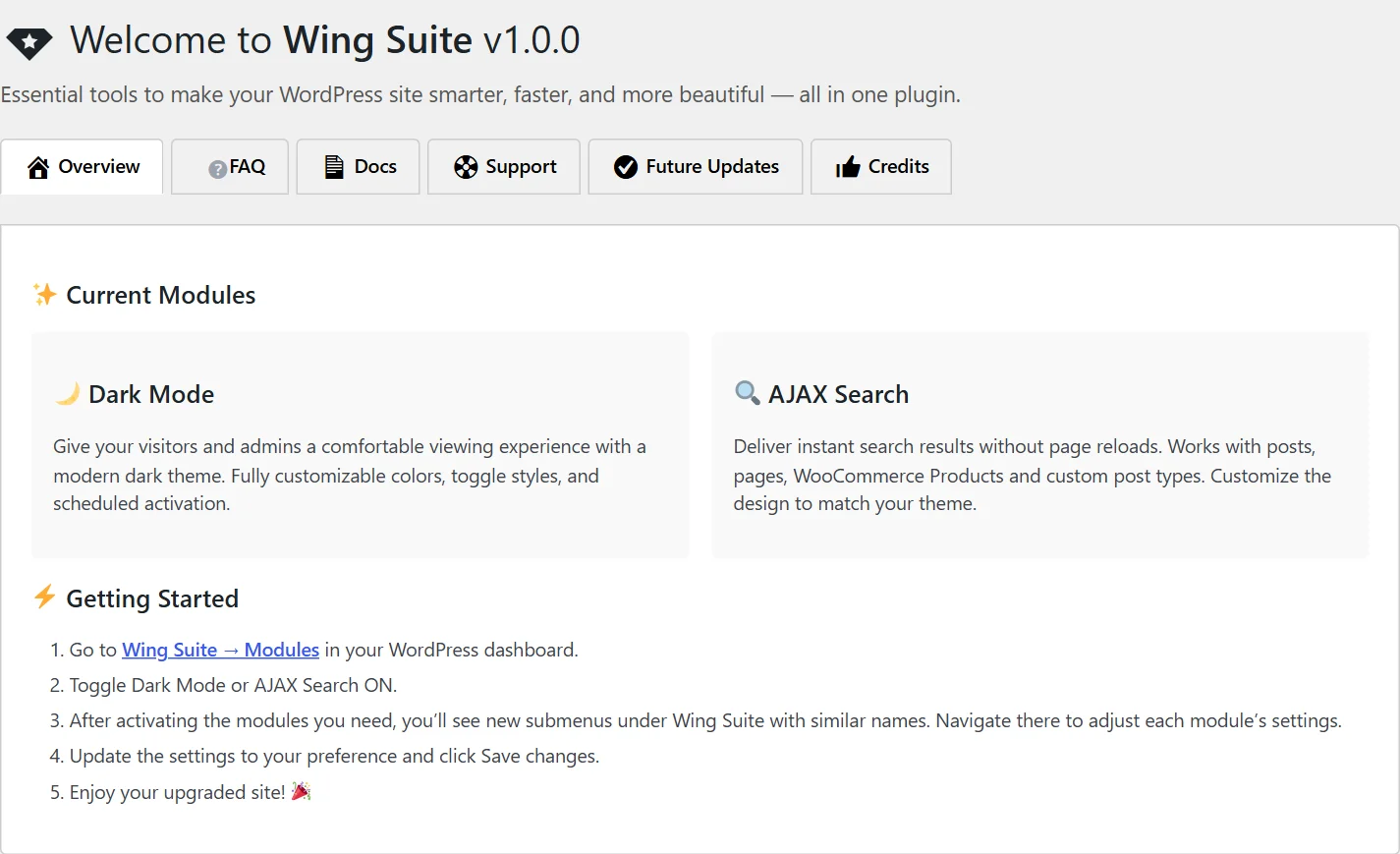
After activation a Wing Suite menu appears in the dashboard sidebar. Its first screen, Welcome, gives an overview of the modules and a short getting-started list.
Switch modules on or off#
Wing Suite is modular: each feature is a module with its own switch.
- Go to Wing Suite → WS Modules.
- Switch Dark Mode and Ajax Search on or off.
- Click Save.
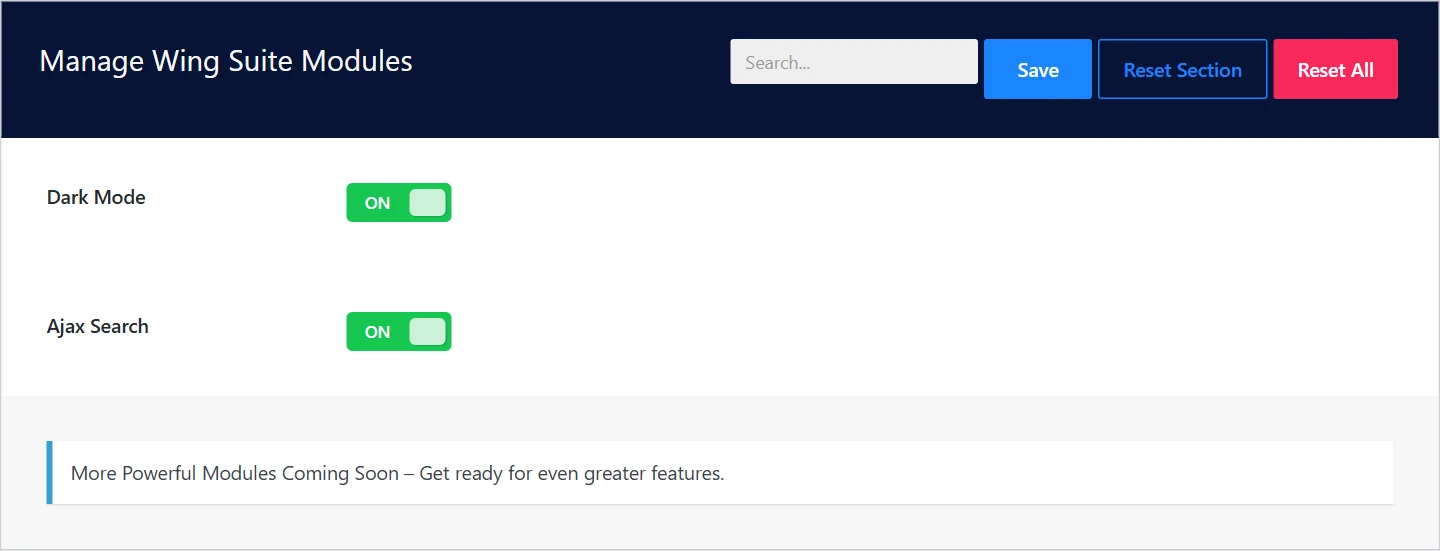
Both modules are on after installation.
| When a module is on | When it is off |
|---|---|
| Its settings screen appears in the Wing Suite menu: Dark Mode or Ajax Search. | Its menu item is hidden. |
| Its styles and scripts load on your site where they are needed. | Nothing of it loads. A module you do not use costs your site nothing. |
Switching a module off does not delete its settings. Switch it on again and it continues where it stopped.
Next steps#
Updating and uninstalling#
Updates arrive through the normal WordPress Plugins screen and keep your settings. To remove the plugin, deactivate it and click Delete on the Plugins screen.
Did this not answer your question?
Send us what you are trying to do and we will help, and improve this page.