


Cookie notice Pro
Show a cookie consent notice, remember the visitor's answer, offer cookie categories and pass the choice to Google Consent Mode or a tag manager.
The Cookie Notice type shows a consent notice with Accept and Decline buttons, remembers the answer, and can offer a preferences panel with cookie categories. It is usually shown as a floating bar or a slide-in panel.
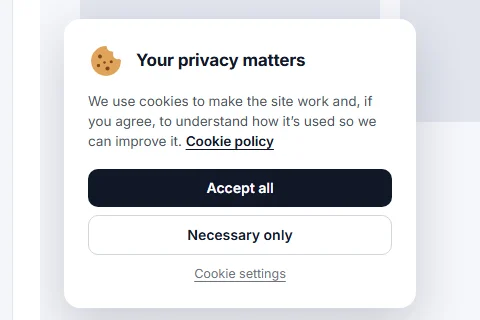
The notice records and announces the visitor's choice. It does not block cookies or third-party scripts by itself. Scripts that need consent must be held back by your tag manager or consent tooling, which reads the choice this popup stores. See Passing the choice on below.
Set it up#
- Edit a popup and set Popup Type to Cookie Notice.
- Write the Heading and Content.
- Set the buttons (below).
- On the Popup Settings tab choose Floating Bar or Slide-in Panel as Display Mode.
- Click Save.
The buttons#
| Field | What it does |
|---|---|
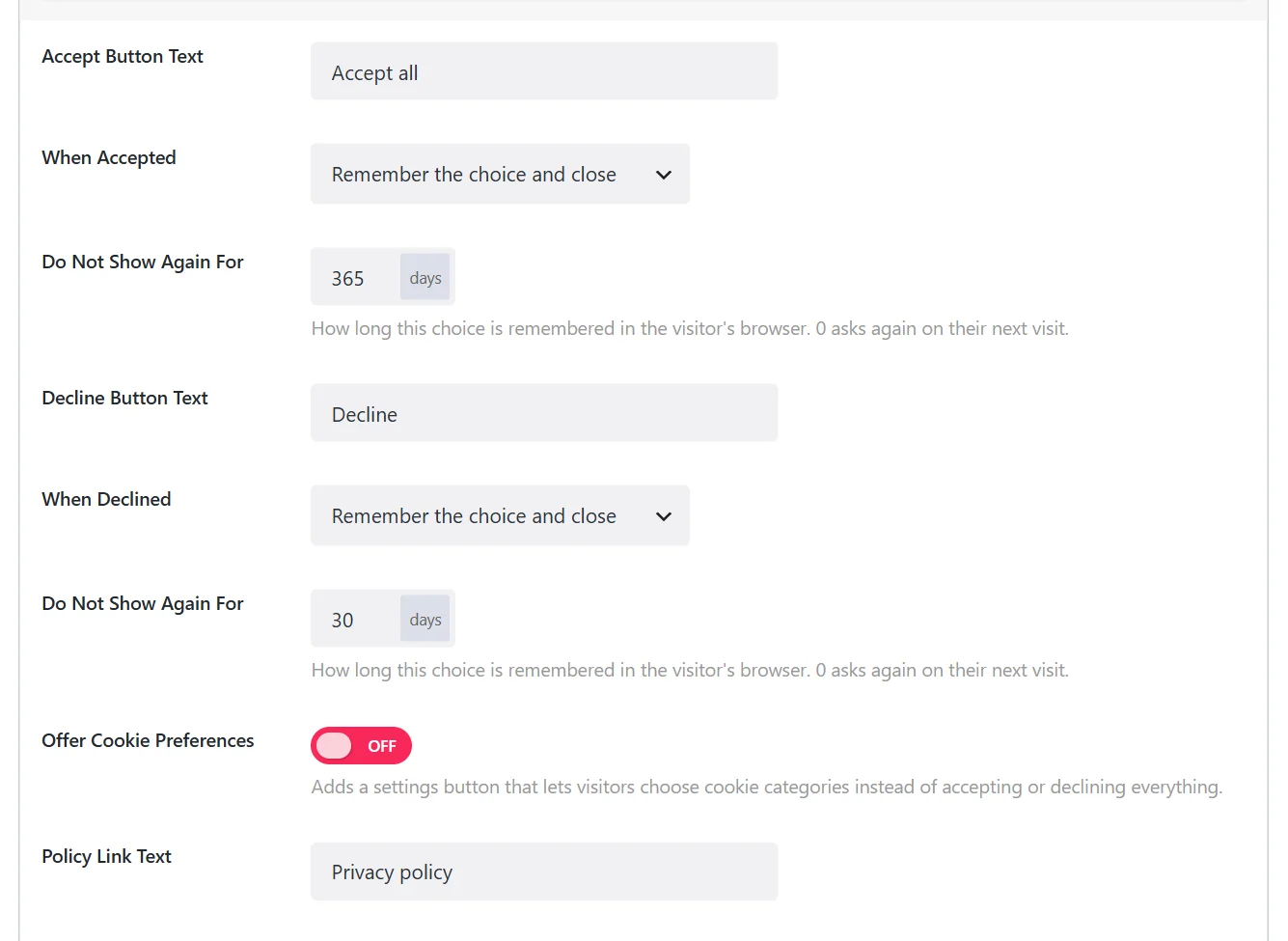
| Accept Button Text | The label of the accept button. |
| When Accepted | The action on accept. Remember the choice and close by default. |
| Do Not Show Again For | Days the answer is remembered. 365 by default; 0 asks again on the next visit. |
| Decline Button Text | The label of the decline button. Leave empty to show no decline button. |
| When Declined | The action on decline, with its own Do Not Show Again For. |
| Policy Link Text, Policy Link URL | A link to your privacy or cookie policy inside the notice. |
Both buttons can also redirect, show a follow-up message or fire a custom event, like any action button.
Cookie preferences#
Switch on Offer Cookie Preferences to add a settings button. It opens a panel where the visitor ticks the categories they allow, instead of accepting or declining everything.
| Field | What it does |
|---|---|
| Settings Button Text | The label of the button that opens the panel. Cookie settings by default. |
| Save Button Text | The label of the panel's save button. |
| Necessary Cookies Label | The always-on line at the top of the panel. |
| Category: Analytics / Marketing / Functional | For each: Offer (include it), Label, Description and Ticked by Default. |
Leave Ticked by Default off where the law requires opt-in consent, as the GDPR does.
Passing the choice on#
Every answer (Accept, Decline or Save) is stored and announced in four ways, so other tools can act on it:
| Channel | Detail |
|---|---|
| Cookie | wdpop_consent, a JSON record: necessary, analytics, marketing, functional (true or false) and the time. |
| Google Consent Mode v2 | When gtag is present on the page, a consent update is sent with the matching granted / denied values. |
| dataLayer | A wdpop_consent event is pushed, for Google Tag Manager triggers. |
| JavaScript event | wdpop:consent is dispatched on the document; WingPopup.consent() returns the stored record. |
A stored choice is applied again on every page load, so returning visitors keep their settings.
document.addEventListener('wdpop:consent', function () {
  var consent = WingPopup.consent();
  if (consent && consent.analytics) {
    // load your analytics script here
  }
});
Display tips#
- Show it everywhere. Keep Display the popup on the page on Everywhere and Frequency Mode on Always; the notice itself remembers the answer and stays away once it has one.
- Do not block the page unless you must. A bar at the bottom lets visitors read while they decide.
- Maps and videos set cookies when they load. If you use the Google Map or Video popup types, ask for consent first.
Did this not answer your question?
Send us what you are trying to do and we will help, and improve this page.