


Push notifications Pro
Collect browser notification subscribers with an opt-in popup and send them a notification from WordPress.
Browser push notifications reach a visitor even when your site is not open: a restock, a sale, a new article. Wing Popup Pro covers both halves: a popup that asks for permission, and a screen to send a notification to everyone who agreed. No outside push service is involved.
Requirements#
- Your site must be served over HTTPS. Browsers refuse notifications on insecure sites.
- The server needs the OpenSSL PHP extension, which nearly every host has.
1. Collect subscribers#
Create a popup of the Notification Opt-in type.
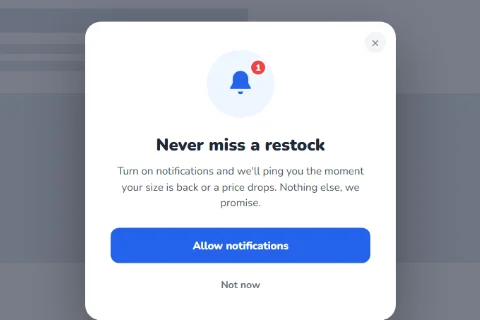
- Go to Wing Popup → Popups and add a popup.
- Set Popup Type to Notification Opt-in.
- Write a Heading and Content that say what the visitor will be notified about.
- Set the buttons:
| Field | What it does |
|---|---|
| Accept Button Text | Yes, notify me by default. |
| Decline Button Text | Not now by default. Leave empty to show only the accept button. |
| If They Decline, Wait | Days before asking again. 30 by default. |
| Confirmation Message | Shown after a successful subscription. |
- Save and switch the popup on.
When a visitor clicks the accept button, the browser shows its own permission prompt. If they allow it, they are subscribed.
The browser's permission prompt cannot be styled, and if a visitor blocks it there is no way to ask again. That is why the popup comes first: it explains the value, and only visitors who say yes ever see the browser's prompt.
Ask at the right moment#
A request on the first second of the first visit is refused almost every time. Better moments:
- after a few pages: the Page visits trigger;
- on an out-of-stock product: Notify me when it is back;
- after a purchase: Get shipping updates.
2. Send a notification#
Once you have at least one subscriber, Notifications appears in the Wing Popup menu.
- Go to Wing Popup → Notifications.
- Fill in the fields:
| Field | What it does |
|---|---|
| Title | The notification's bold first line. |
| Message | The text under it. Keep it short; most systems cut a notification off after a line or two. |
| Opens | The page that opens when the notification is clicked. |
- Click Send to everyone.
The screen reports how many notifications were delivered, how many failed, and how many expired subscriptions were removed.
A notification is sent immediately and cannot be recalled. There is no test mode. Subscribe from your own browser first and send your first notification while you are the only subscriber.
Good practice#
- Send rarely. Each notification interrupts someone. A few a month that matter keep subscribers; daily promotions lose them.
- Say what it is about in the title, and link to exactly that page.
- Unsubscribing is done in the visitor's browser settings, where they can block your site's notifications at any time. Subscriptions that no longer exist are removed from your list when you send.
Privacy#
A subscription is an anonymous address issued by the visitor's browser. It holds no name and no email, and it is stored only on your site.
Did this not answer your question?
Send us what you are trying to do and we will help, and improve this page.