


Coupon popup Pro
Show a discount code in a popup with a button that copies it to the visitor's clipboard.
The Coupon / Discount Code type presents a code in a clear box with a copy button. One click copies the code, ready to paste at checkout.
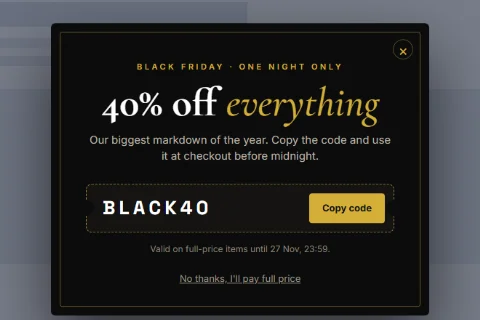
Set it up#
- Edit a popup and set Popup Type to Coupon / Discount Code.
- Fill in the Heading and Content that explain the offer.
- Enter the code and the button labels (below).
- Optionally add a Call To Action Button, for example a link to the shop.
- Click Save.
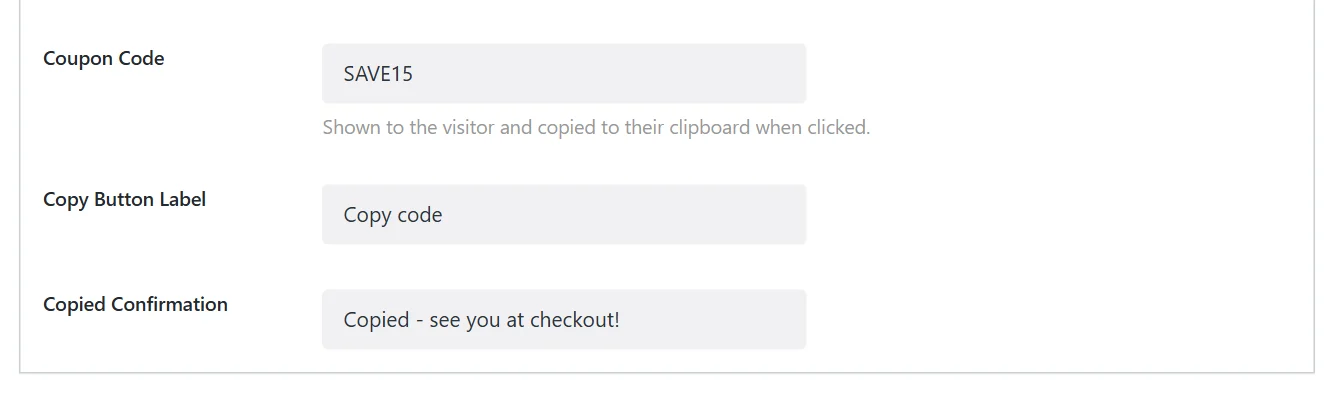
The fields#
| Field | What it does |
|---|---|
| Coupon Code | The code shown to the visitor and copied when they click. |
| Copy Button Label | The button's text. Copy code by default. |
| Copied Confirmation | What the button says after a successful copy. Copied! by default. |
| Image and Image Layout | An optional picture and its position. See Image layout. |
Create the discount in your shop#
Wing Popup displays the code; your shop applies it. Create a coupon with exactly the same code in your shop first, in WooCommerce under Marketing → Coupons. Set its limits there: expiry date, minimum spend, one use per customer.
Ideas#
- Welcome offer: show it on page load to first-time visitors. Combine with Visitor History targeting.
- Exit offer: show it on exit intent to visitors with something in their cart.
- Top bar: set Display Mode to Floating Bar for a thin strip with the code that stays out of the way.
Coupon popup or coupon reveal?#
| You want | Use |
|---|---|
| To hand out the code freely | This popup type |
| To give the code in return for an email address | A Form popup with a follow-up message that reveals the code. Works in the free plugin. |
| To make it a game | Spin to Win or Pick a Gift |
Did this not answer your question?
Send us what you are trying to do and we will help, and improve this page.