


Import and export Pro
Move popups, forms and settings from one site to another, keep a backup, or start over.
Import and export moves your whole Wing Popup setup between sites as a single file: from staging to the live site, from one client site to the next, or into a backup.
Go to Wing Popup → Popups → Import / Export.
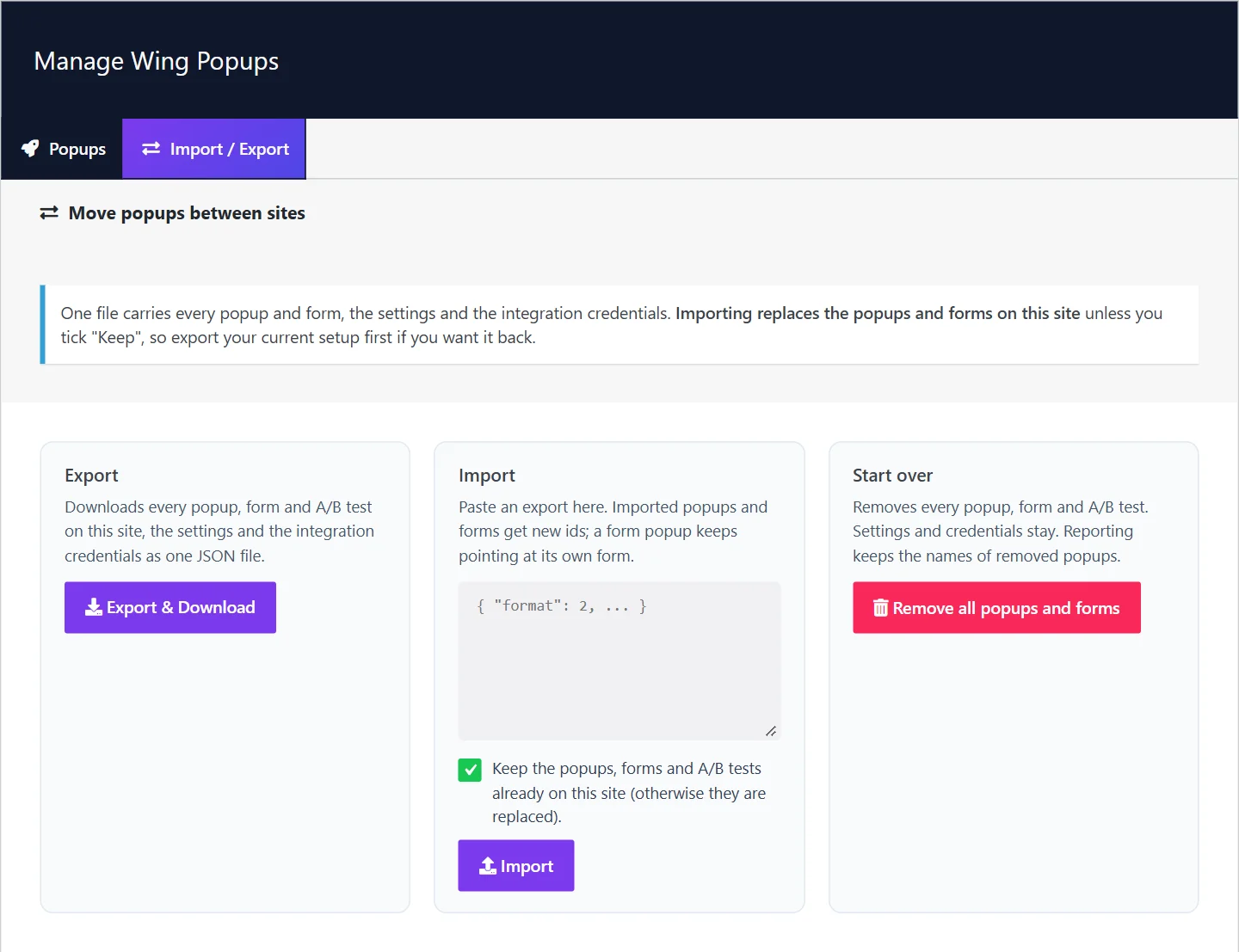
What the file contains#
One file carries:
- every popup;
- every form;
- the A/B tests;
- the plugin's settings;
- the credentials of your email integrations.
The file contains your integrations' API keys. Keep it as safe as a password, and do not share it or commit it to a public repository.
Images are not inside the file. A popup refers to its image by address, so images in the media library of the old site stay there. After importing on another site, open the popups that use images and choose them again from the new site's media library.
Export#
Click Export & Download. Your browser saves a .json file. Keep it as a backup before large changes.
Import#
- Open the exported file in a text editor and copy all of its contents.
- Paste them into the box under Import.
- Decide about what is already on the site:
- Keep ticked: the imported popups and forms are added to the existing ones.
- Keep unticked: the existing popups, forms and A/B tests are replaced by the imported ones.
- Click Import.
Imported popups and forms get new IDs on the receiving site. The links between them are kept: a Form popup still points at its own form, and an A/B test at its own popups.
After importing#
- Check each popup's images and choose them again where needed.
- Check page targeting. Rules that name specific pages or posts refer to IDs of the old site.
- Sync your email lists under Forms → Integrations and check each form's list.
- Shortcodes in pages refer to form IDs. Update a page that used a form's old ID.
Start over#
Remove all popups and forms deletes every popup, form and A/B test on the site. Settings and integration credentials stay, and the analytics reports keep the names of the removed popups. Export first: this cannot be undone from the screen.
Without Pro#
In the free plugin, move a popup by building it again on the other site. The Popup Library is the quickest way to get the same starting point on both.
Did this not answer your question?
Send us what you are trying to do and we will help, and improve this page.