


Triggers
Choose the moment a popup opens. The free triggers are page load with a delay and a click on any button, link or element.
A trigger is the moment a popup opens. Triggers are set on a popup's Trigger Events tab. The free plugin has two: Page Load and On Click. Wing Popup Pro adds scroll, hover, inactivity, exit intent and more, and WooCommerce events.
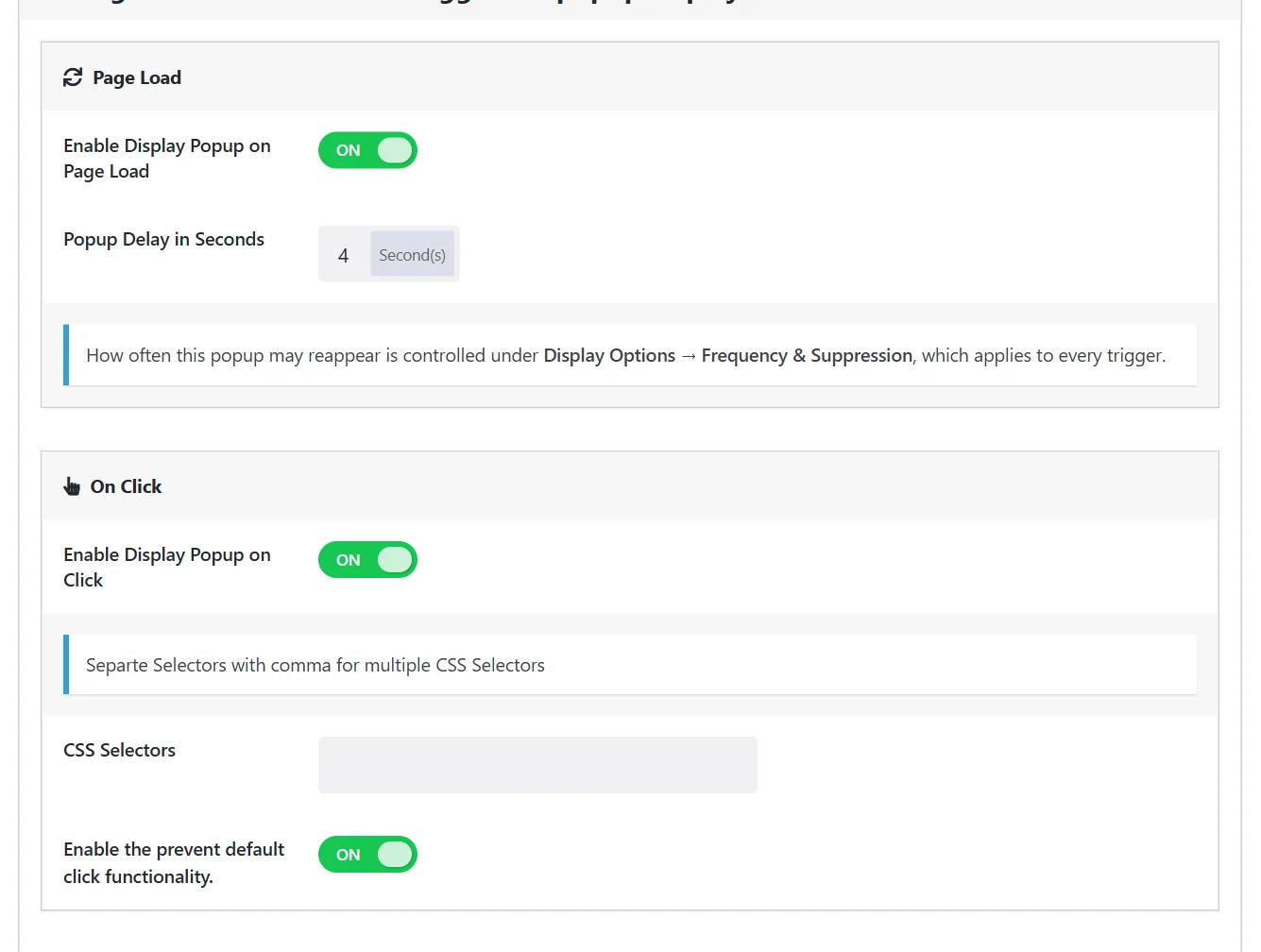
A popup may use several triggers at once. Whichever fires first opens it. Every trigger then passes through the same display rules and frequency rules, which can still hold the popup back.
Page Load#
Opens the popup by itself, a set time after the page has loaded.
| Field | What it does |
|---|---|
| Enable Display Popup on Page Load | Switches the trigger on. On by default for a new popup. |
| Popup Delay in Seconds | How long to wait after the page loads. 3 by default. Use 0 to open at once. |
How long to wait depends on the popup's job:
- Cookie notices and age gates: 0 seconds.
- Announcements: 2 to 5 seconds, so the page is seen first.
- Signup offers: 10 to 30 seconds, when the visitor has started reading.
How often the popup comes back for the same visitor is not set here. It is controlled under Display Options → Frequency & Suppression.
On Click#
Opens the popup when the visitor clicks an element of your page: a button, a link, an image, a menu item.
| Field | What it does |
|---|---|
| Enable Display Popup on Click | Switches the trigger on. |
| CSS Selectors | Which elements open the popup. Separate several selectors with commas. |
| Enable the prevent default click functionality | Stops the element's normal action, so a link opens the popup instead of navigating. On by default. |
Finding a selector#
A CSS selector names elements on your page. The two simplest kinds:
| Selector | Matches |
|---|---|
.open-offer |
Every element with the CSS class open-offer |
#newsletter-button |
The one element with the ID newsletter-button |
The easiest way is to give your button a class of your own:
- Edit the page and select the button block.
- Open Advanced in the block settings and type a name in Additional CSS class(es), for example
open-offer. - In the popup's CSS Selectors field enter
.open-offer(with the dot).
In Elementor, the same field is under Advanced → CSS Classes. For a menu item, switch on CSS Classes in the Screen Options of Appearance → Menus.
Several selectors can share one popup:
.open-offer, #newsletter-button, .menu-item-subscribe aClick triggers and frequency#
A popup opened by a click is something the visitor asked for, so the cooldown should not block it. On the Display Options tab switch on Disable Cooldown for Click and Hover: clicks then open the popup every time, while the page load trigger keeps respecting the cooldown.
To open a popup only on click, switch Enable Display Popup on Page Load off.
Which trigger for which job#
| Goal | Trigger |
|---|---|
| Greet every new visitor | Page load, short delay |
| Offer a signup after some reading | Page load with a longer delay, or scroll Pro |
| Open a form, video or size guide on request | On click |
| Catch visitors who are about to leave | Exit intent Pro |
| React to the shopping cart | WooCommerce triggers Pro |
Did this not answer your question?
Send us what you are trying to do and we will help, and improve this page.