


Yes / No question Pro
Ask a question with two buttons and give each answer its own action, such as a follow-up message, a redirect or a remembered choice.
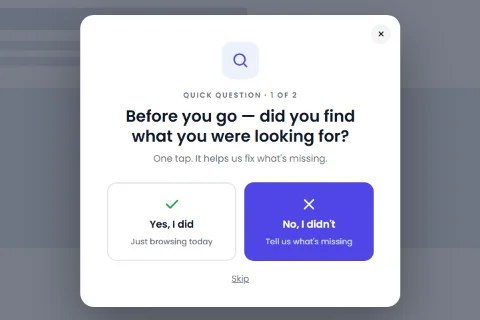
The Yes / No Question type shows a question with two buttons. Each button has its own action, which makes it a small decision point: Want 10% off?, Did you find what you were looking for?, Are you a new customer?
Set it up#
- Edit a popup and set Popup Type to Yes / No Question.
- Put the question in the Heading and any explanation in Content.
- Set the text and the action of each button (below).
- Click Save.
The buttons#
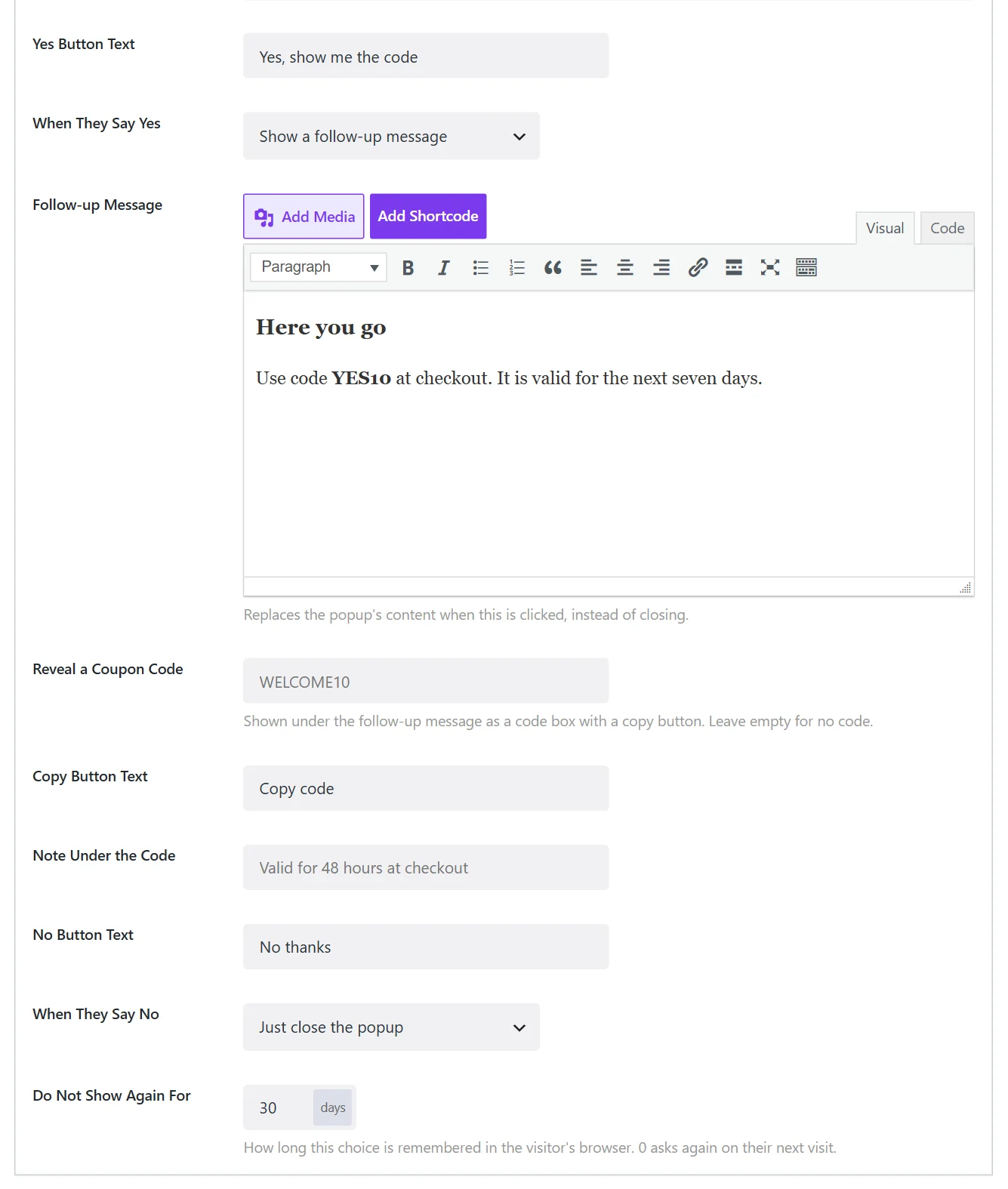
| Field | What it does |
|---|---|
| Yes Button Text | The label of the first button. Yes by default. |
| When They Say Yes | The action of the Yes button. Show a follow-up message by default. |
| No Button Text | The label of the second button. No thanks by default. |
| When They Say No | The action of the No button. Just close the popup by default. |
| Do Not Show Again For | Days the No answer is remembered in the visitor's browser. 0 asks again on their next visit. |
The actions#
Both buttons choose from the same list:
| Action | Result |
|---|---|
| Just close the popup | Closes it. |
| Send them to a URL | Redirects to the Destination URL. |
| Copy text to their clipboard | Copies the Text to Copy, for example a code. |
| Remember the choice and close | Closes and does not ask again for the remembered period. |
| Show a follow-up message | Replaces the content with a message and, optionally, a coupon code. |
| Fire a custom event for other scripts | Dispatches a JavaScript event named in Event Name. |
| Do nothing | The button has no effect. |
Examples#
Offer gate. Want 10% off your first order? Yes shows a follow-up message with the code. No closes the popup and is remembered for 30 days.
Routing. Are you shopping for a business? Yes redirects to the wholesale page. No closes.
Feedback. Did you find what you were looking for? Yes shows a thank-you. No shows a follow-up with a link to your contact page.
Make it a gate#
Switch on Lock the Page Behind to blur the page until one of the buttons is clicked. See Content locker. For age checks, use the dedicated Age verification type.
Did this not answer your question?
Send us what you are trying to do and we will help, and improve this page.