


Multi-step popup Pro
Build a popup with up to five steps, each with its own image, text and buttons, for tours, quizzes and small funnels.
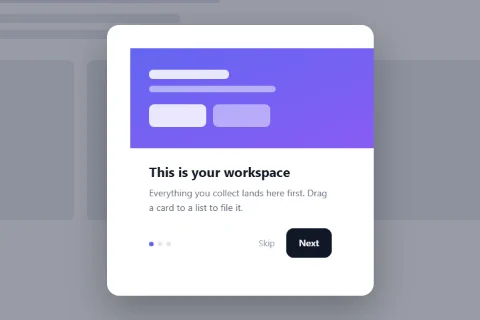
The Multi-step type shows up to five steps inside one popup. Each step has its own image, heading, text and two buttons, and each button decides where the visitor goes next. Use it for product tours, onboarding, simple quizzes and step-by-step offers.
Set it up#
- Edit a popup and set Popup Type to Multi-step.
- Fill in Step 1.
- For each further step, switch on Use This Step and fill it in. Step 2 is on by default; steps 3 to 5 are off until you switch them on.
- Click Save.
The fields of a step#
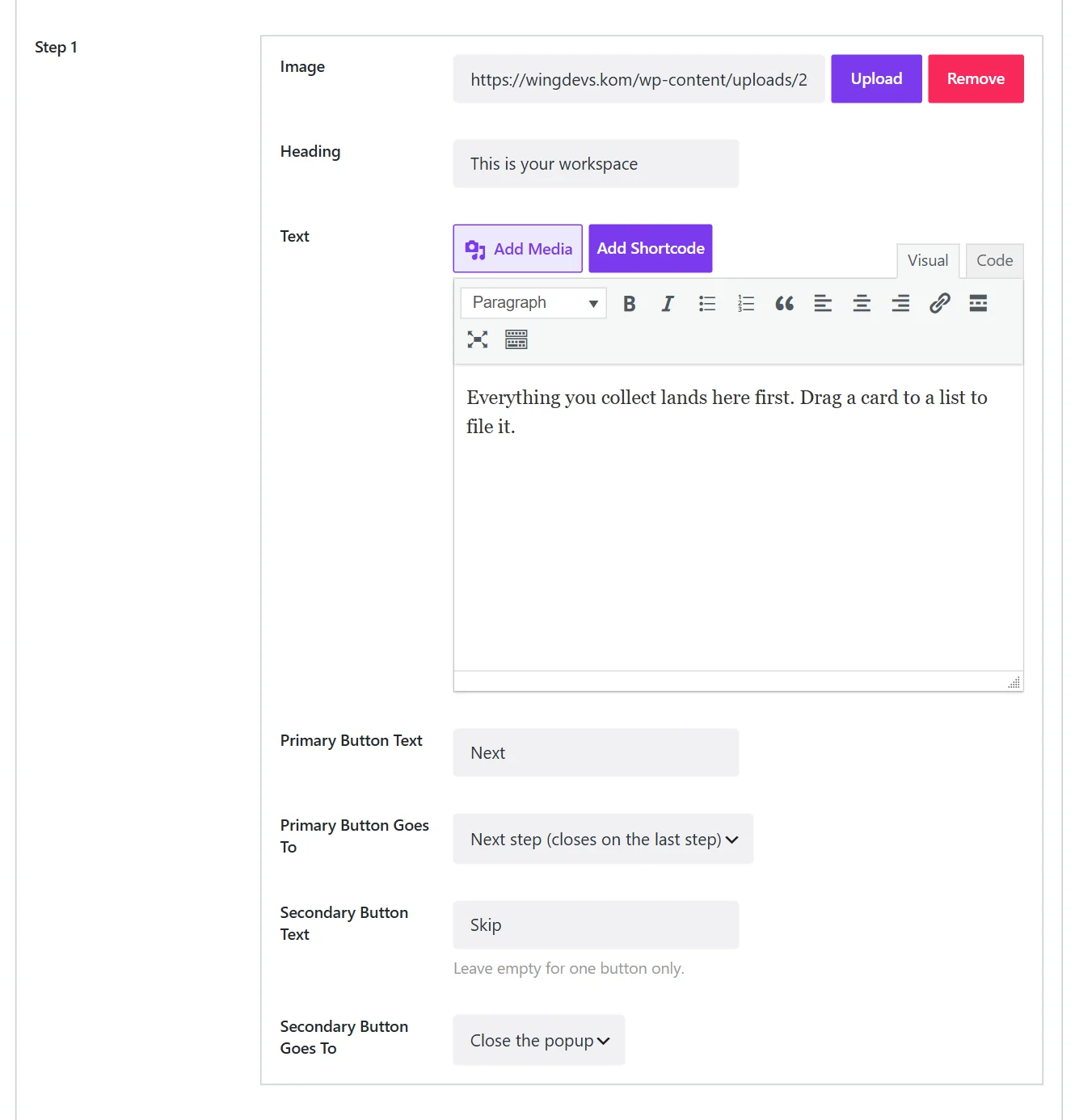
| Field | What it does |
|---|---|
| Use This Step | Includes the step. (Step 1 is always used.) |
| Image | An optional picture at the top of the step. |
| Heading, Text | The step's content. |
| Primary Button Text | The main button's label. Continue by default. |
| Primary Button Goes To | Where the main button leads (below). |
| Secondary Button Text | The label of an optional second button. Leave empty for one button only. |
| Secondary Button Goes To | Where the second button leads. |
Where a button can go#
| Choice | Result |
|---|---|
| Next step | Moves on. On the last step it closes the popup. |
| Previous step | Goes back one step (secondary button). |
| A specific step | Jumps to the step entered in Step Number. This is how answers branch. |
| A link | Opens the Link URL. |
| Close the popup | Closes it. |
Step dots#
Show Step Dots adds a row of dots under the buttons that shows which step the visitor is on. Switch it off for branching popups, where the dots would not match the path.
Examples#
Welcome tour. Three steps, each Next, the last one Get started linking to the dashboard. Secondary button Skip closes the popup.
Gift finder. Step 1 asks Who is it for? Primary For her jumps to step 2, secondary For him jumps to step 3. Steps 2 and 3 each end in a link to a category.
Two-tap feedback. Step 1 asks How was your order? Primary Great jumps to a thank-you step, secondary Not great jumps to a step with a link to support.
The Popup Library has several multi-step presets (Dashboard welcome tour, Gift finder, Table booking). Inserting one and reading its steps is the quickest way to see how branching is wired.
Did this not answer your question?
Send us what you are trying to do and we will help, and improve this page.