


Popup Library
Insert a ready-made popup from more than 200 presets, then change the text, the trigger and the look.
The Popup Library is a gallery of complete, ready-made popups called presets. A preset carries its content, its design and sensible display settings. You insert it, change the words and switch it on.
Open the library#
- Go to Wing Popup → Popups.
- Click Popup Library next to Add New Popup.
Find a preset#
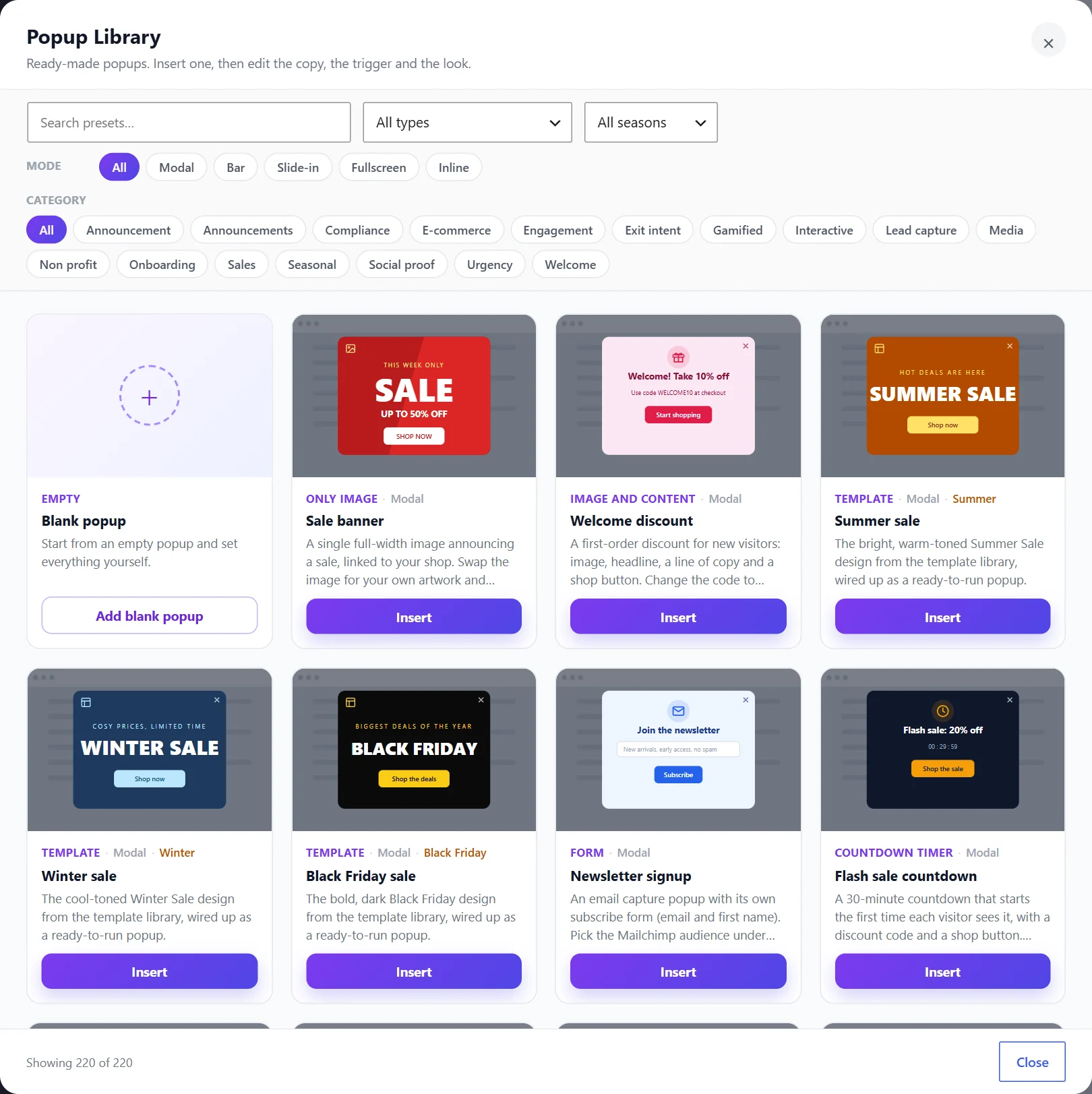
The library holds more than 200 presets. Narrow them down with the controls at the top:
- Search looks through titles and descriptions.
- All types filters by popup type, for example Form, Countdown Timer or Cookie Notice.
- All seasons shows presets made for an occasion such as Black Friday, Christmas or Summer.
- Mode filters by display mode: Modal, Bar, Slide-in, Fullscreen or Inline.
- Category filters by purpose, such as Lead capture, Sales, Welcome or Exit intent.
Filters combine: choosing Form and Lead capture shows only form presets made for lead capture. Clear filters resets them.
Each card shows a preview, the popup type, the display mode and a short description.
Insert a preset#
Click Insert on a card. The library:
- Creates the popup, switched off, and opens it in the editor.
- Copies the preset's images into your media library. They are your own files from then on.
- Creates what the popup needs: a form preset adds its form under Wing Popup → Forms, a template preset adds its design under Wing Popup → Templates.
If a preset needs a feature that is switched off (Forms or Templates), the library switches it on for you and says so.
Make it yours#
A preset is a starting point. After inserting:
- Change the heading, text, image and button link on the Popup Content tab.
- Check the trigger on the Trigger Events tab.
- Check where it shows on the Display Options tab.
- Click Save, then switch the popup on.
For a form preset, connect the form to your email service under Wing Popup → Forms. See Subscribe form.
Free and Pro presets#
Presets of the free popup types (Only Image, Image and Content, Template, Form) can be inserted with the free plugin and look like their previews, colours and spacing included.
Presets that need Wing Popup Pro show a lock. That covers the Pro popup types and any preset that uses a floating bar, a slide-in panel or a Pro trigger such as exit intent. Pro
A preset that depends on another plugin, for example a WooCommerce product popup, can only be inserted while that plugin is active. The card explains what is missing.
Start from a blank popup#
The first card, Blank popup, does the same as Add New Popup: it creates an empty popup for you to fill in. See Create your first popup.
Did this not answer your question?
Send us what you are trying to do and we will help, and improve this page.