


Create your first popup
A step-by-step walk through adding a popup, giving it content, choosing when it opens and switching it on.
This guide builds a simple offer popup with an image, a heading, some text and a button. It takes about five minutes and uses only the free plugin.
In a hurry? The Popup Library inserts a finished popup with one click. This guide shows what each part does, which helps when you edit a library popup too.
1. Add a popup#
- Go to Wing Popup → Popups.
- Click Add New Popup.
The editor opens at once with a new popup. The other popups are hidden while one is open; Back to the list returns to them.
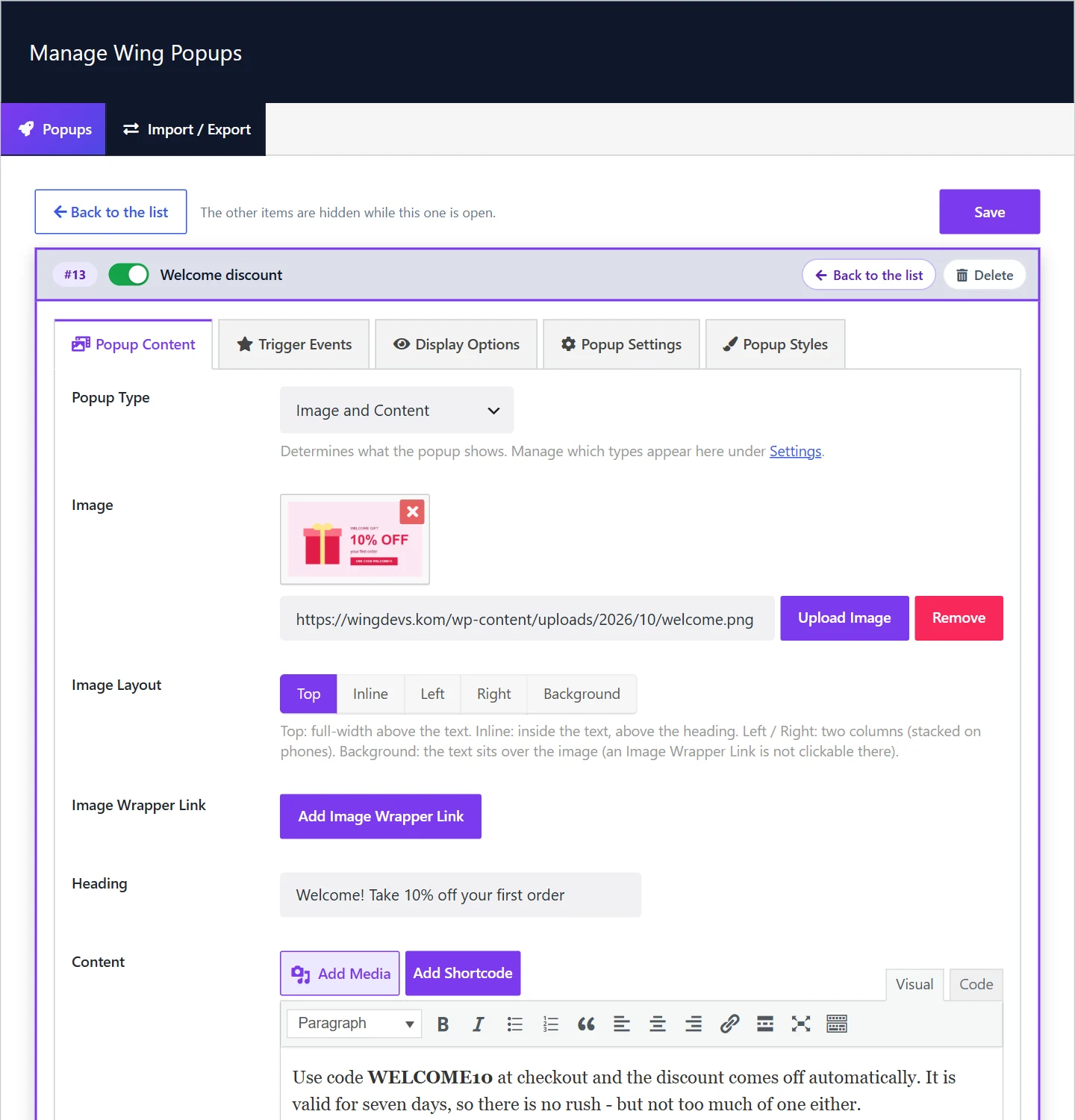
- Click the name in the title bar (it reads New Popup) and type a name you will recognise, for example Spring offer. Press Enter.
2. Choose what it shows#
The Popup Content tab is open first.
- Set Popup Type to Image and Content.
- Under Image, click Upload Image and choose a picture from your media library.
- Type a Heading, for example Welcome! Take 10% off your first order.
- Write a sentence or two in Content.
- Click Add CTA Button under Call To Action Button, enter the link and the button text, and confirm.
- Optionally type a Dismiss Button Text such as Maybe later. Leave it empty to show no dismiss button.
Any field you leave empty is simply not shown in the popup.
3. Choose when it opens#
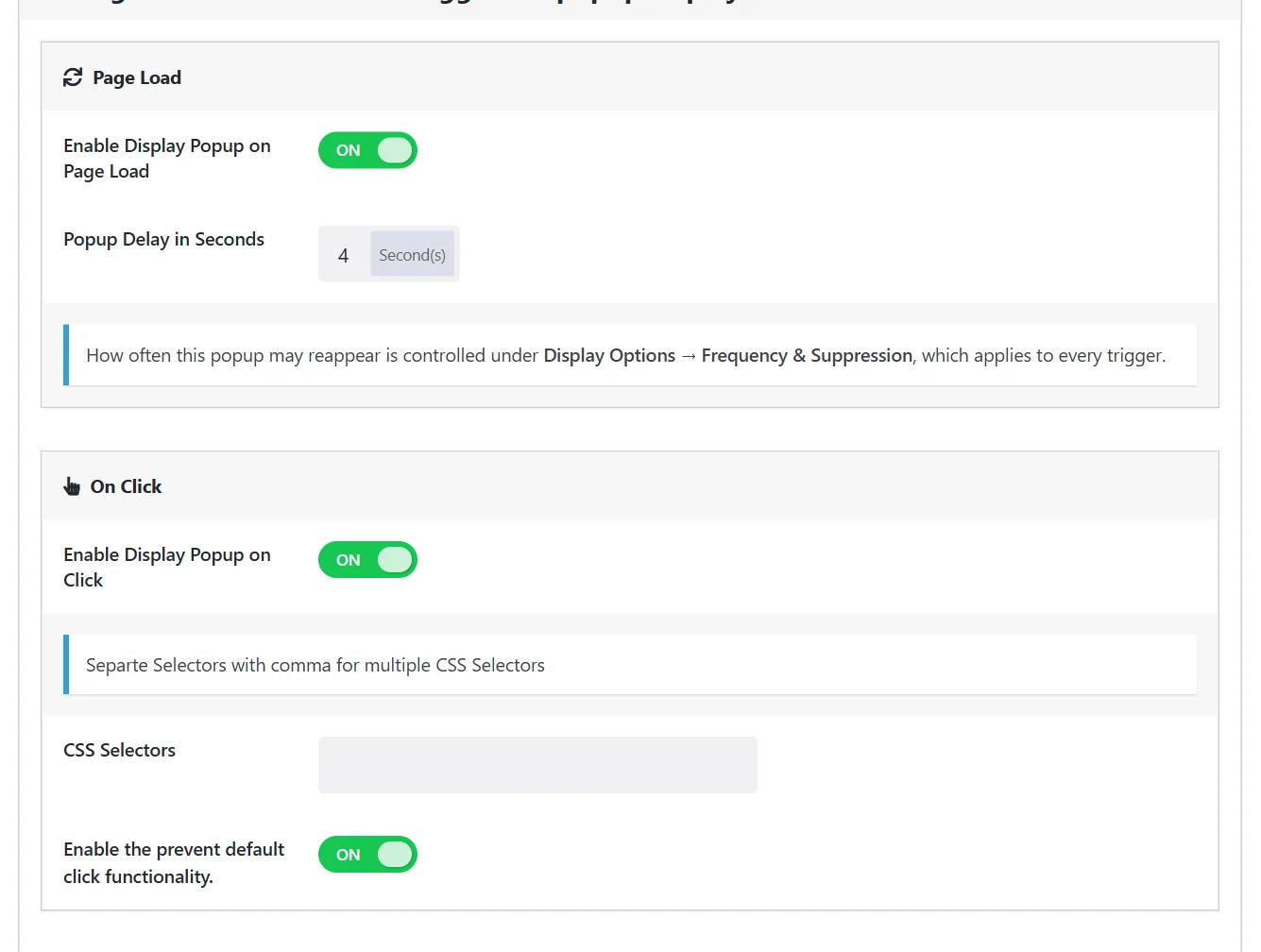
Open the Trigger Events tab.
A new popup opens on page load after 3 seconds. Change Popup Delay in Seconds if you want it sooner or later. To open the popup from a button or link instead, see Triggers.
4. Choose where and how often#
Open the Display Options tab.
- Display the popup on the page is set to Everywhere. Choose Custom Selection to limit the popup to certain pages. See Page targeting.
- Frequency Mode decides how often one visitor sees the popup. The default, Cooldown, waits three hours before showing it to the same visitor again, and a week after they closed it. See Frequency and suppression.
5. Save and switch it on#
- Click Save at the top right of the editor.
- Click the switch next to the popup's name so it turns green. A new popup starts switched off, so nothing reaches your visitors while you are still building it.
Open your site in a private browser window. After the delay you set, the popup appears.
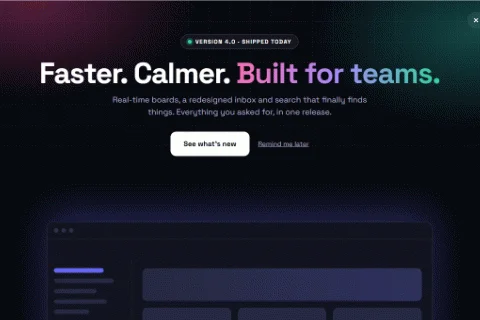
Testing the same popup again and again? The frequency rules remember that you have seen it. Use a private window for each test, or set Frequency Mode to Always while you are building.
What to do next#
- Change the size and position: Display mode, size and position
- Collect email addresses: Form popup
- Popup does not appear? See Troubleshooting
Did this not answer your question?
Send us what you are trying to do and we will help, and improve this page.