


Template popup
Design a popup body freely with the block editor or Elementor and show it with the Template popup type.
A Template is a popup body you design yourself, with the WordPress block editor or with Elementor. The Template popup type then shows that design as a popup. Use it when the fixed fields of the other types are not enough: several columns, a gallery, a pricing table, anything a page could hold.
1. Switch Templates on#
Templates are on by default. If the Templates menu item is missing, go to Wing Popup → Settings → General and switch on Enable Templates, then save.
2. Create a template#
- Go to Wing Popup → Templates.
- Click Add New Template.
- Give it a title and design the content with blocks, or click Edit with Elementor if you use Elementor.
- Click Publish.
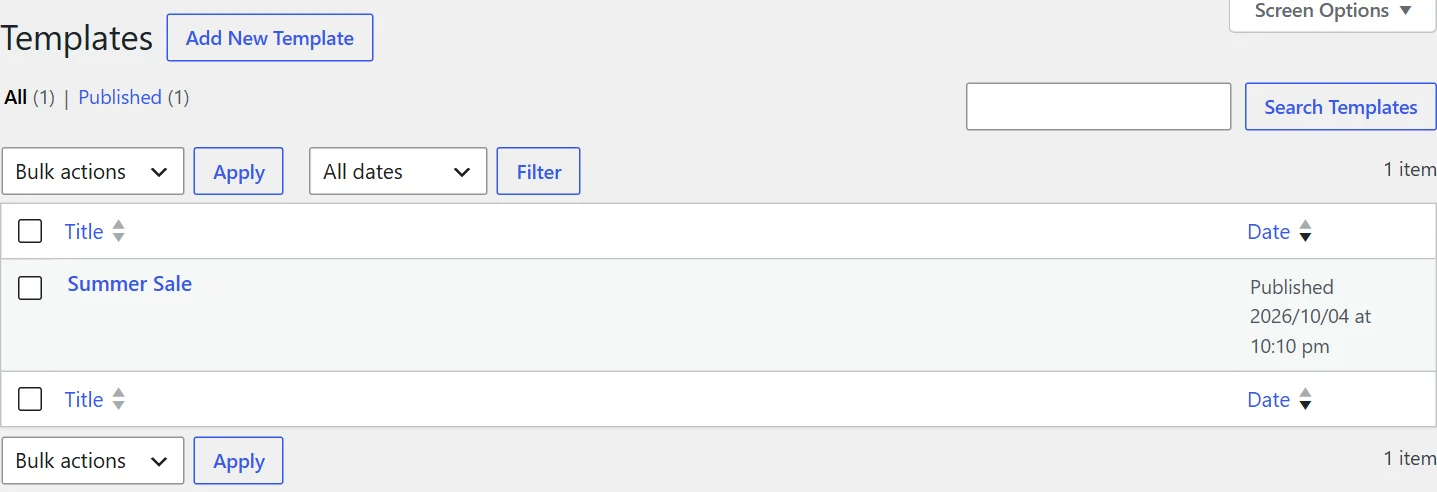
A template is never shown on its own. It has no public page; it only appears inside a popup that selects it.
3. Show it in a popup#
- Go to Wing Popup → Popups and add or edit a popup.
- On the Popup Content tab set Popup Type to Template.
- Choose your design under Select Popup Template.
- Click Save.
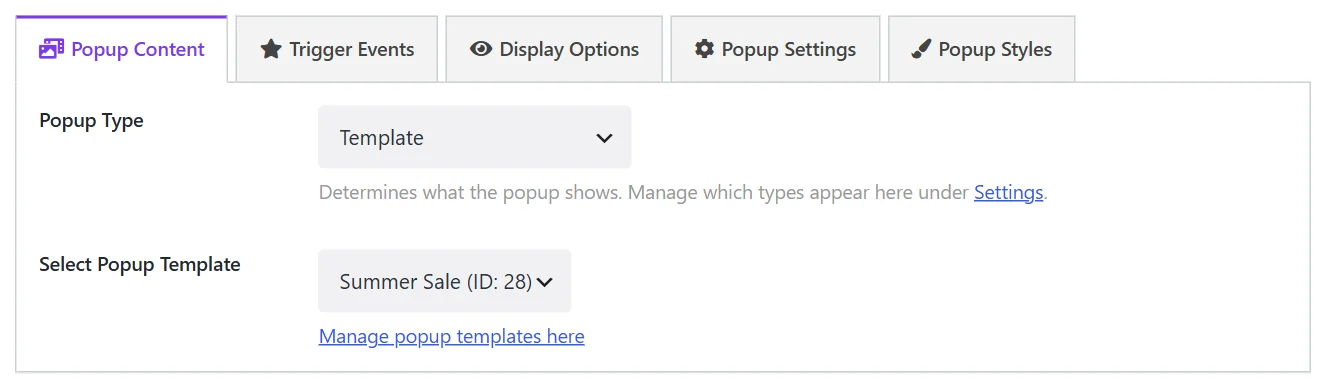
The same template can be used by several popups, each with its own trigger and display rules.
Ready-made designs#
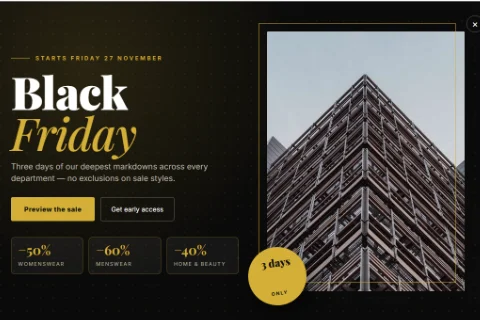
The Popup Library includes template presets such as Summer sale, Winter sale and Black Friday sale. Inserting one creates both the design under Templates and a popup that uses it. Edit the design like any other template.
Good to know#
- Width. The template fills the popup, whose width is set under Popup Settings → Select Popup Width. Design with that width in mind.
- Buttons inside a template are ordinary links. To close the popup from a link, use a link to the page you want the visitor to continue to, or rely on the popup's close button.
- Deleting a template that a popup still uses leaves that popup with nothing to show, so it is skipped. Choose another template in the popup first.
- Uninstalling the plugin never deletes your templates, even with Delete All Data on Uninstall switched on.
Did this not answer your question?
Send us what you are trying to do and we will help, and improve this page.