


Video popup Pro
Play a YouTube, Vimeo or self-hosted video in a popup, with privacy-friendly embedding and an action when it ends.
The Video type plays a video inside a popup: a product demo, a testimonial, a course teaser. It accepts YouTube and Vimeo links and direct links to MP4 files.
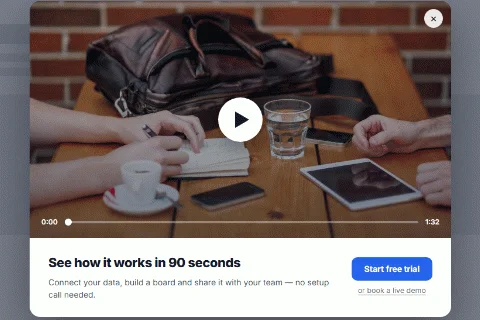
Set it up#
- Edit a popup and set Popup Type to Video.
- Paste the link in Video URL.
- Add a Heading, Content and a Call To Action Button to go with the video if you like.
- Click Save.
The fields#
| Field | What it does |
|---|---|
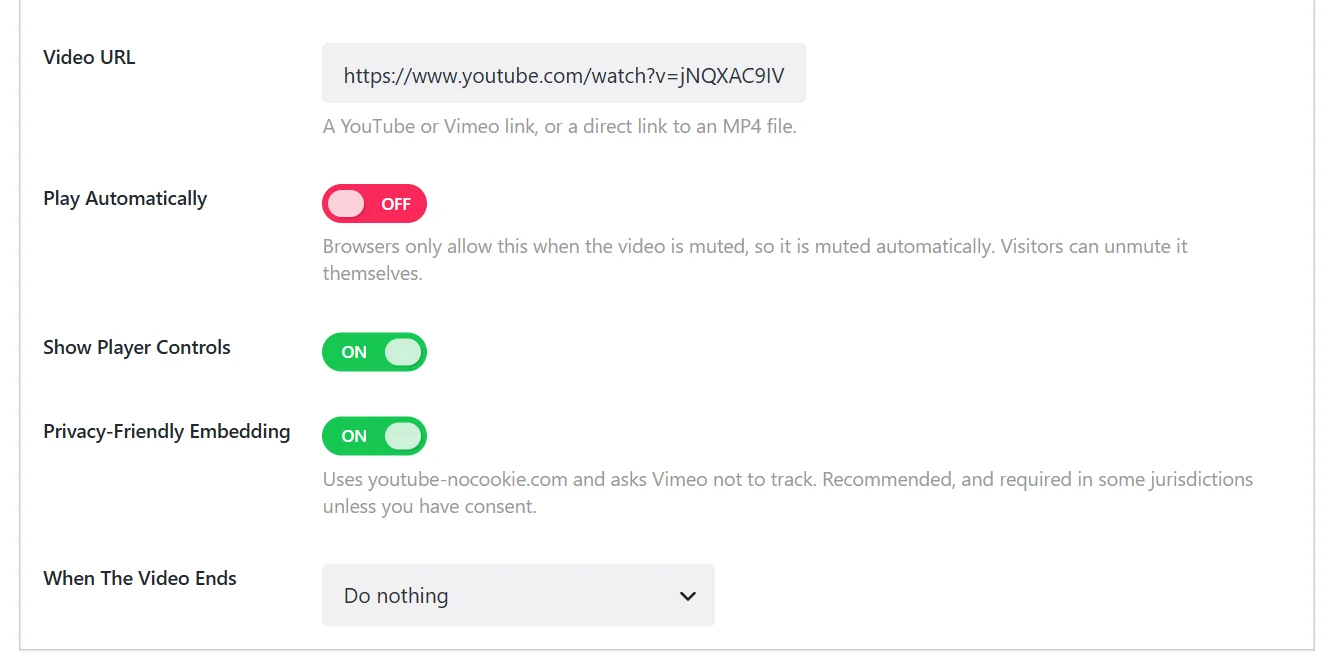
| Video URL | A YouTube or Vimeo link, or a direct link to an MP4 file. |
| Play Automatically | Starts the video when the popup opens. Browsers only allow this for muted video, so the video starts muted; visitors can unmute it. |
| Show Player Controls | Shows play, volume and the progress bar. On by default. |
| Privacy-Friendly Embedding | Uses youtube-nocookie.com and asks Vimeo not to track. On by default, and recommended. |
| When The Video Ends | Do nothing, close the popup, redirect, show a follow-up message or fire a custom event. |
The video is loaded only when the popup opens, never with the page, so it does not slow the page down and sets no cookies before the visitor sees it.
Open it from a button#
Video popups are usually opened by the visitor rather than on page load:
- On the Trigger Events tab switch off Enable Display Popup on Page Load.
- Switch on Enable Display Popup on Click and enter the CSS selector of your button, for example
.watch-demo. - On Display Options, switch on Disable Cooldown for Click and Hover so the button works every time.
See Triggers.
Size#
A video looks best in a wide popup. On the Popup Settings tab set Select Popup Width to Large (800px) or Extra large (1140px).
Related#
- Close the popup when the video finishes: Closing behavior
- Open another popup when a video on the page finishes: Pro triggers
Did this not answer your question?
Send us what you are trying to do and we will help, and improve this page.