


Scheduling Pro
Run a popup between a start and an end date, or only on certain days of the week and hours of the day.
Scheduling decides when a popup may appear: between two dates, on certain weekdays, during certain hours. It is on a popup's Display Options tab under Scheduling.
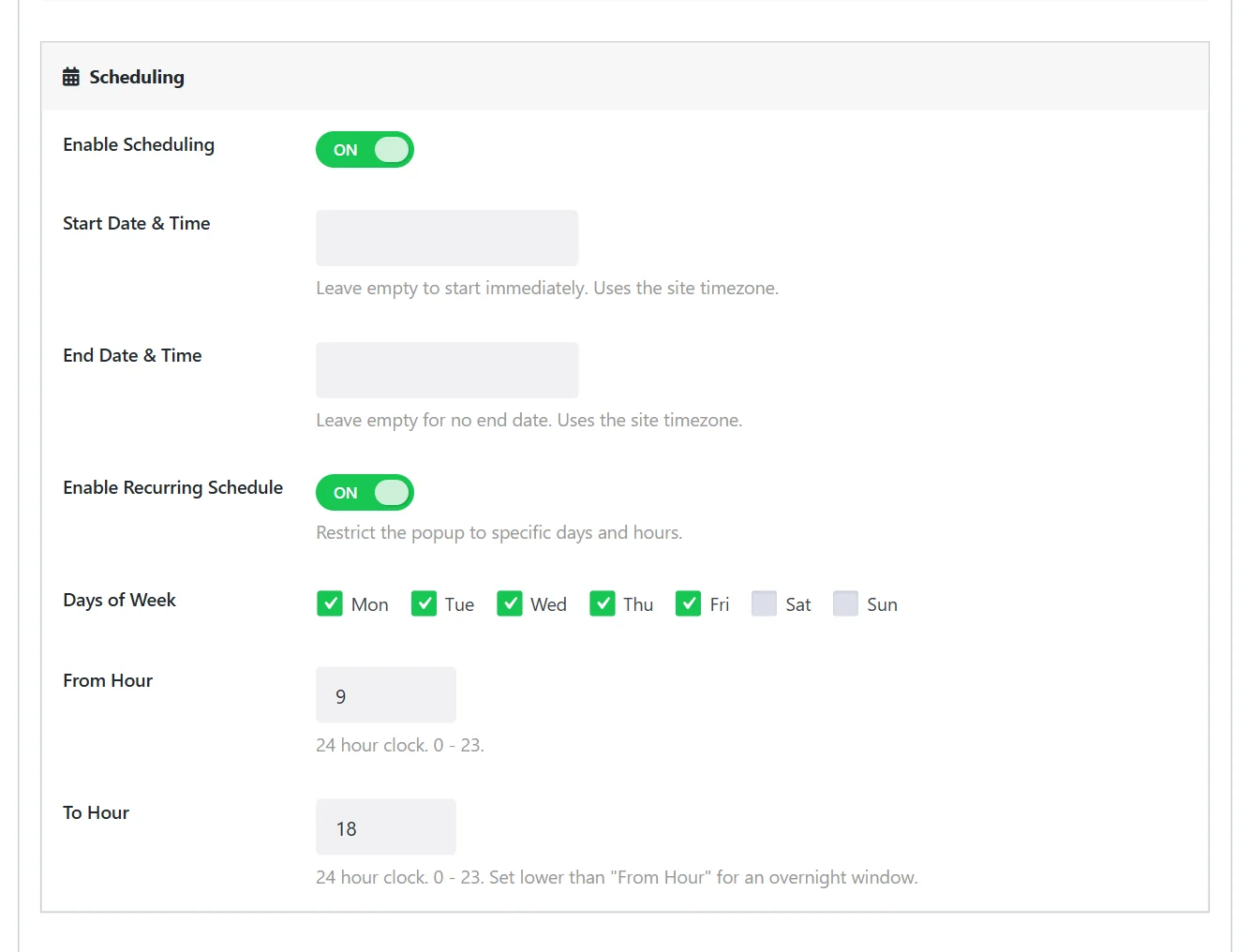
A start and an end date#
Switch on Enable Scheduling.
| Field | What it does |
|---|---|
| Start Date & Time | The popup stays hidden until this moment. Leave empty to start immediately. |
| End Date & Time | The popup stops appearing after this moment. Leave empty for no end. |
Both use your site's timezone, set under Settings → General → Timezone in WordPress.
With a schedule you can prepare a campaign in advance: build the Black Friday popup in October, give it its dates, switch it on, and it runs by itself for exactly the sale's duration.
A recurring schedule#
Switch on Enable Recurring Schedule to limit the popup to certain days and hours.
| Field | What it does |
|---|---|
| Days of Week | Tick the days on which the popup may appear. |
| From Hour | 0 to 23, on a 24-hour clock. 9 by default. |
| To Hour | 0 to 23. 18 by default. The hour itself is included: from 9 to 17 means 9:00 until 17:59. Set it lower than From Hour for a window that runs past midnight, for example from 22 to 6. |
The two schedules can be combined: a date range sets the campaign, the recurring schedule sets the hours inside it.
Examples#
Support chat prompt during office hours. Recurring: Monday to Friday, from 9 to 16 (9:00 until 16:59).
Weekend offer. Recurring: Saturday and Sunday, from 0 to 23.
Launch week. Start: Monday 09:00. End: Sunday 23:59.
Happy hour. Date range for the month, recurring every day from 17 to 18 (17:00 until 18:59).
Schedules and page caching#
The schedule is checked in the visitor's browser when a trigger fires, against the dates you set in the site's timezone. A cached page therefore does not show an expired popup or miss one that has just started.
Related#
- A visible deadline inside the popup: Countdown timer
- How often a visitor sees the popup while it runs: Frequency and suppression
Did this not answer your question?
Send us what you are trying to do and we will help, and improve this page.