


Email integrations
Connect Mailchimp, Brevo, Kit, ActiveCampaign, MailerLite and other services, sync their lists and choose a destination for each form.
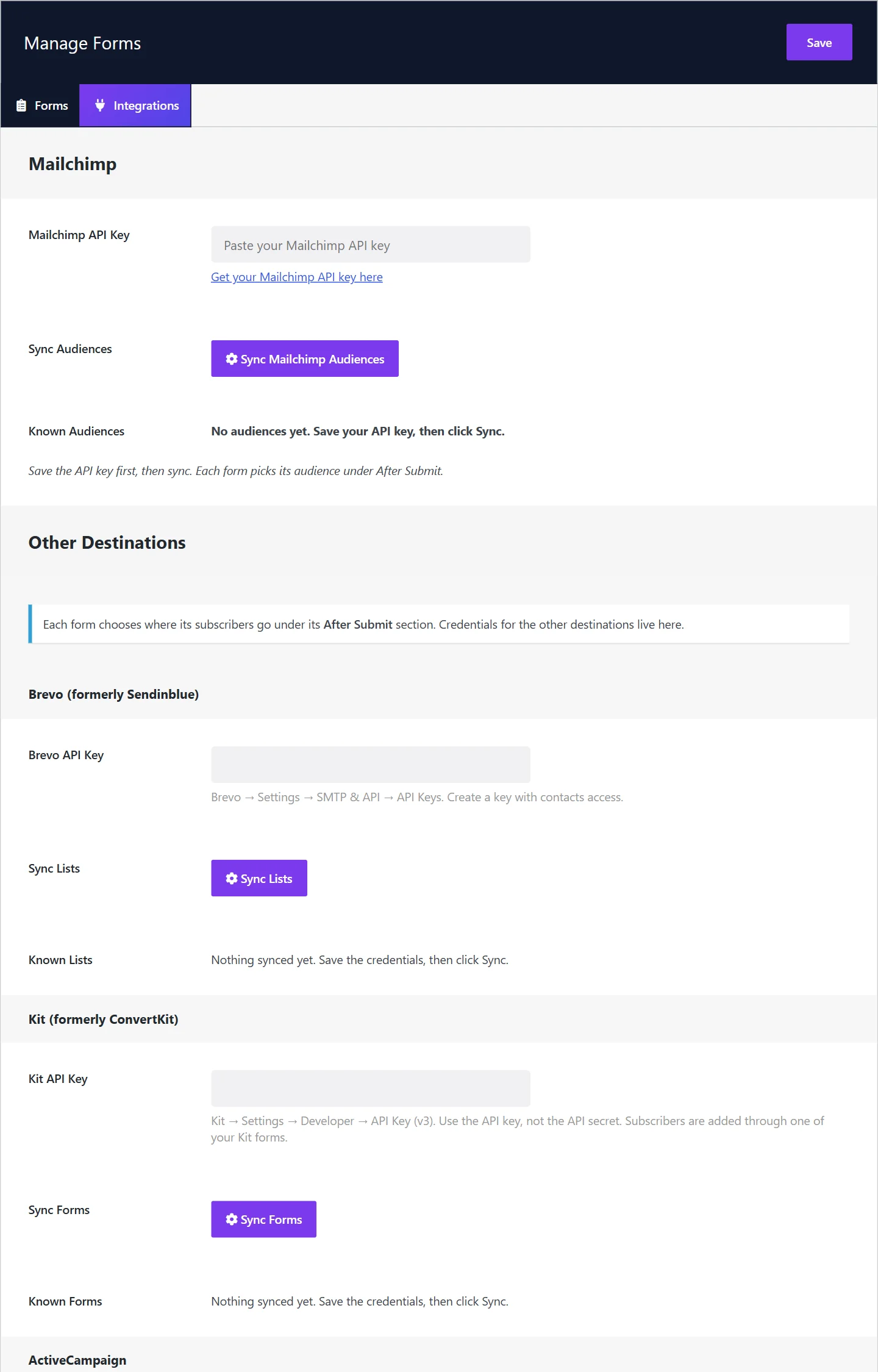
An integration connects Wing Popup to an email service, so that signups land in your mailing list. Credentials are entered once, under Wing Popup → Forms → Integrations; each form then chooses its destination and list on its After Submit tab.
Available services#
| Service | Subscribers are added to | |
|---|---|---|
| Mailchimp | An audience | Free |
| Brevo (formerly Sendinblue) | A list | Pro |
| Kit (formerly ConvertKit) | A form | Pro |
| ActiveCampaign | A list | Pro |
| MailerLite | A group | Pro |
| AWeber, HubSpot, FluentCRM | A list | Pro |
| Webhook (Zapier, Make, custom) | Any URL you give, as a web request | Pro |
Connect a service#
The steps are the same for every service:
- Go to Wing Popup → Forms → Integrations.
- Enter the service's credentials (below).
- Click Save.
- Click the service's Sync button. The lists it finds appear under it.
Sync again whenever you add a list in the service.
Where to find the credentials#
| Service | What to enter | Where it is |
|---|---|---|
| Mailchimp | API key | Mailchimp → Profile → Extras → API keys |
| Brevo | API key | Brevo → Settings → SMTP & API → API Keys. Create a key with contacts access. |
| Kit | API key (v3) | Kit → Settings → Developer. Use the API key, not the API secret. |
| ActiveCampaign | API URL and API key | ActiveCampaign → Settings → Developer. The URL looks like https://youraccount.api-us1.com. |
| MailerLite | API token | MailerLite → Integrations → MailerLite API → Generate new token. The new MailerLite, not Classic. |
The other services show a hint under each field.
Treat API keys like passwords. Anyone with a key can read and change your mailing lists. Wing Popup stores the keys in your site's database and uses them only from your server; they are never sent to a visitor's browser.
Choose the destination per form#
- Edit a form and open After Submit.
- Pick the service under Send Subscribers To.
- Pick the list in the field that appears under it (Mailchimp Audience, Brevo List, Kit Form, MailerLite Group and so on).
- Click Save.
A list field that says Nothing synced yet means the service was not synced: save its credentials on the Integrations tab and click Sync.
Different forms can send to different services and lists: the newsletter signup to Mailchimp, the webinar signup to a separate list.
Contact forms#
A contact form can add its sender to a list too, with their consent: After Submit → Also Add Them to a Mailing List. See Contact form.
Webhooks#
The Webhook destination posts each signup to a URL: a Zapier or Make scenario, or your own endpoint. Use it to reach any service that has no integration of its own, or to trigger an automation.
Troubleshooting#
- Sync finds nothing. Check the key for stray spaces, that it has the rights listed above, and that the account actually has a list.
- A signup fails. The service may have rejected the address: an earlier unsubscribe, a blocked or mistyped address. The form shows its Failure Message; the service's own log tells you why.
- The contact is missing. With double opt-in, a contact appears only after confirming by email.
Did this not answer your question?
Send us what you are trying to do and we will help, and improve this page.