


Countdown timer Pro
Add a deadline to an offer with a countdown that ends on a fixed date or runs separately for each visitor.
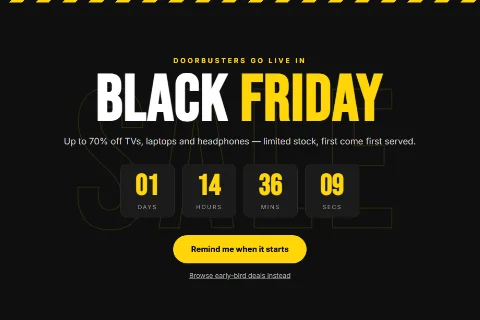
The Countdown Timer type shows a live timer above your offer. It can count down to one date for everybody, or start a private countdown for each visitor.
Set it up#
- Edit a popup and set Popup Type to Countdown Timer.
- Fill in the Heading, Content and Call To Action Button as for any popup.
- Choose the Deadline mode and its settings (below).
- Click Save.
Deadline: a fixed date and time#
Everyone sees the same deadline.
| Field | What it does |
|---|---|
| Ends At | The moment the countdown reaches zero, in your site's timezone. Visitors anywhere in the world see the same deadline. |
| Starts | Right away, or On a date and time. |
| Starts At | With a scheduled start, the popup stays hidden until this moment and then counts down to Ends At. |
Use it for sales with a real end: Black Friday, a launch week, a ticket deadline.
Deadline: a countdown per visitor#
Each visitor gets their own timer.
| Field | What it does |
|---|---|
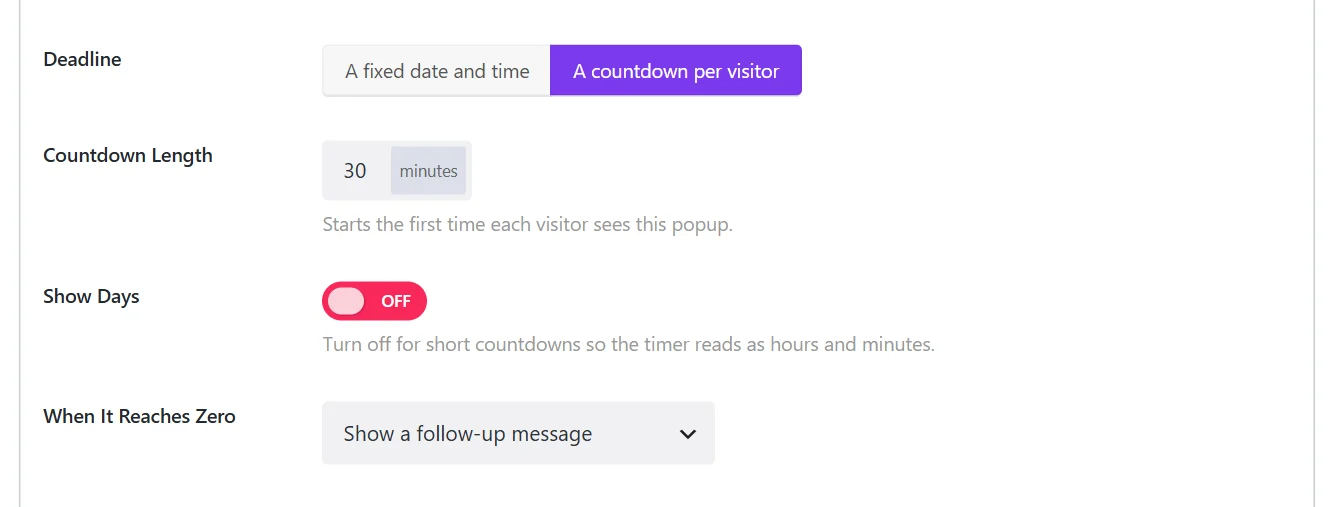
| Countdown Length | Minutes on the clock. The countdown starts the first time a visitor sees the popup and keeps running across pages and visits. |
Use it for welcome offers: your 10% code is valid for the next 30 minutes.
Display#
Show Days adds a days unit to the timer. Turn it off for short countdowns so the timer reads as hours, minutes and seconds.
When It Reaches Zero#
| Choice | Result |
|---|---|
| Show a follow-up message | Replaces the content, for example with This offer has ended. Can reveal a coupon. See Follow-up message and coupon. |
| Just close the popup | The popup closes. |
| Send them to a URL | Redirects to the Destination URL. |
| Fire a custom event for other scripts | Dispatches a JavaScript event for your own code. |
| Do nothing | The timer stays at zero. |
With Just close the popup, a popup whose deadline has passed is not opened again: a visitor never sees an offer that is already over. With the other choices the popup still opens after the deadline and shows its outcome, for example the follow-up message.
Tips#
- Keep it honest. A deadline that resets on every visit teaches visitors to ignore it. The per-visitor countdown is remembered, so it does not restart on a reload.
- Bars work well. A countdown in a floating bar stays visible while the visitor browses.
- Match the shop. If the timer promotes a discount, make sure the coupon in your shop expires at the same moment.
Did this not answer your question?
Send us what you are trying to do and we will help, and improve this page.