


Image popup
Show a single image as a popup and link it to a page, using the Only Image popup type.
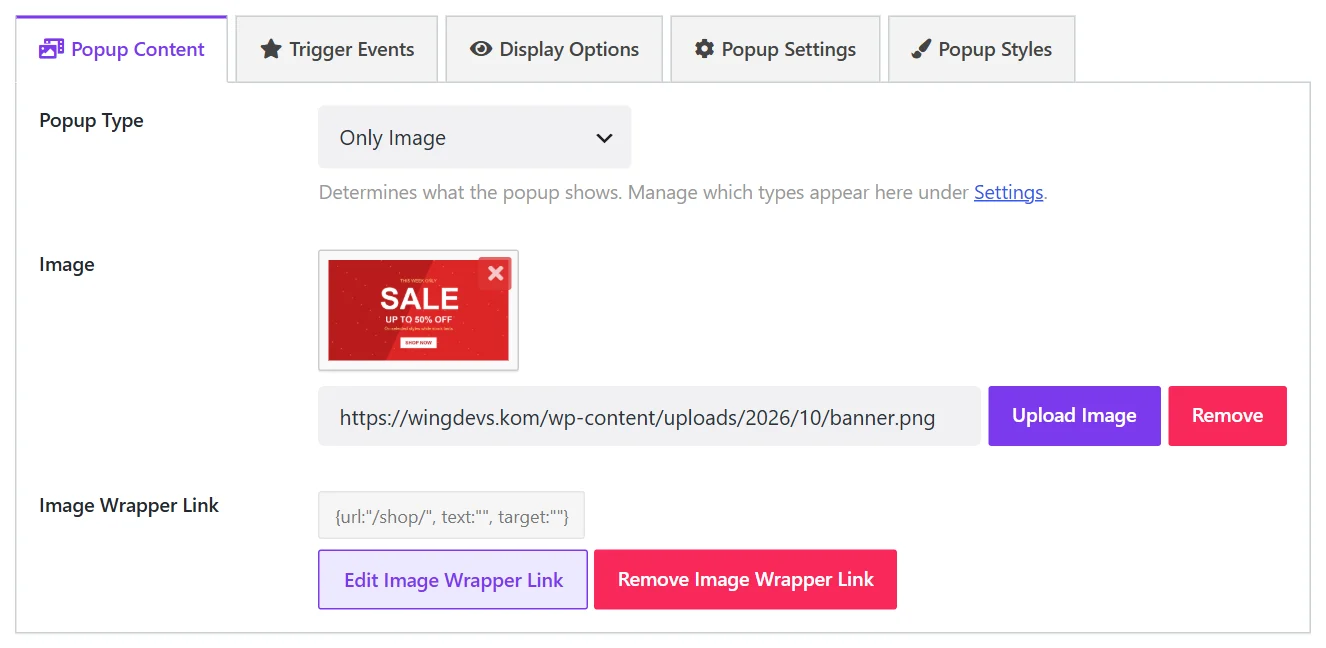
The Only Image type shows one picture and nothing else. Use it when the whole message is already in the artwork: a sale banner, an event poster, an announcement designed in an image editor.
Set it up#
- Go to Wing Popup → Popups and add or edit a popup.
- On the Popup Content tab set Popup Type to Only Image.
- Under Image, click Upload Image and choose the picture.
- To make the image clickable, click Add Image Wrapper Link, enter the URL and choose whether it opens in a new tab.
- Click Save.
Tips for the image#
- Width. The popup is as wide as the Select Popup Width setting on the Popup Settings tab (500 px by default). An image about twice that width stays sharp on high-resolution screens.
- File size. The image loads with the page. Keep it under about 200 KB; WebP or a well-compressed JPEG works best for photos.
- Text in the image. Text baked into an image cannot be read by screen readers or translated. For a popup with real text, use Image and Content instead.
The close button#
Visitors close an image popup with the close button in the corner, by clicking outside it or by pressing Escape. You can recolour or hide the close button under Popup Styles → Close Button. See Popup styles.
Did this not answer your question?
Send us what you are trying to do and we will help, and improve this page.