


Forms overview
How Wing Popup forms work, the form types, the Forms screen and where a form can be shown.
Wing Popup has its own form builder. A form is built once on the Forms screen and can then be shown in a popup, in a page through a shortcode, or with a block. Each form has a type that decides which fields it shows and where its submissions go.
Form types#
| Type | What it does | |
|---|---|---|
| Subscribe (newsletter) | Adds the visitor to a mailing list in Mailchimp or another email service. | Free |
| Contact form | Emails you the message, with an optional confirmation to the visitor. | Free |
| Pre-sale question | A short question form that tells you which page it was asked from. | Pro |
| Login form | Signs a visitor in to your WordPress site. | Pro |
| Registration form | Creates a WordPress account. | Pro |
The Forms screen#
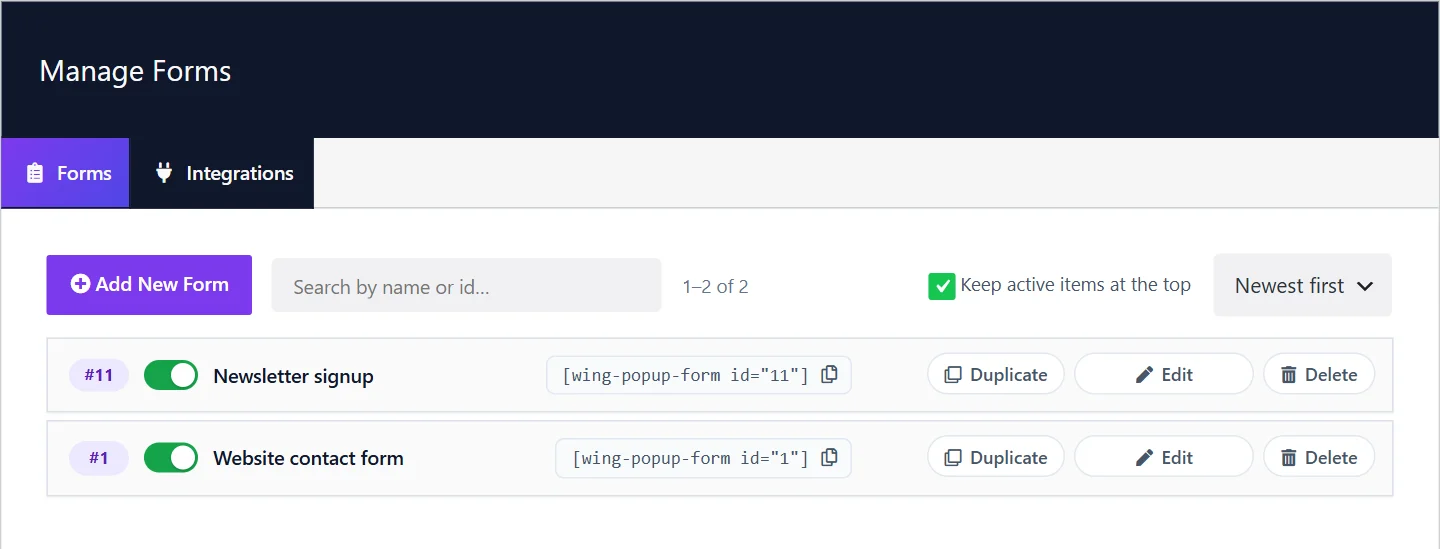
Wing Popup → Forms has two sections:
- Forms: the list of your forms.
- Integrations: the credentials of your email services. See Email integrations.
The list works like the Popups list (see Managing popups): a switch, a name you can click to rename, Duplicate, Edit and Delete. Each row also shows the form's shortcode; click it to copy.
If the Forms menu item is missing, switch on Enable Forms under Wing Popup → Settings → General.
Create a form#
- Go to Wing Popup → Forms and click Add New Form.
- Click the name in the title bar (New Form) and give the form a name. A new form starts switched on.
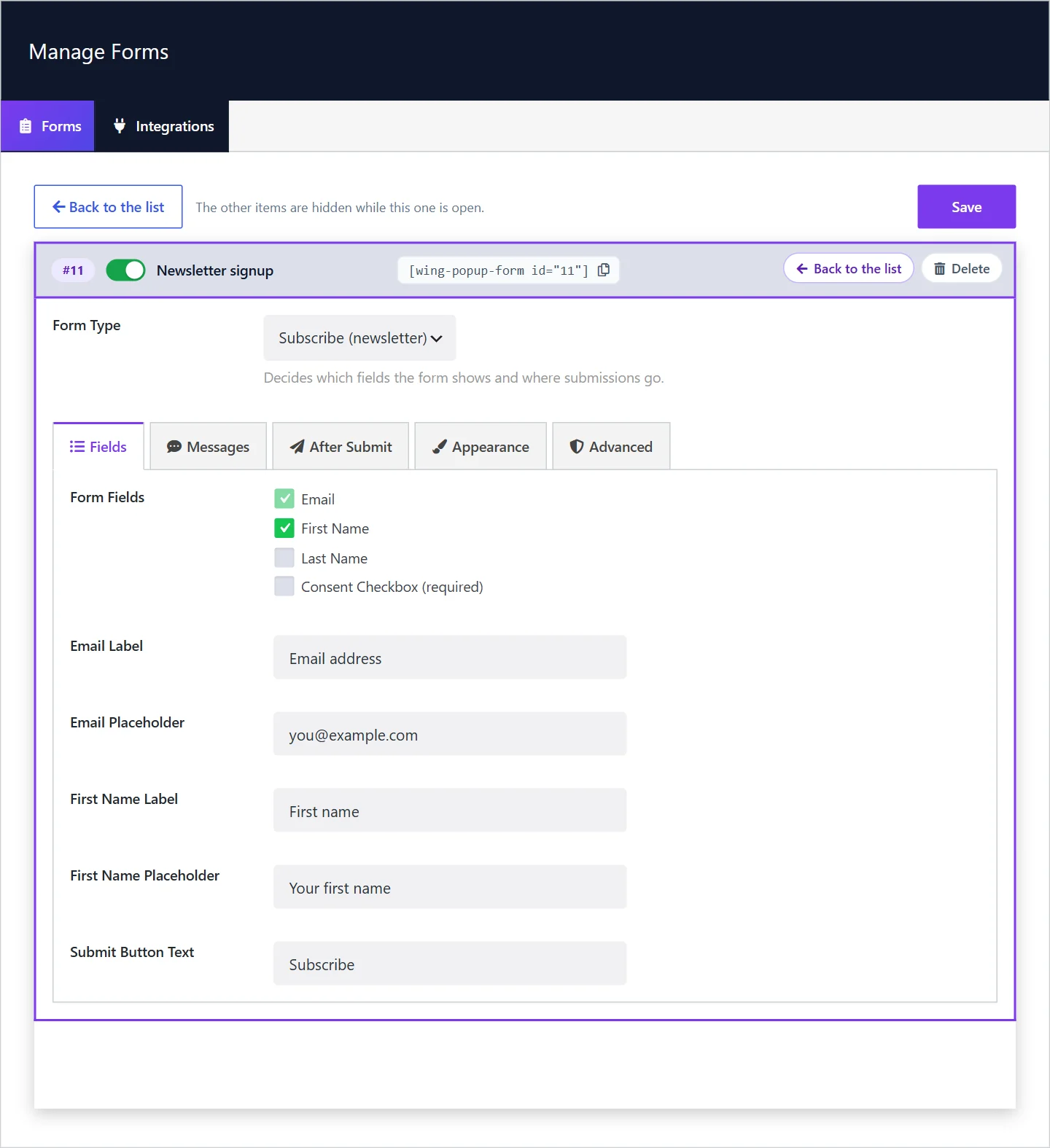
- Choose the Form Type.
- Work through the tabs (below).
- Click Save.
The tabs of a form#
| Tab | What it holds |
|---|---|
| Fields | Which fields the form shows, their labels and placeholders, the button text. |
| Messages | The success, failure and invalid-email messages. |
| After Submit | Where submissions go and what happens next: the mailing list, notification emails, hiding the form, a redirect. |
| Appearance | The form's colours, corners and spacing. |
| Advanced | Spam protection timing and limits. |
The tabs show only what applies to the chosen form type, so a contact form and a subscribe form look different here.
Show the form#
A form does nothing until it is shown somewhere:
- In a popup: create a popup of the Form type and select the form. See Form popup.
- In a page or post: paste the shortcode, or add the Wing Popup Form block. See Display a form.
One form can be shown in several places at once.
Switching a form off#
A switched-off form is hidden everywhere and refuses submissions. Popups that use it are skipped until the form is switched on again, and the Popups screen tells you so.
Next steps#
- Subscribe form: build a newsletter signup and connect Mailchimp
- Contact form: receive messages by email
- Spam protection: what protects your forms
Did this not answer your question?
Send us what you are trying to do and we will help, and improve this page.