


Pro form types and custom fields Pro
Pre-sale question, login and registration forms, and custom fields for contact forms.
Wing Popup Pro adds three form types and lets you add your own fields to contact forms. They are created like any form: Wing Popup → Forms → Add New Form, then choose the Form Type.
Pre-sale question#
A short form for visitors who are about to buy and have one question. It works like a contact form, with a difference that saves a round of emails: the notification tells you which page the question was asked from.
| Field | What it does |
|---|---|
| Question Field Label | What would you like to know? by default. |
| Include The Page They Asked From | Adds the page's title and address to the notification, so you know which product the question is about. On by default. |
| Send Button Text | Ask by default. |
The notification email, the confirmation to the visitor and the mailing list option are the same as for a contact form. Show the form in a slide-in on product pages, opened by a Question about this product? link.
Login form#
Signs a visitor in to your WordPress site without leaving the page.
| Field | What it does |
|---|---|
| Show "Remember me" | Adds the checkbox. On by default. |
| Show "Lost your password?" Link | Adds a link to the WordPress password reset. On by default. |
| Login Button Text | Log in by default. |
| After Logging In | Reload the page, or Go to a URL you enter under Destination. |
Anyone already logged in is refused, so pair the popup with the Guests Only rule under Display Options → User Roles. See Audience targeting.
Repeated failed logins from one visitor are limited, like every form. See Spam protection.
Registration form#
Creates a WordPress account.
| Field | What it does |
|---|---|
| Ask for First and Last Name | Adds the two name fields. |
| Register Button Text | Create account by default. |
| Sign Them In Immediately | Logs the new user in at once. When off, WordPress sends its usual "set your password" email instead. |
| Redirect After Registering | Leave empty to stay on the page. |
Registration works only while Settings → General → Anyone can register is switched on in WordPress. New accounts always get your site's default role. A form can never choose a role.
Custom fields#
Contact forms can ask for more than name, email and message. On a contact form's Fields tab, Custom Fields is a list you add fields to.
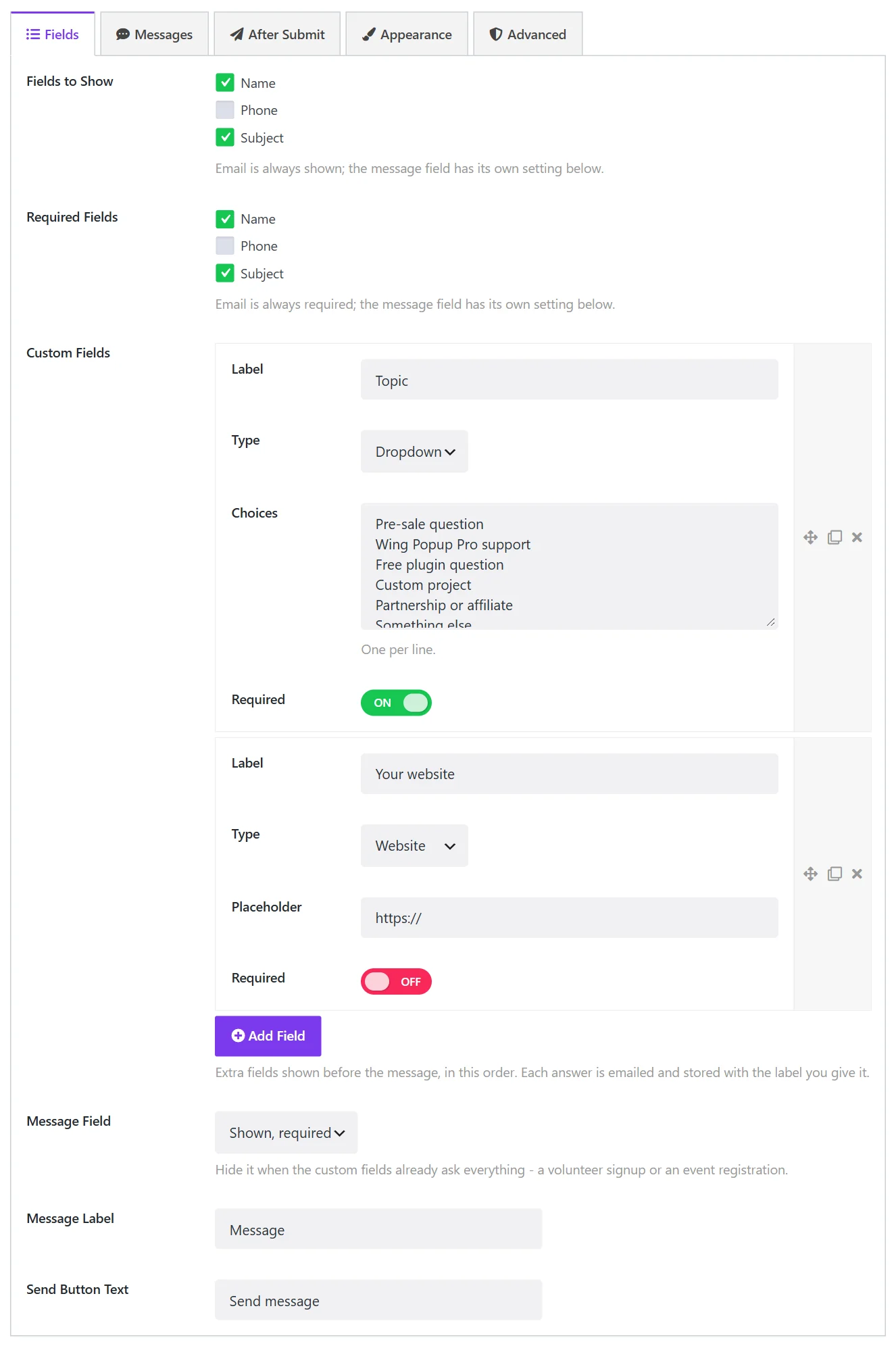
For each field:
| Setting | What it does |
|---|---|
| Label | The field's label, for example Company. |
| Type | Short text, Paragraph, Number, Date, Phone, Website, Dropdown or Checkbox. |
| Choices | For a dropdown: one choice per line. |
| Placeholder | The grey hint inside the field. |
| Required | The form cannot be sent without it. |
Click Add Field for each one. Drag a field by its handle to reorder; the order here is the order in the form. Custom fields appear before the message field.
Each answer is emailed and stored under the label you gave it, so a notification reads Company: Acme Ltd and the CSV export has a column per label.
A form without a message#
With custom fields, a contact form can be something else entirely: an event registration, a volunteer signup, a quote request. Set Message Field to Hidden when the custom fields already ask everything.
Did this not answer your question?
Send us what you are trying to do and we will help, and improve this page.