


Page targeting
Show a popup everywhere or only on chosen pages, posts, categories, tags and archives, with include and exclude rules.
Page targeting decides where a popup may appear. It is the first setting on a popup's Display Options tab and is part of the free plugin.
Everywhere or a custom selection#
Display the popup on the page has two choices:
| Choice | Result |
|---|---|
| Everywhere | The popup may appear on every page of the site. The default. |
| Custom Selection | You list where it appears and where it does not. |
Choosing Custom Selection reveals two panels: Include Pages and Exclude Pages.
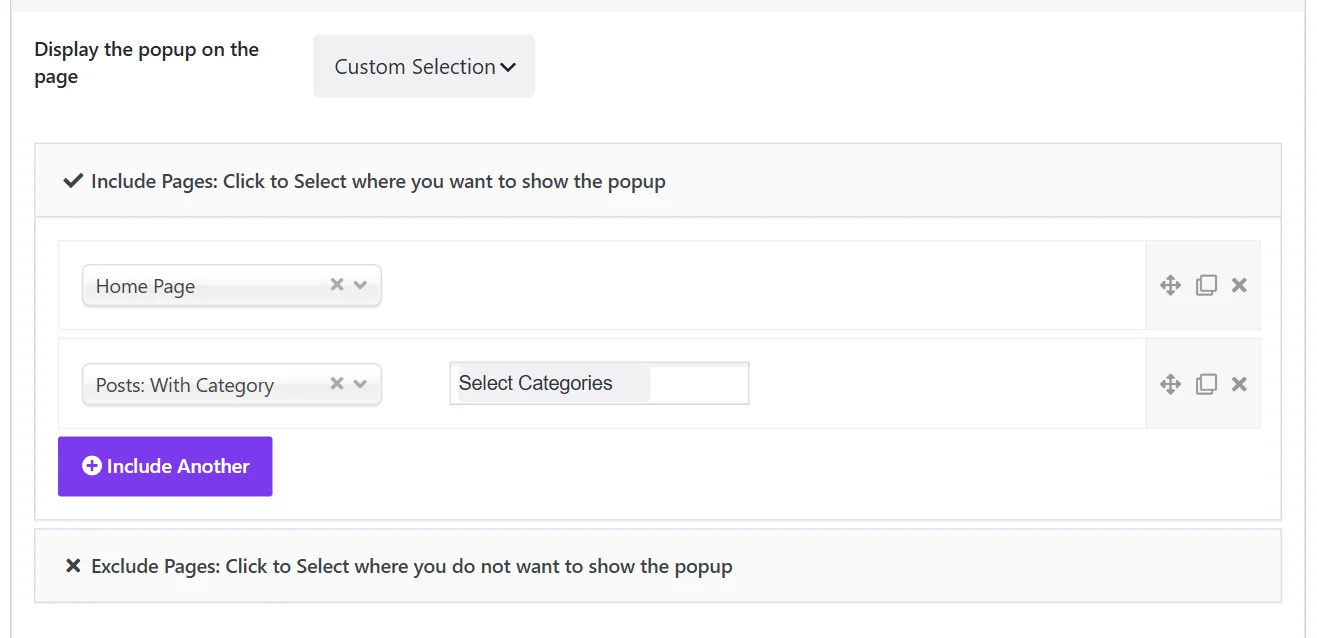
Include rules#
Open Include Pages, click Include Another and pick a rule from the menu. Add as many rules as you need; the popup appears wherever any of them matches.
| Rule | Matches |
|---|---|
| Home Page | The site's front page |
| Posts Page | The blog index |
| Search Result Page, 404 Error Page, Archive Page | Those special pages |
| Single Page (All Post Types) | Any single post, page or custom post type entry |
| All Pages / All Posts | Every page / every blog post |
| Pages: Selected / Posts: Selected | The ones you pick from a list |
| Pages: ID / Posts: ID | A comma-separated list of IDs, for example 15, 26, 33 |
| Posts: With Category / With Tag / With Format | Posts that carry the chosen category, tag or format |
| All Categories / Categories: Selected / Categories: ID | Category archive pages |
| All Tags / Tags: Selected / Tags: ID | Tag archive pages |
Rules that need a choice show a second field beside the menu, as Posts: With Category does in the screenshot above. Custom post types and taxonomies registered on your site are offered in the same menu.
Exclude rules#
Exclude Pages uses the same list of rules and keeps the popup away from whatever they match. An exclude rule always wins over an include rule.
Typical uses:
- No includes, exclude Pages: Selected → Checkout, Cart, My account: everywhere except those three.
- Include All Posts, exclude Posts: With Category → Sponsored.
To show a popup everywhere except a few pages, add only exclude rules: with no include rule, the popup appears on every page the excludes do not match. With no rules at all, Custom Selection behaves like Everywhere.
Examples#
A newsletter popup on the blog only. Include All Posts and Posts Page.
A sale announcement on the home page. Include Home Page.
A size guide for one product category. That is a WooCommerce product category, which the Pro Store rules handle. See Audience targeting.
How targeting works with caching#
Page rules are checked on the server while the page is built. A popup that does not belong on a page is not part of that page at all: no markup and no extra script for it. This also means page targeting works the same with or without a page cache.
More display rules#
Page targeting answers where. The other sections of the Display Options tab answer the rest:
- How often: Frequency and suppression
- When: Scheduling Pro
- To whom: Audience targeting Pro
- How it closes: Closing behavior Pro
Did this not answer your question?
Send us what you are trying to do and we will help, and improve this page.