


Managing popups
Use the Popups screen to find, sort, switch on, rename, edit, duplicate and delete popups.
Wing Popup → Popups lists every popup on your site. The Forms screen and the A/B Tests list work the same way, so what you learn here applies there too.
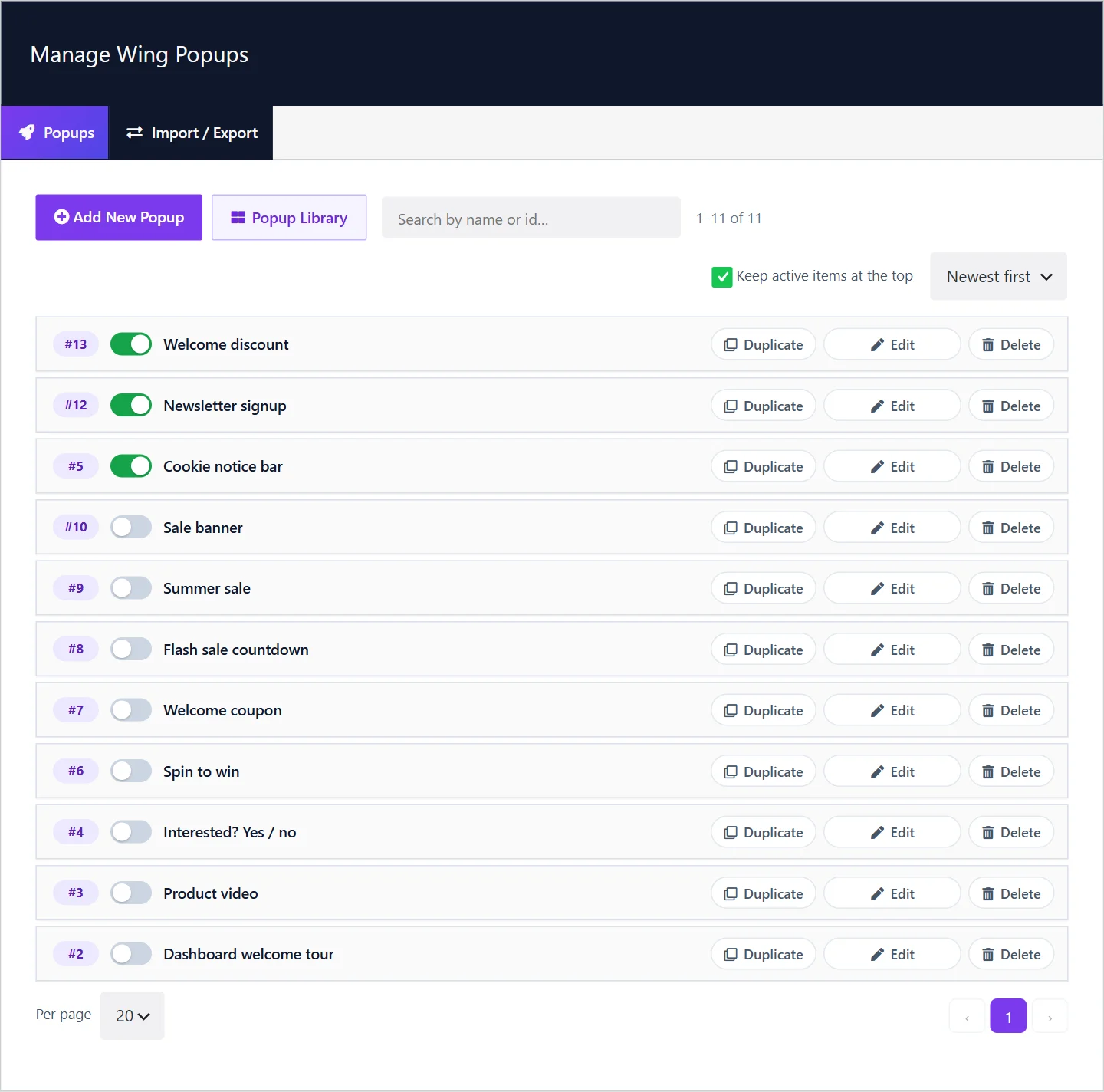
What a row shows#
| Part | What it does |
|---|---|
| #13 | The popup's ID. It is assigned automatically and never reused. Reports, frequency limits and A/B tests refer to it. |
| Switch | Turns the popup on or off. The change is saved immediately. |
| Name | Click the name to rename the popup. Press Enter to keep the new name, Escape to cancel. |
| Duplicate | Makes a copy with all settings. The copy starts switched off. |
| Edit | Opens the popup in the editor. |
| Delete | Removes the popup after a confirmation. |
Add a popup#
- Add New Popup creates an empty popup, switched off, and opens it.
- Popup Library inserts a ready-made one. See Popup Library.
Find and sort#
- Search by name or id filters the list as you type. Type
#12to jump to a popup by its ID. - The sort menu offers Newest first, Oldest first, Name A to Z and Name Z to A.
- Keep active items at the top lists switched-on popups before the others. It is on by default.
- With more than five popups, a pager appears under the list. Per page sets how many rows a page holds.
Your sort and page-size choices are remembered in your browser.
Edit a popup#
Click Edit. The row opens and the other popups are hidden so you can focus on one.

- Work through the tabs: Popup Content, Trigger Events, Display Options, Popup Settings, Popup Styles.
- Click Save at the top right to store your changes. Unsaved changes appears next to the button while there is something to save.
- Click Back to the list to close the popup. If you have unsaved changes, you are asked whether to discard them.
The switch, the name, Duplicate and Delete act at once and need no Save. Only what you change inside the tabs waits for the Save button.
A switch that turns amber#
A popup can be switched on and still not appear, for example a Pro popup type on a site without Wing Popup Pro, or a Form popup whose form is switched off. In that case the switch turns amber, and hovering over it tells you why. A notice at the top of the screen lists the same popups. See Troubleshooting.
Delete and restore#
Deleting asks for confirmation and cannot be undone from the screen. If you want to keep a popup for later, switch it off instead of deleting it. To move popups between sites or keep a backup, see Import and export.
Did this not answer your question?
Send us what you are trying to do and we will help, and improve this page.