


Image layout
Place a popup's image above the text, inside it, beside it or behind it with the Image Layout option.
Image Layout decides where a popup's image sits relative to its text. It is available for the Image and Content and Form types and, with Pro, for Countdown Timer and Coupon / Discount Code.
You find it on the Popup Content tab, directly under Image.
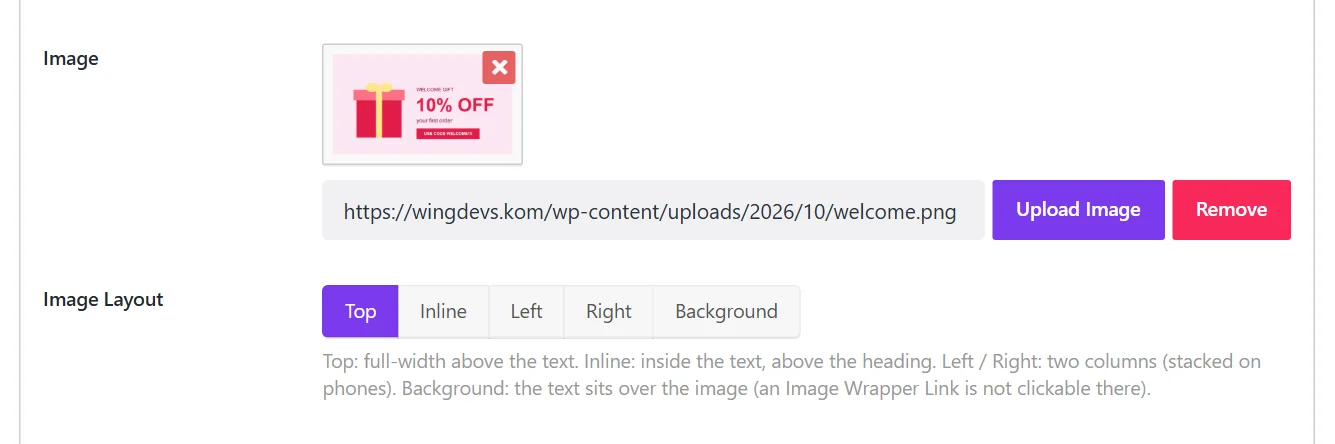
The five layouts#
| Layout | Result |
|---|---|
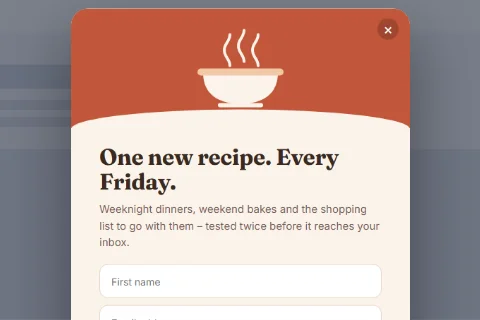
| Top | The image spans the full width of the popup, above the text. The default. |
| Inline | The image sits inside the text column, above the heading, with the popup's padding around it. Good for icons and small illustrations. |
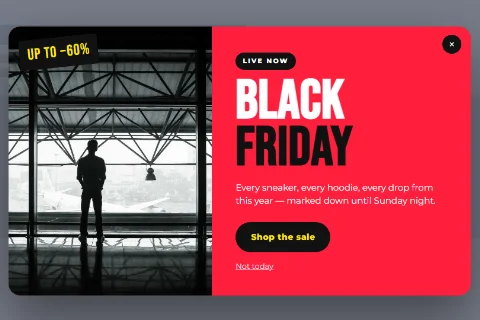
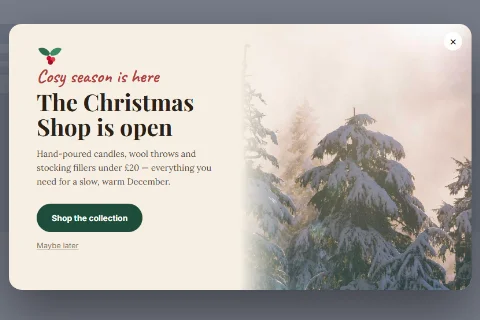
| Left | Two columns: image on the left, text on the right. |
| Right | Two columns: text on the left, image on the right. |
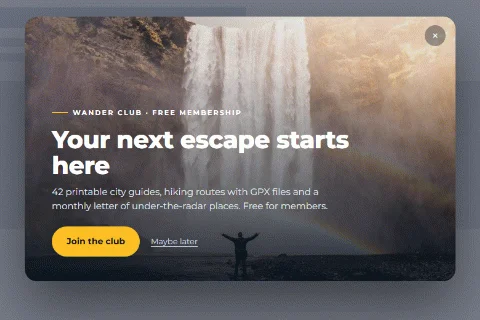
| Background | The image fills the popup and the text sits on top of it, over a dark tint that keeps it readable. |
Examples#
Top
Left and Right
Background
Good to know#
- Phones. Left and Right layouts stack on narrow popups: the image moves above the text. The switch depends on the popup's own width, so a small popup or slide-in stacks on desktop too.
- Wider popups for two columns. A Left or Right layout needs room. Set Popup Settings → Select Popup Width to Large (800px) or wider.
- Background and links. In the Background layout the image is decoration, so an Image Wrapper Link is not clickable there. Use the call-to-action button instead.
- Background and text colour. Text on a background image is white by default. Choose a photo that is calm where the text sits.
- No image, no layout. Without an image the popup shows its text alone, whatever the setting.
Fine-tuning with Custom CSS#
The layouts read a few CSS variables you can set per popup under Custom CSS:
{{POPUP}} {
  --wdpop-image-width: 45%;          /* width of the image column in Left / Right */
  --wdpop-image-min-height: 320px;   /* minimum height of that column */
  --wdpop-image-overlay: rgba(0, 0, 0, 0.55); /* tint over a Background image */
  --wdpop-text-on-image: #ffffff;    /* text colour over a Background image */
}Did this not answer your question?
Send us what you are trying to do and we will help, and improve this page.