


Store popups Pro
Show related products, cross-sells and recent sales notifications from WooCommerce or Easy Digital Downloads.
Two popup types read from your shop: Upsell / Cross-sell Products shows products the visitor may want, and Recent Sales Notification shows small notices of real recent orders. Product popups work with WooCommerce and with Easy Digital Downloads; recent sales notifications need WooCommerce.
Upsell / Cross-sell Products#
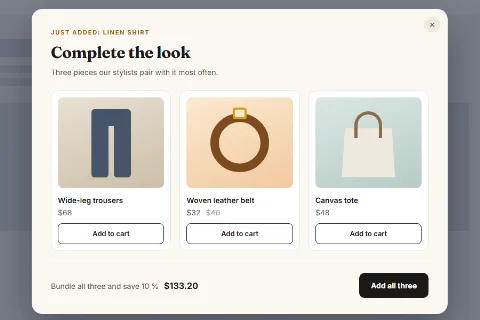
- Edit a popup and set Popup Type to Upsell / Cross-sell Products.
- Write a Heading and Content, for example Complete the look.
- Choose which products to show and how (below).
- Click Save.
| Field | What it does |
|---|---|
| Which Products | Related to what they are viewing, Cross-sells from their cart, Upsells for the product being viewed, or Specific products you pick. |
| Products | The products to show, when Specific products is chosen. |
| Maximum Products Shown | 3 by default. |
| Show Price | Shows each product's price. |
| Show Add to Cart Button | Adds the product to the cart without leaving the page. |
| Add to Cart Label | The button's text. |
Good moments for an upsell popup are the Add to Cart trigger (Cross-sells from their cart) and product pages (Related to what they are viewing).
Related products, upsells and cross-sells are the ones you set on each product in your shop. A product with none set has nothing to show, and the popup then stays closed.
Recent Sales Notification#
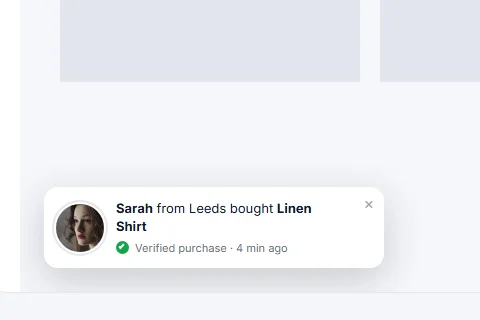
A recent sales popup rotates through genuine recent WooCommerce orders: Sarah from Leeds bought Linen Shirt, 4 min ago. It is normally shown as a small slide-in panel.
- Edit a popup and set Popup Type to Recent Sales Notification.
- Set the fields below.
- On the Popup Settings tab set Display Mode to Slide-in Panel.
- Click Save.
| Field | What it does |
|---|---|
| Message | The sentence shown. Placeholders: {name}, {product}, {city}, {time}. Default: {name} bought {product} {time}. |
| Only Orders From The Last | Days. Older orders are not shown. 7 by default. |
| Show Each For | Seconds each notice stays before the next one. 6 by default. |
| Include The Customer's City | Adds the city. Off by default. |
Privacy#
- Only real orders are shown: the latest paid orders (status Processing or Completed) inside the time window, up to twelve. The plugin never invents sales.
- Customer names are shortened to a first name and a last initial. Nothing else about the order is published.
- A city together with a name is more identifying than a name alone. Leave Include The Customer's City off unless you have a reason and your privacy policy covers it.
If there are no orders inside the time window, nothing is shown.
Related#
- Triggers for add to cart, cart abandonment and checkout exit: WooCommerce triggers
- Rules based on the cart's contents and total: Audience targeting
- Reminder emails for abandoned carts: Cart abandonment emails
Did this not answer your question?
Send us what you are trying to do and we will help, and improve this page.